Storing credentials for authentication
Referring to the security mechanisms UIDesigner.ServerManagerUI.Authentification and UIDesigner.TargetDeviceManager.Authentification, there is a function called "Stay logged in". With this function, the »EASY UI Designer« saves the login data for the users of the device to be connected in the Windows Credential Manager.
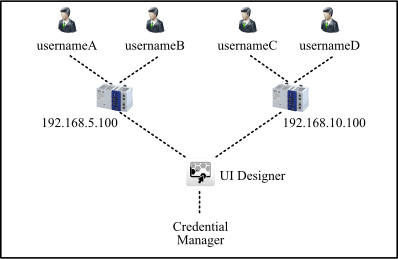
Device User Handling
An entry is thus created in the Credential Manager for each IP address (and thus for each device) and a user can be stored with his password. If a connection is established with two devices one after the other and both activate the "Stay logged in" field, two entries are created in the Credential Manager. This can be seen in the following image which shows the two entries "VW7_DC:192.168.10.100" and " VW7_DC:192.168.5.100" and the respective users.
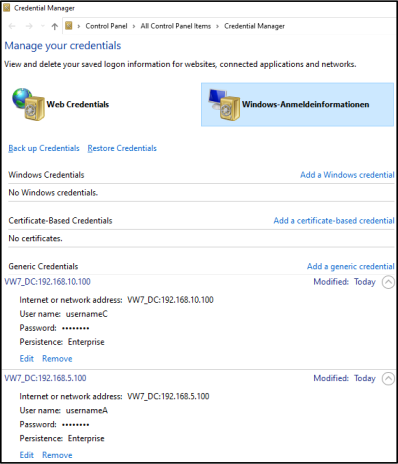
Credential Manager
Handling more users and the same device
If user "usernameA" is connected in the »EASY UI Designer« and "Stay logged in" is activated, its credentials are stored in the Credential Manager. If this user is logged out and a new user "usernameB" is connected to the same device in the »EASY UI Designer« and "Stay logged in" is activated, its credentials are stored in the Credential Manager and those of "usernameA" are overwritten. It is only possible to store one user per device.
Remove Credentials after Deinstallation
If the »EASY UI Designer« is uninstalled from the computer, the stored credentials remain in the Windows Credential Manager. These must be removed manually. This is done as follows:
-
Call up Windows Credential Manager with "Credential Manager" in an English Windows version and "Anmeldeinformationsverwaltung" in a German Windows version.
-
Call up the entry "Windows-Credential-Informations".
-
The entries with the syntax "VW7_DC:<IP address>" can be found in the "Generic Credentials" area.
-
These can be opened and removed with "Remove".