Certificate handling
In order to exchange data with an OPC UA client in an encrypted and secure manner, the Lenze OPC UA server requires a certificate that must be classified as "trustworthy" by the client when the connection is first established.
The certificate handling for encrypted communication described below can be combined with device user management. For the configuration of the device user management see the following link:
The OPC UA certificate handling on the controller is done via the "Security Screen" in the PLC Designer. Via the integrated "Security Agent" general certificates of the controller can be managed. A general description of the "Security Agent" can be found under the following link:
-
The following is an example of how to configure an encrypted OPC UA communication:
-
Select the "ViewWSecurity Screen" command.
-
Select the control in the left view.
In the right view, all services of the controller that require a certificate are displayed.
-
Select "OPC UA Server".
-
Generate a new certificate for the device.
-
Define the parameters of the certificate and close the dialog with "Ok".
The certificate is generated on the controller.

-
Perform a restart of the PLC control system.
Creating an encrypted connection with the UaExpert client
The generic OPC client "UaExpert" is with an evaluation license a freely available software of the company Unified Automation, which you can download from the Internet.
-
With this client you can connect to the Lenze OPC UA server. The following description refers to this program. Other OPC UA clients work similarly.
-
Start the UaExpert program.
-
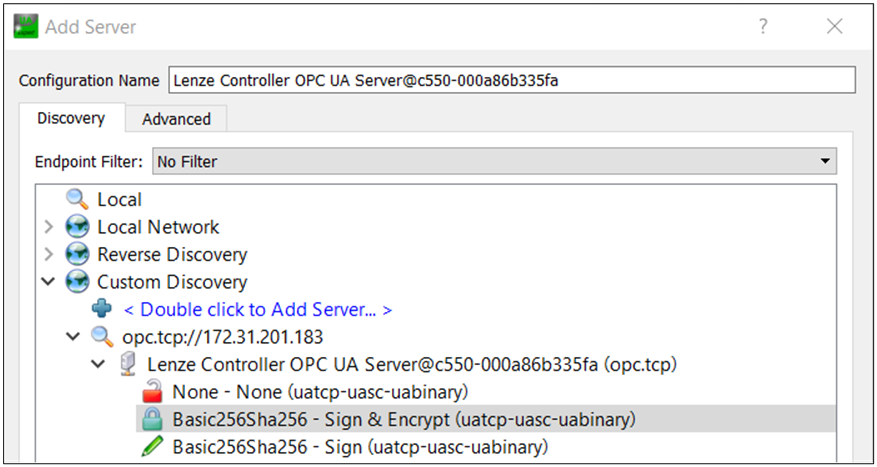
Select the command "ServerWAdd...". The "Add Server" dialog opens.
-
Add a new OPC-Server by double-clicking on it.
-
Enter the endpoint URL: opc.tcp://<IP address of the controller>:4840 (e.g. opc.tcp://172.31.201.183:4840).
-
Select the connection type "Basic256Sha256 - Sign & Encrypt (uatcp-uasc-uabinary)" and close the dialog with OK.
-
Select the "Server -> Connect" command. The server and client certificates are exchanged when the session is established. First, the "Certificate Validation" dialog opens with an error message.
-
Check the option "Accept the server certificate temporarily for this session" and click Continue.
-
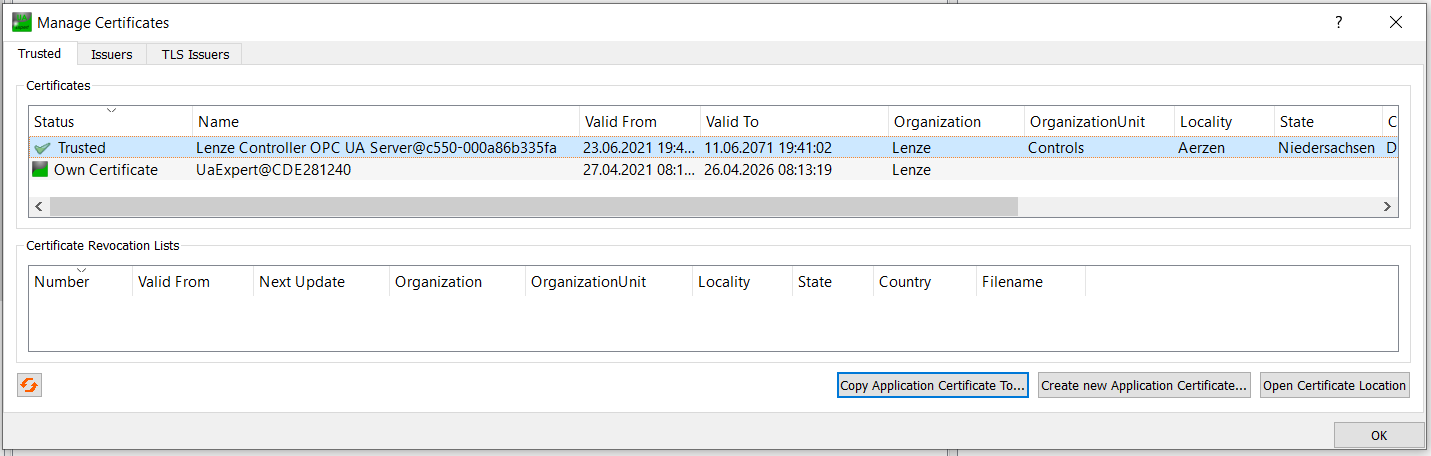
After the connection has been established, make sure that the certificate of the Lenze OPC UA Server is located in the "Trusted" folder under the "Manage Certificates" menu.
-
In the PLC Designer Security Screen, refresh the view (click on
 ).
-
Select the "Quarantined Certificates" certificate folder. In the right view the client certificate "UaExpert@..." is displayed.
-
Drag the certificate with the mouse to the Trusted Certificates folder. The client certificate has now been assessed as "trusted" by the Lenze OPC UA Server.

-
After the certificate exchange between client and server application and the classification as "trusted", encrypted communication can take place.
It-s possible to accept all client certificates for the current session without any check. This feature can be helpful for an easier engineering access, if other security measures are taken. The temporarily accepted certificates will not be stored in the trusted folder.
This feature can be activated with parameter 0x2471:130 - OPC UA server settings: Accept untrusted Client Certificates.