Setup Controller OPC UA GDS Client
-
Set the GDS Client parameters and restart the Server via Command so that Lenze OPC UA GDS Client can register at the UaGds Server.
Index
Sub
Name
Value to be set
0x2471
150
GDS Client Mode
1: Enabled Registration
0x2471
156
GDS Endpoint URL
GDS Server address, e.g.
opc.tcp://172.31.205.211:48060
0x2471
157
GDS User
root
0x2471
158
GDS Password
root
(-******- after entering the password)
0x2471
159
GDS Hostname Check
0: Disabled
The Hostname Check needs to be disabled, because the UaGds Server-Certificate does not include by default the Host IP and therefore it can-t be validated, and the client can-t continue the registration.
Optional: Save the parameter set of the Controller.
-
Optional: Check diagnosis Parameters in 0x2472:150-159 after restart to see if the parameters are applied and the client is running. The GDS Client tries to connect to the Server automatically.
-
The first connection will fail, because the GDS Certificate is untrusted on the Controller. Goto the Security Screen to trust the UaGds Client Certificate.
This step can be skipped, if the provisioning mode in 0x2471:129 is activated. With activated provisioning mode the GDS certificate will be accepted automatically (preconditions see 2.3).
-
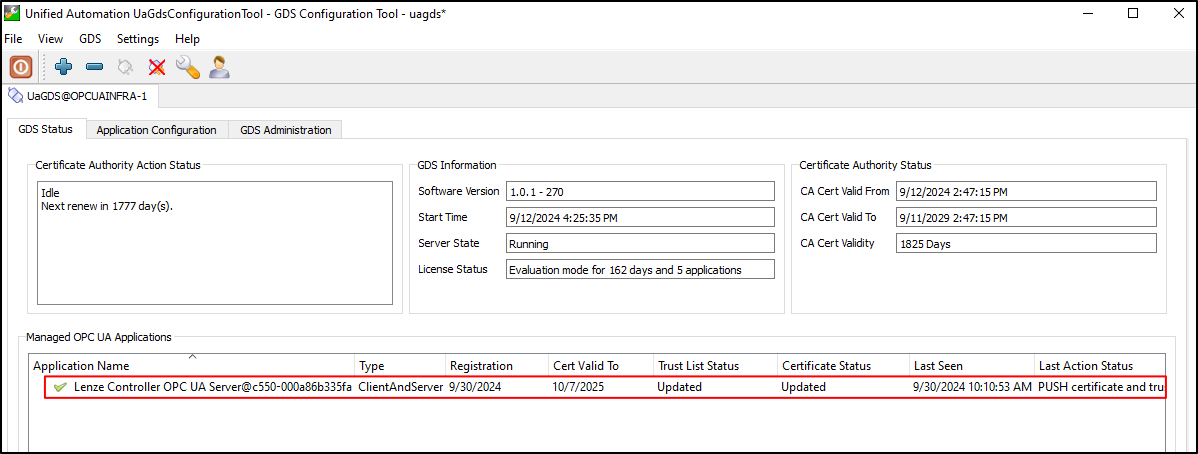
After some time, the GDS Client retries the connection establishment and tries to register the Server at the GDS. Check that the OPC UA Server of the controller is registered in the UaGds.
-
Configure UaGds PushModel
-
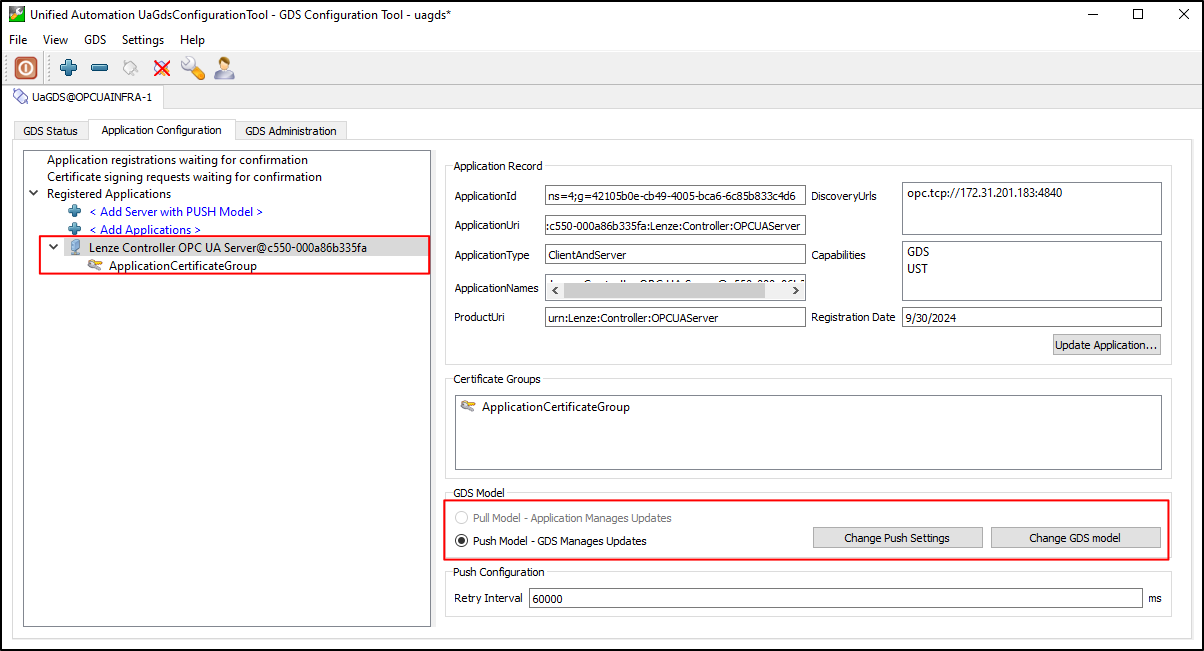
Select registered Application -Lenze Controller OPC UA Server@...- on the left site and got to right view
-
Click -Change GDS model- (from pull to push)
-
Change to push model and enter Credentials of the Lenze OPC UA Controller then Click -OK-
-
-
After the configured -Retry Interval- (default 60 sec), the GDS tries to update the Trust list and the Certificate of the OPC UA Server on the Controller.