Symbol: 
Function: The dialog contains settings for displaying a text editor and working in it.
Call: command, Text editor category
On this tab, you set the desired "theme" in the interface design of the ST editor.
|
Theme |
Color theme for the text editor The selected theme is displayed in the Preview window. The available color schemes are stored in the installation directory in the |
|
Number of undos |
Maximum number of editing steps to which you can apply the command |
|
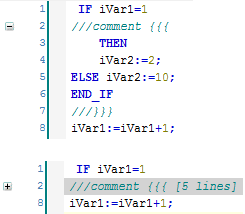
Folding |
Defines the structuring of the code by indentation When you select an indentation, you can expand or collapse the indentation section by means of a plus and minus sign in front of the first line of each section.
|
|
Word wrap |
|
|
Tab width |
Number of characters |
|
Keep tabs |
|
|
Indent width |
If you have selected Smart or Smart with code completion for the AutoIndent option, then CODESYS inserts the number of spaces at the beginning of the line. |
|
AutoIndent |
|

|
Highlight current line |
|
|
Matching brackets |
|
|
End of line markers |
|
|
Wrap guide |
|
|
Font |
Clicking the field opens the default dialog for configuring the font. |
|
Settings for the left margin of the text editor window, which is separated from the input area by a vertical line |
|
|
Line numbering |
|
|
Highlight current line |
|
|
Show bracket scope |
|
|
Mouse Actions |
You can assign one of the following actions to each of the specified mouse actions or mouse/keyboard combinations. CODESYS performs the selected action when you move the mouse to the plus or minus sign in front of the header of a bracketed area:
|
|
Settings for displaying the monitoring fields |
|
|
Enable inline monitoring |
|
|
Number of displayed digits |
Number of displayed digits for floating-point numbers in the monitoring field Example: value: 12.345; number of displayed digits: 3; display: 12.3 |
|
String length |
Maximum length of string variable values in the monitoring field |