The tool supports you in the management of software updates for the PLC Designer as follows:
-
Information about the existing installations of PLC Designer and its add-ons
-
Comparison of installations
-
Information about new updates, depending on which filter you have set for it
-
Support during the installation and update of setups and add-ons
-
Support during the configuration of the add-ons
-
Buttons for the PLC Designer execution in the special version and add-on configuration
-
Creating setup configuration files
The start view of the tool (Installations view) provides information in a tile view about the PLC Designer installations which are currently available on your system.
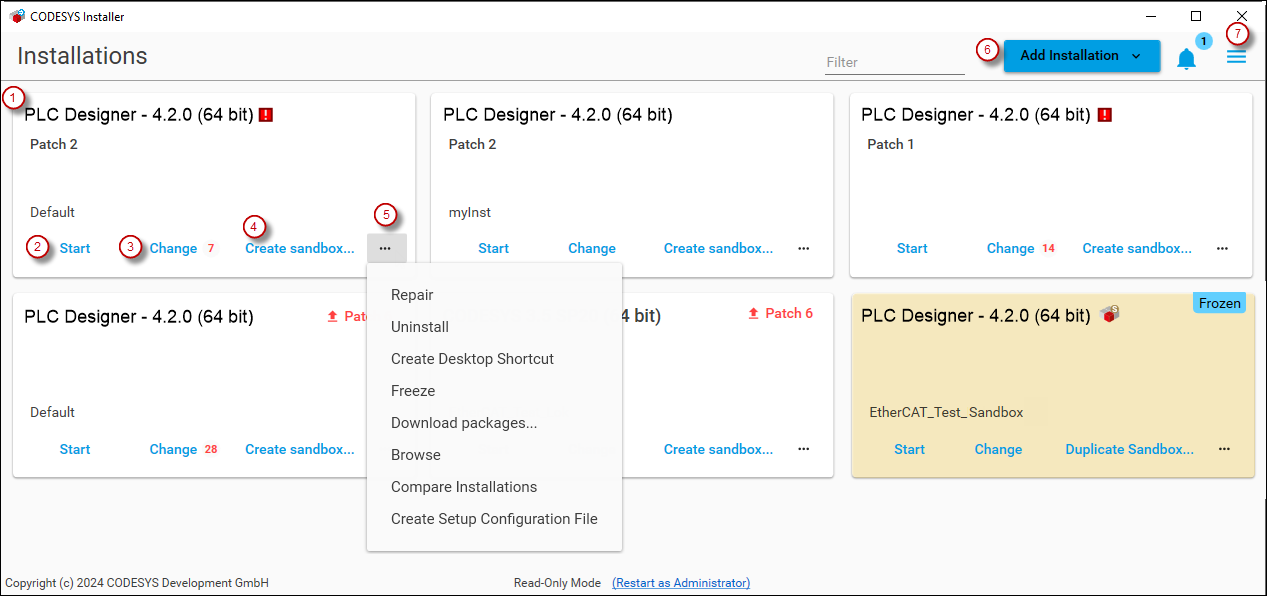
You can click Start (2) to start the PLC Designer installation (1), and click Change (3) to change the installation configuration and manage the add-ons.
Use the  button (4) to get a menu with commands for the following:
-
Repair, uninstall
-
Freeze regarding update requests
-
Create a link for the installation on the desktop
-
Store all packages from that installation locally
-
Browse the files of the installation in the file explorer
To add a new installation, click the Add Installation button (5).
Click  next to the Add Installation button to open a menu with commands for creating and registering a sandbox.
The default settings for new installations can be found in the Settings in the  menu at the top right (6).
Buttons which are displayed in red notify you about recently provided updates. The Update PLC Designer button indicates the most recent update of PLC Designer. When you click this kind of button, the installation operation starts automatically.
The red number next to the Change button shows how many of the installed add-ons can be updated. When you click Change, a dialog opens to support you with the add-on management.
Clicking the  icon opens the Notification Log, which lists the last 20 notifications about actions in the Installer including timestamps. You can see the number of unread messages in the blue circle next to the bell symbol.