Search dialogue (table editor)
The Search dialogue is called up if you have activated the table editor and select the "Search" function from the "Start" menu. Alternatively, you can trigger this function using the key combination Ctrl+F.
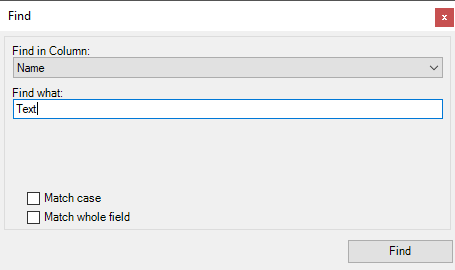
You can make the following settings:
-
From the "Search in column" list, select the column in the table editor in which you want to search.
-
Enter the character string you want to search for in the Search term field.
-
If required, set the following search criteria:
-
Case sensitive
Lower and upper case letters are relevant for the search. If you activate this option for the search term "text", for example, "text" (first letter upper case) will be found, but not "text" (first letter lower case).
-
Search entire column
The search only returns results if the search word is not part of another word. If you activate this option for the search word "name", for example, "name" will be found, but not "namespace".
-