The extended property options contain specific options for the selected property.
To open the menu, click on the small box symbol ( ) behind the property field. If a value has been set for the property, the box icon appears in black. If the property has been converted to a resource or if it uses a resource or contains a binding, it appears in the corresponding colour.
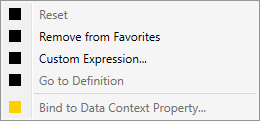
Figure 1: Menu for advanced property options in the Modern UI and in the Web UI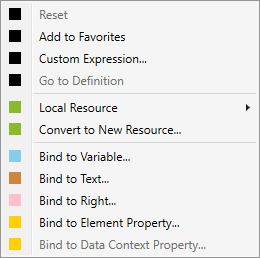
The menu contains the following functions:
- Reset
- Resets the property to its default value.
- Add to favourites
- Adds the property for frequent and quick access to the Favourites category, which is always at the top of the properties window. The Remove from favourites function is available for properties that are already in this category. The properties in the Favourites category can always be found in their original category.
- Go to definition
- If a definition is specified in a property, you can use this function to quickly access the source of this definition. The function is available for the LocalizableText, AuthorisationRight, VariableName, RegionName, ViewName, UnitClassName, ArchiveNameand TrendName properties.
- User-defined expression...
- Provides a text field for entering a markup extension or the combination of several enumeration values, for example.
- Local resource
- Links the property to a resource whose value is written to the property value at runtime.
- Convert to new resource...
- Converts the current property value into a resource that you can reuse in other properties by selecting the Local resource function.
- Bind to variable...
- Opens the data binding dialogue for variables. A variable can be selected in the dialogue, the value of which is adopted by the property at runtime.
- Bind to text...
- Opens the data binding dialogue for texts. In the dialogue, a text can be selected from the language switching system module, which is then linked to the property.
- Binding to law...
- Opens the data binding dialogue for user rights. In the dialogue, a right can be selected from the User administration system module, which is then linked to the property.
- Bind to element property...
- Opens the data binding dialogue for elements. An element for which a namehas been specified and a property of the element for the binding can be selected in the dialogue.
- Bind to data context property...
- This function is available for an element if a DataContext (e.g. an adapter in the Modern UI) has been defined in the DataContext property for the selected element or a higher-level element (usually the view/page). A property of this DataContext can then be selected for binding via this function.