Recipes
Visualisation recipes describe sets of process values. These usually define the settings of a machine for manufacturing a product from a product range. By writing recipes to the PLC, it is possible to switch between the individual products to be manufactured.
The »EASY UI Designer« contains a recipe template that is based on a PLC function block.
To be able to use the CoDeSys recipe system, the following settings must be made in the project configurator.
-
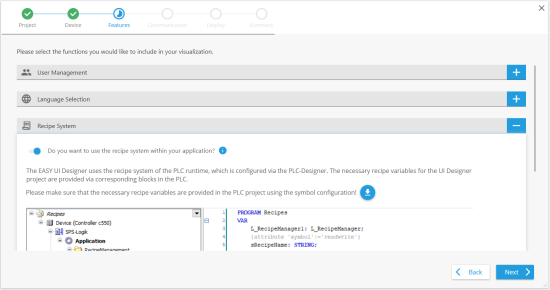
Expand the FeaturesWRecipe system entry and activate the toggle button to add the template for the recipe system to the project.
-
Download the CoDeSYS export file by clicking on the icon. It contains the required PLC module for the recipe function.
-
Pause the creation of the visualisation project and switch to the "PLC Designer".
Now carry out the following steps in the PLC project in the PLC Designer:
-
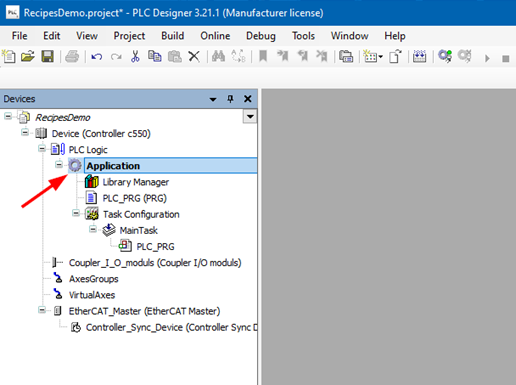
Select the Application node in the project tree.
-
Select ProjectWCoDeSYS import from the menu. In the next step, select the downloaded export file and confirm with Open. Select all elements in the dialogue window and confirm with OK.
-
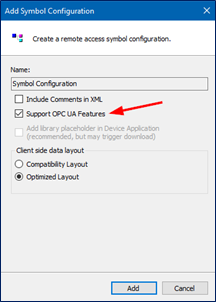
Create a new symbol configuration using Add ObjectWSymbol configuration. Make sure that "OPC UA" is ticked, as this is the communication channel. The recipe variables are automatically added to the symbol configuration and cannot be selected individually.
If you have activated the recipe system in the project configurator, the required templates are automatically copied into your project. The recipe overview can be seen on the " RecipesPage.html". The list is filled with the recipe entries of the PLC module at runtime. Functions for saving, loading and deleting can be called up via dialogues that open by clicking on the corresponding button. The dialogues are located in the client folder under DesignWdialogsWrecipesystem.