Show a dialog
This guide shows you how to show a dialog upon a click on a control.
To display dialogs, the ShowDialogAction is needed, in case of the AlertDialog the ShowAlertDialogAction. For example, if you want to open a dialog by clicking on a control element, the following steps are necessary.
-
By selecting the button with the plus symbol, the ControlEventTrigger visible in the drop-down box is added to the element.
In the settings you can select which event it should react to, e.g. onButtonClick. -
Right-click on the trigger and select Add new action from the context menu.
A dialog box appears that shows all available actions. -
From the Dialog category, select the ShowDialogAction and click OK to confirm.
The action is now added to the trigger.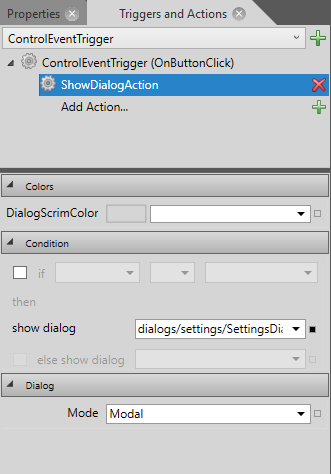
-
Under Condition > show dialog, select the dialog you want to display. The Mode option specifies whether interaction with the window is required (Modal) or whether the interface can still be operated in the background (NonModal).
Related topics: