Add new page, view or dialogue
You can add your own content to the project via the project explorer.
-
To add a blank page:
-
Expand the [Project]_ClientWDesign folder.
-
Right-click on the corresponding subfolder (Pages, Views, Dialogues) to open its context menu.
-
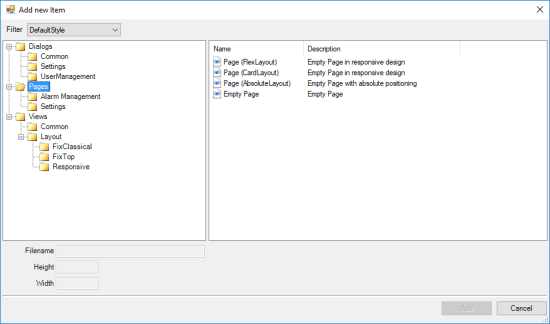
Select the Add new element command in the context menu and the Add new element dialogue box is displayed:
-
Select the "Pages", "Views" or "Dialogues" folder in the folder structure on the left-hand side.
-
Select the desired layout in the right-hand field.
-
Enter a file name for the page in the File name text field. For views, you can adjust the size of the view in the Height and Width input fields.
Alternatively, ready-made content pages are available in the corresponding subfolders. The file names are predefined here and cannot be customised.
-
Click on the Add button to add the page to the project. The page is automatically opened in the Designer workspace.