Definition: Example unit classes
The following example shows three typical applications for unit classes:
-
Sensor customisation
-
Language-switchable unit changeover
-
Variable-dependent unit switching in the display using the example of mm/cm/mil/inch
Scenario
The scenario describes the following case:
A distance of 0 ... 1000 mm recorded by the PLC is to be displayed in the application. Two different sensor types with the following output ranges are available:
|
Type |
Measuring range |
Output value range |
|---|---|---|
|
A |
0 ... 2000 mm |
0 ... 32000 |
|
B |
0 ... 100 inch |
0 ... 32000 |
In the application, it should be possible to switch the sensor to be used via a variable-dependent unit class.
In addition, the country-specific representation of the unit (cm/inch) must be understood. A language-dependent unit class is used for this purpose.
As an extension, switching between cm/mm/inch/mil is also shown. Switching takes place via a second variable-dependent unit class.
Definitions
Definitions are required for the example:
-
Two internal variables that each switch the variable-dependent unit classes as control variables
-
The three unit classes mentioned above
-
An external variable from the demo driver that simulates the value to be switched
The block diagram shows the systematic structure of the example:
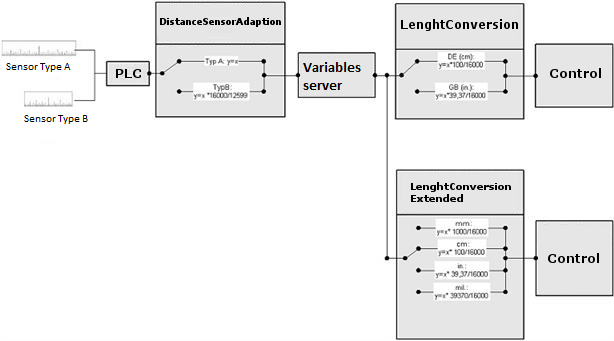
Design
The design of the example includes the individual views and the controls for switching the units.
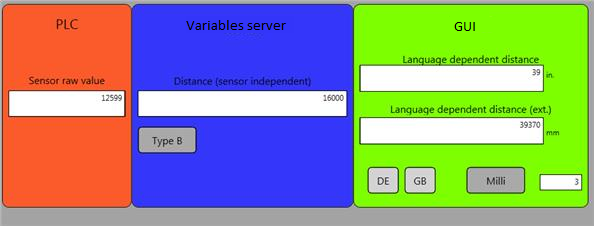
The following elements are required for the design:
-
Four input elements (NumericVarIn) that show the individual stages of the conversions (PLC value, standardised value of the sensor adjustment, language-switched value, value of the variable-dependent conversion cm/mm/inch/mil)
-
Two buttons for language switching
-
Two switches that manipulate the control variables of the variable-dependent unit classes.
Work steps
To simplify matters, the order of the steps to be carried out is arranged in such a way that the definitions and objects can be easily linked together:
Definition level
-
Carry out the following steps in the project file:
-
Create two internal variables of the data type "VT_I2" by selecting the project explorer node VariablesWChannelsWInternal. Open the table editor for the "Internal" channel by double-clicking on the node. Select the table editor with a mouse click and insert the two variable definitions by pressing the F8 key. Change the names of the two variables to "DistanceSensorAdaptionSwitch" and "DistanceSensorExtendedSwitch".
-
Create a variable-dependent unit class. To do this, go to the VariablesWEunit classesWvariable-dependent node in the project explorer. Press the F8 key directly in the project explorer to create a new definition. Enter "DistanceSensorAdaption" as the name and "DistanceSensorAdaptionSwitch" as the switching variable on the properties pages.
-
Create a second variable-dependent unit class. Enter "LengthConversionExtended" as the name and "DistanceSensorExtendedSwitch" as the switching variable.
-
Select the node of the "DistanceSensorAdaption" unit class and insert a new unit definition with the following parameters in the table editor:
Parameters
Value
X1
0
X2
1
Y1
0
Y2
1
-
Insert a second unit definition with the following parameters into the "DistanceSensorAdaption" unit class:
Parameters
Value
X1
0
X2
12599
Y1
0
Y2
16000
-
In the project explorer, switch to the "LengthConversionExtended" unit class and insert a new unit definition with the following parameters in the table editor:
Parameters
Value
X1
0
X2
16000
Y1
0
Y2
100
-
Add a second unit definition with the following parameters to the "LengthConversionExtended" unit class:
Parameters
Value
Switching identifier
1
X1
0
X2
16000
Y1
0
Y2
39,37
Unit text
in
-
Add a third unit definition with the following parameters to the "LengthConversionExtended" unit class:
Parameters
Value
Switching identifier
2
X1
0
X2
16000
Y1
0
Y2
16000
Unit text
mm
-
Add the fourth required unit definition with the following parameters to the "LengthConversionExtended" unit class:
Parameters
Value
Switching identifier
3
X1
0
X2
16000
Y1
0
Y2
39370
Unit text
mil
-
Create a language-dependent unit class. To do this, go to the VariableWEinitialisation classesLanguage-dependent node in the project explorer. Press the F8 key directly in the project explorer to create a new definition. Change the name of the unit class to "LengthConversion".
-
Select the node of the "LengthConversion" unit class and insert a new unit definition with the following parameters in the table editor:
Parameters
Value
Switching identifier
German (1031)
X1
0
X2
16000
Y1
0
Y2
1000
Unit text
cm
-
Add the second required unit definition with the following parameters to the "LengthConversion" unit class:
Parameters
Value
Switching identifier
English (1033)
X1
0
X2
16000
Y1
0
Y2
39,37
Unit text
in
-
Browse the variable to be converted into your project. To do this, add a new communication channel of the type "VisiWin(.NET) driver" via the VariablesWChannels project explorer node. Specify the "Sample driver" in the Driver name parameter. Open the browser dialogue via the context menu entry Browse variables... of the newly added driver channel node. Select the DataTypesWReal variable here and confirm your selection by clicking OK.
-
Rename the variable to "RawValue" using the Alias parameter.
-
Duplicate the variable. To do this, select the Duplicate entry in the context menu of the definition in the table editor.
-
Change the alias of the variable copied in this way to "SensorIndependent" and select the definition "DistanceSensorAdaption" via the property pages in the parameter Unit class (process).
-
Duplicate the variable definition "SensorIndependent" and enter the name "SensorIndependent_Lng" as the alias. Specify "LengthConversion" as the "Unit class (display)".
-
Duplicate the variable definition "SensorIndependent" once again and enter the name "SensorIndependent_Ext" as the alias. Specify "LengthConversionExt" as the "Unit class (display)".
The ItemID is identical for the four variable definitions. This means that the visualisation accesses the same value in the communication component across all variable definitions.
Why this complex approach?
If a variable value is converted via a unit class (process) between the communication component and the variable server, the raw value from the communication component is no longer available anywhere. The only way to bypass the conversion of the unit class (process) in the view is to define a second variable that does not use a unit class (process) but accesses the same variable in the communication component. To show the conversion in the application, the following steps (see Design) also implement the non-converted value as a display value in the application.
Test run
-
Carry out the following steps to test the project:
-
Start the project via F5 and navigate to the corresponding view.
-
Enter the value "12599" as the maximum for the type B sensor in vinRawValue.
-
Press swtAdaptSensor to adapt the type B sensor and display the converted value in "vinSensorIndependent".
-
Click the buttons for language switching to observe the display in inches or cm in the "vinLangDepDist" control element.
-
Click the swtNormal_Milli button in combination with the language-controlling buttons to additionally view the changeover in [cm], [mm], [in.] and [mil.] in "vinLangDepDistExt".
-
To test write access to variables with unit switching, enter values in the "vinSensorIndependent", "vinLangDepDist", "vinLangDepDistExt" control elements for different button constellations. Please also note that when switching a unit class, the raw value is always retained and all other determined values are reloaded into the display.