Application example for multiplexers
Technically speaking, a multiplexer is a multiple changeover switch. In practice, multiplexers are used to switch variable sets. For example, if there is data from several controllers in the PLC, a view can be configured in the application via a multiplexer that displays the data of one controller at a time, but switches between the controllers via a changeover switch.
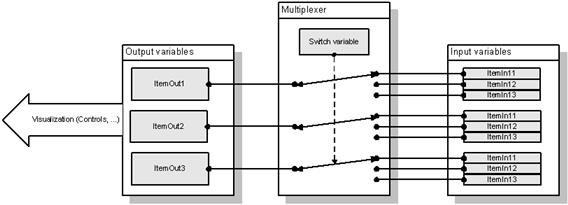
Example
A typical application of a multiplexer can be shown using the sample driver. This contains three similar data structures (DistillationDevice.Unit1..3), which can be displayed switchably via a multiplexer.
Using a multiplexer simplifies the structure of the application interface. Control elements only need to be configured for one data structure. There is no need to repeatedly place and parameterise control elements that only differ in the variable connection.
Insert variable definitions
Carry out the following steps to insert the necessary variable definitions:
- Add the sample driver to the project as a new communication channel.
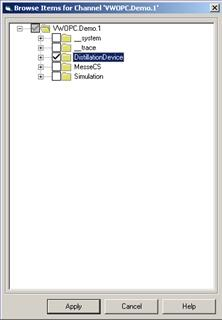
- Browse the variables in the DistillationDevice namespace in your project.
- Then create an internal variable with the name SwitchDistillationDeviceUnit. To do this, double-click on the project explorer node . Then insert the variable in the opened table editor using the F8 key. This variable is used to switch the multiplexer.
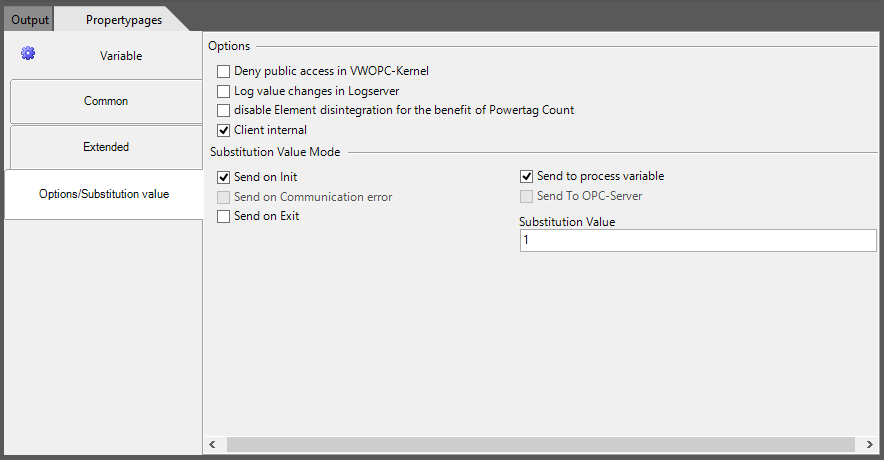
- Change the initial value of the variable to 1 via the property pages by clicking on the variable definition in the table editor. Then switch to the Options/Replacement value tab. Activate the Send at start and Enter in variable options here andenter 1 inthe Replacement value field.
Define multiplexer
Carry out the following steps to define a multiplexer in the project:
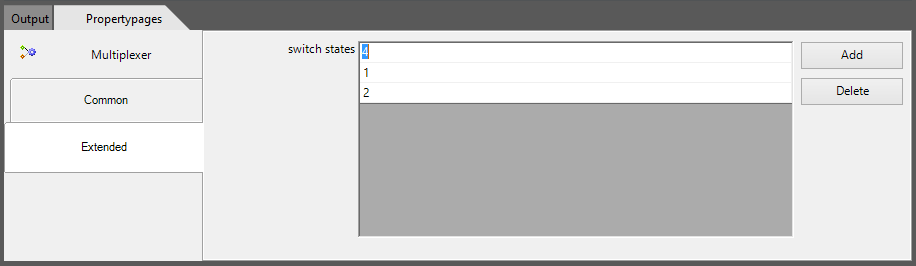
- On the Advanced tab, define three new switching states with the values 1, 2 and 4. Use the Add button to add new list entries.
- Repeat the previous step for the other two free columns.Selectthe corresponding variables from the namespaces Unit2 and Unit3.

Internal variables normally have an image in the variable server. However, they are not exchanged with a PLC.
In the client-server system, however, it is not desirable for a client to switch the control variable of a multiplexer and for other clients to automatically receive a different view as a result. For this purpose, there is the option Client internal in the variable definition.
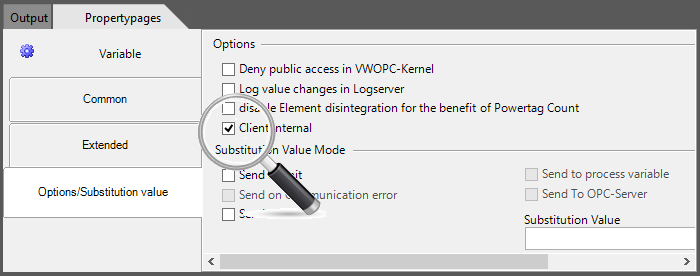
Create view
Carry out the following steps to create a view in which the display elements switch between the three PLC units:
- Open a view (e.g. MainView1) and place a control of type VarOut here to display the condensation variable switched via the multiplexer. Use the selection dialogue in the VariableName property to select the corresponding Condensation variable from the Multiplexer branch.
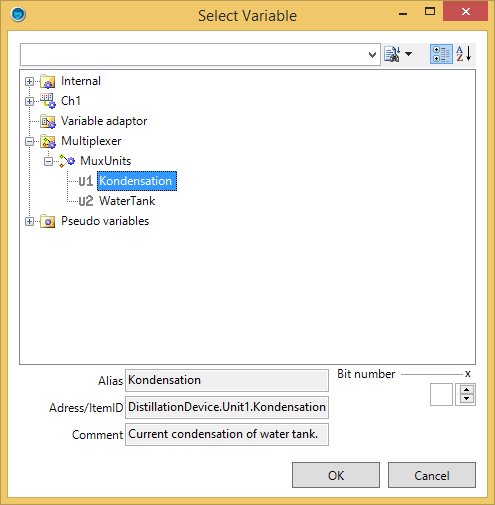
- Place a second control element of type VarOut. Select the multiplexer variable WaterTank via VariableName.
- Place three control elements of the RadioSwitch type to switch the multiplexer. Use the VariableName property to define the internal SwitchDistillationDeviceUnit variable. In the BitNumber property, enter the value 0 for the first element, the value 1 for the second element and the value 2for the last element.
- Start the project via F5.
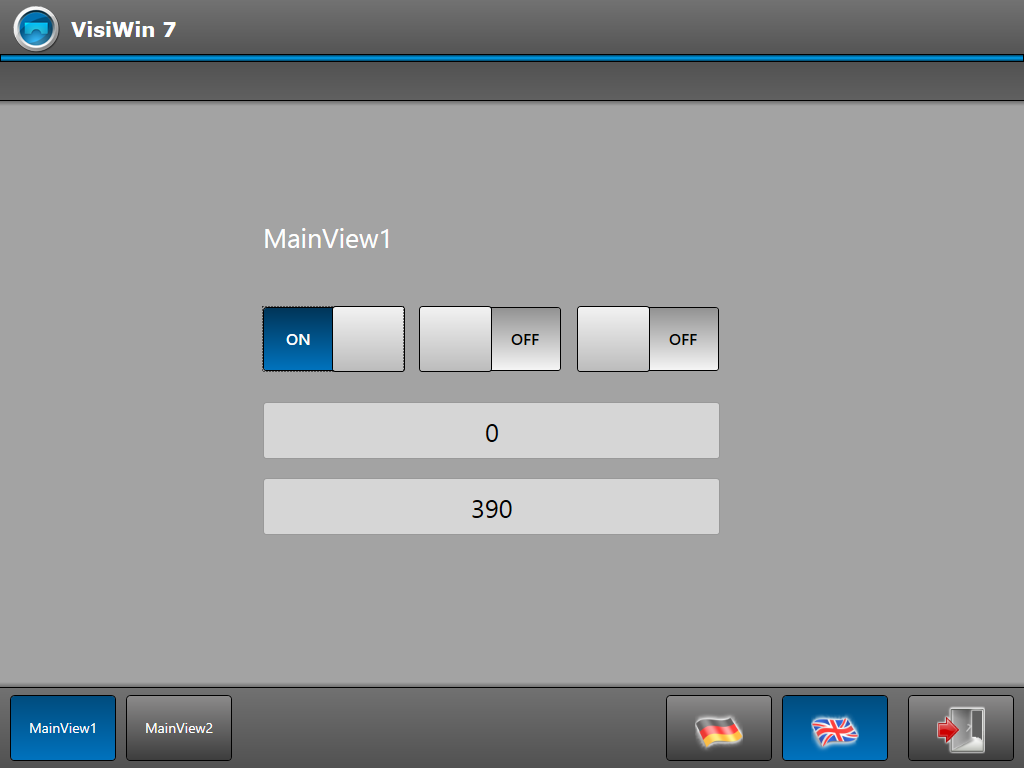
It takes a few seconds (about 20) for the simulation to display value changes in the sample driver.
When creating the internal variable SwitchDistillationDeviceUnit, you have set the initial value to 1. Bit 0 of this variable set in this way is already colour-coded by the first RadioSwitch element when the project is started. Several RadioSwitch control elements form a field here in which only one element can be active at any one time.
If you now press the other two RadioSwitch controls, you switch the switchover variable to the values 2 or 4. These values were defined as switchover states in the multiplexer definition. Switching switches the data sources of the VarOut controls to the corresponding variables of the namespaces Unit2 and Unit3.