Application example for variable adapters
Variable values from applications are accessed via the complete alias of process variables. This identifier contains the channel name, the alias of the process variable and, if applicable, the resolution of field and/or structure elements.
Variable adapters decouple this connection by introducing an additional alias. Variable adapters also contain a configurable switchover. Several process variable definitions defined in the communication channels can be assigned to each alias at development time. A configuration entry is used to define which variables are actually addressed via the alias during the initialisation phase of the project.
Problem definition
Variable adapters are used to solve the following problems:
- At the time of creating the project, it is not clear which connection constellation must be selected (connection of all controllers via one communication channel/via several communication channels). In practice, the connection via just one driver may prove to be less performant. However, all connections in the application contain the channel identifier. A later changeover from one to several communication channels proves to be extremely labour-intensive, as the variable connections in the control elements also have to be adapted, for example.
- It is foreseeable that the visualisation will have to use different controls. However, the variable naming cannot be kept compatible in any way: A typical case of this is the connection via an OPC server for one controller and the use of a VisiWin(.NET) driver for the alternative controller. Due to the optimised exchange via structures, the variable names in the application are no longer compatible with VisiWin drivers, as the structure element is enclosed in angle brackets and included in the identifier of the connected variable.
Until now, both problems could lead to the same visualisation having to be maintained for different control systems using several projects in parallel.
Example
The example shows how to create an application if, as an alternative to an S7 connection (via a VisiWin driver), an Allen-Bradley controller (via an OPC server) is to be connected to the application. The connection via the driver is additionally optimised by structures.

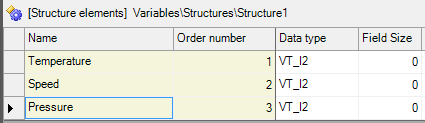
The connection of a control element ( VariableName property) to the Temperature value of an S7 controller then has the name Ch1.DB3<.Temperature>.
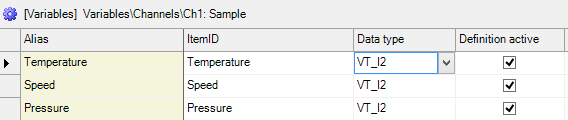
The connection of a control element to the Temperature value of the Allen-Bradley controller then has the variable name Ch1.Temperature. The property values of VariableName to be used in the application are therefore not compatible for the two controls. The ItemID also has a different content. The attempt to change the alias of the Allen-Bradley process variable to DB3<.Temperature> is acknowledged by an error at the latest when the project is started. The runtime system fails to resolve the structure (indicated by angle brackets). The project engineer is therefore faced with the problem of duplicating the project and updating all future changes in two projects.
Define variable adapter
Carry out the following steps to define the variable adapter with the necessary channel information in the project:
- Createthe variables of the S7 controller under a communication channel with the name S7.
- Createthe variables of the Allen Bradley controller under a second communication channel with the name AB.
- Create a new variable adapter via the context menu of the project explorer node . Enter AdaptS7_AB as the name on the properties pages.
- On the properties pages, switch to the Advanced tab and add a new switching state to the list shown. Change the name of the switching state inserted in this way directly in the list to AB.
- Select the Default switching state in the list of switching states. Then activate channel AB in the list of channels to be deactivated.
- Select the switchover state DOWN in the list of switchover states. Then activate channel S7 in the list of channels to be deactivated.
The adapter created in this way defines a switchover of variables from two different controllers. The properties also offer the option of deactivating one or more channels for each switching state. The communication channels selected here are then no longer addressed by the runtime system if the corresponding configuration has been selected.
Inserting variables into the variable adapter
Carry out the following steps to insert the required variables into the adapter and define an assignment of the variables from the different channels:
- In the selection dialogue that opens, select all variables of the S7 communication channel.
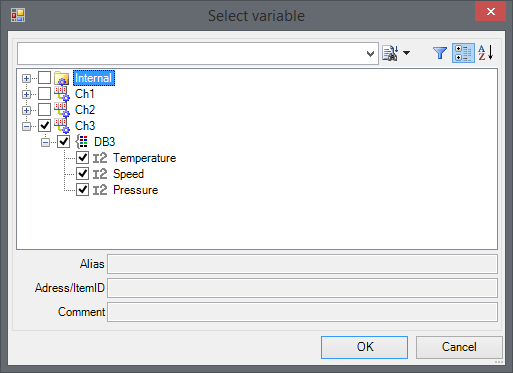
The selection is entered in the adapter table. At the same time, the function is also used to create the alias from the default value.
- In the AB column, define the appropriate variables from the communication channel for the Allen-Bradley controller. The variable selection dialogue (accessible via the selection button
 ) is available in the fields of the column for this purpose.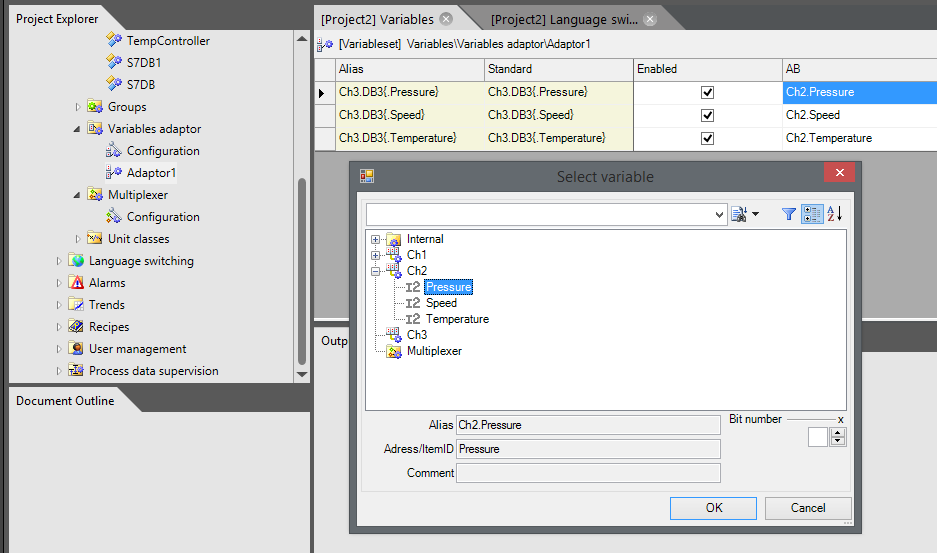
The alias now represents the identifier that can be used in the application as a VariableName property. The Standard and AB columns specify the process variable definitions that are actually used.
Finally, it must be clarified how the adapter is configured in order to switch between the Standard and AB states.
Configure switching state
Carry out the following steps to configure the active switching state:
- Select the project explorer node .
- Select the switching status in the list of adapters on the properties pages.
- Select the Default switchover state for the AdaptS7_AB variable adapter if the variable server is to access the S7 controller.
- Alternatively, select switchover state DOWN if the project is to communicate with the Allen-Bradley controller.
The runtime system handles the information configured here in the following steps:
- The active switching status of the adapter is read.
- Based on the information of the active status, individual communication channels are deactivated if necessary. The runtime system does not even attempt to establish a connection to the corresponding communication components. This prevents the occurrence of error messages if the corresponding communication component or the connection to the PLC is not available.
- For a variable value request from the application, the variable server first checks the alias details of the variable records in the variable adapter. If no corresponding alias can be found here, the variable is searched for directly in the communication channel. However, if the alias is found in the table, the variable definition actually requested is determined via the configured switching state. The data is then exchanged according to the normal procedure.