Display of a frame around the element.
Some controls can display aborder or contain sub-elements that can display a border. The border for a control and its sub-element can be configured using the properties of the control.
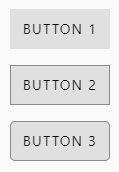
Properties for configuring the frame for the control element can be found in the Display category.
- BorderRadius
- Defines the rounding of the corners for the frame. The setting 0,0,0,0 means that the corners are not rounded. The higher the values, the rounder the corners. The values can be specified in pixels or as a percentage.
- BorderStyle
- Defines the style of the border. If BorderStyle is set to None, no border is drawn. Other settings include Dotted (dotted border) or Dashed (dashed border).
- BorderWidth
- Defines the thickness of the border line. The setting BorderWidth=0,0,0,0means that the border is not displayed. Only specifications in pixels are possible.
Frame for a sub-unit
Properties for configuring the frame for a sub-element of the control can be found in the category that has the same name as the sub-element. These properties are similar to those above and have the same meaning, but contain the name of the sub-element in their name.
Frame colour
The colour for the border of the control element is defined in the BorderColor property. Like all other properties for colours, these properties can also be found in the Colors category.
Depending on the status of the control element at runtime, colours can be defined for the frame using the correspondingly named properties from the Colors category.
A colour for the frame can also be defined for a sub-element depending on the status of the control element.