Display of a shadow below the element.
A shadow below a control element visually emphasises the control element from the surface and thus creates a 3D effect. Shadows are often used primarily for the design of buttons. If the user clicks on a button, a darker shadow in addition to the colour change of the button indicates that the button is being pressed.
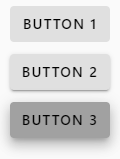
The Shadow property is available for configuring the shadow for a control element. The property contains a list of shadow settings, from None (no shadow) to Elevation_z0 (hardly any shadow) to Elevation_z24 (deep shadow), from which one can be selected.
Shadow and style
Control elements are available in different styles. Depending on the style of the control element, the Shadow property may or may not be available.
Shadow for different states of a control element
Different shadows can be defined for the different states that the control element can assume at runtime.
Shadow for sub-elements
The MenuShadowproperty is available in the DropDownBox control element, which defines the shadow for the selection menu.