Create and edit styles
You can style Web UI controls using properties and apply this style to other controls of the same type.
The style editor is available in the development environment for creating and editing a new style for a control element type.
Open style editor
First place a control element on a page in the Designer or select an existing control element. To create a new style for this control type, you have the following options:
-
Right-click and select Edit Style WEdit Copy oder Edit StyleWCreate new from the context menu. Enter the name for the new style.
-
Expand the "Style" group in the ribbon and select Edit copy or Create new. Enter a name for the new style.
Difference between "Edit copy" and "Create new":
Edit copy
A new style is created. The properties of the style specified in the "Style" property in the selected control element are adopted, but can be edited.
Create new one
A new style is created. All property values are reset, i.e. they are the default values of the control (style = default).
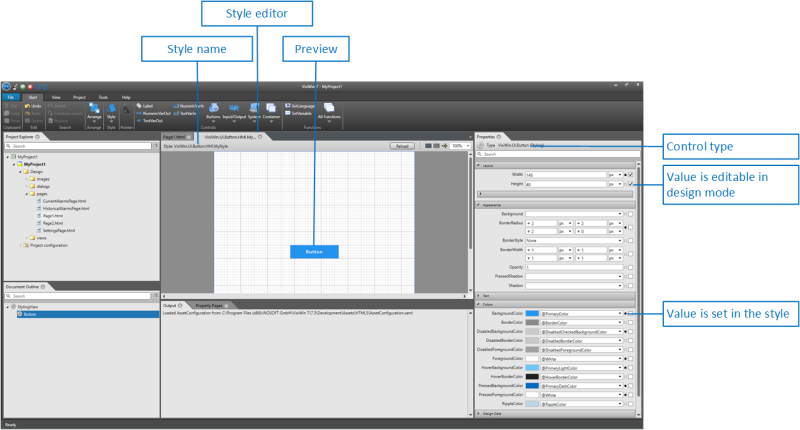
Style editor
If the style editor is open, you can define the desired properties for the style you have just created in the properties window. You can see the effects on the control element in the style editor. You can recognise which properties are defined in the style by the black box symbol behind the respective property.
You can also specify which properties should be editable when this style is selected for a control of this type. Properties that are not ticked are not editable in this style and are not displayed in the properties window in design mode.
Example: The properties "Width" and "Height" in the image above are editable (checkboxes behind the properties are activated), i.e. they will be editable in design mode when you apply this style to a control.
Save and apply style
To save the style and return to design mode, close the style editor by clicking on the cross symbol in the tab. Styles that you create yourself are saved in the "HMIstyles.json" file in the project directory under resourcesWstyles.
To apply the style to another control of the same type, select the style in the Style property of the control.
Edit existing style
If you want to revise a style created in the project for a control element type, proceed as follows:
-
Select a control element of this type in the Designer or in the document outline and select the style you want to edit in the "Style" property.
-
Select the "Edit current" function either in the context menu of the control element in the "Edit style" group or via the ribbon in the "Style" group.
The style editor opens and you can edit the style as described under Edit style.