Establish a WLAN connection between Engineering PC and inverter
How to establish a direct WLAN connection to the inverter on the Engineering PC:
Requirements:
✓
The functional test described in the mounting and switch-on instructions has been completed successfully (without any errors or faults).
✓
The inverter is ready for operation (supplied with voltage).
Required accessories:
@
WLAN module
@
PC (with WLAN functionality) and installed »EASY Starter«
1.
Plug the WLAN module onto the diagnostic module interface on the front of the inverter.
2.
Open the network settings on the Engineering PC: "Control panel"
à
"Network and sharing center".3.
Select the "Set up a new connection or network" option under "Change your network settings".
The "Set Up a Connection or Network" dialog box is displayed.
4.
Select the "Manually connect to a wireless network" connection option and click the "Next" button.
The "Manually connect to a wireless network" dialog box is displayed.
5.
Enter the SSID of the inverter as network name.
6.
Select "WPA2-Personal" as safety type.
7.
Select "AES" as encryption type.
8.
Enter the password as safety key for the WLAN network (default setting "password").
9.
Tick "Start this connection automatically".
10.
Click "Next".
A note indicates that the connection has been added successfully.
11.
Click "Close".
12.
Start »EASY Starter«.
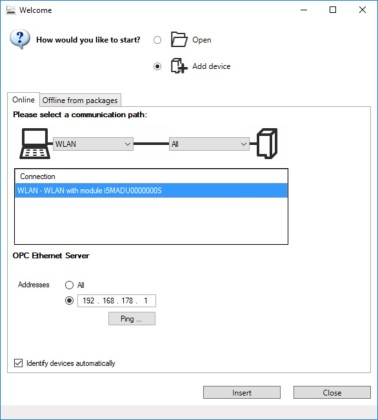
The "Add devices" dialog is shown.
13.
Select connection "WLAN - WLAN with module i5MADU0000000S":
14.
Set the address to the WLAN IP address of the drive. The default IP address of the WLAN module is: 192.168.178.1. The active WLAN address is in 0x2442:001.
15.
Click the Insert button.
»EASY Starter« searches for connected devices via the communication path selected. When the connection has been established successfully, the inverter is displayed in the device list of »EASY Starter«. The inverter parameters can now be accessed via the tabs of »EASY Starter«.
Recommendation: Click the button in the toolbar of the »EASY Starter« to start visual tracking. This function serves to quickly check whether the connection to the correct device has been established.  Optical device identification
 to start visual tracking. This function serves to quickly check whether the connection to the correct device has been established. Optical device identification