Security mechanisms : Handling visualization projects in firmware 2.x
Introduction
Controller Firmware v2.x introduced additional cybersecurity mechanisms that are enabled by default. As a result, several configuration steps are required before a visualization project created with the EASY UI Designer can be transferred to a Controller and put into operation.
This chapter describes the necessary settings for communication between the EASY UI Designer and the Controller, as well as typical adjustments required when migrating existing projects from firmware version 1.x to firmware version 2.x.
Quick Start
For most projects, the following steps are required:
-
Enable security parameters in the Controller
-
Take User Management into account
-
Configure the communication port
-
Configure the Firewall accordingly
For existing projects, enable OPC UA authentication if necessary.
Prepare the Controller for Visualization Mode
Enabling the Required Services
For the operation of a visualization, several security parameters must be enabled. The necessary parameters and their dependencies are described in the existing security documentation.
-
0x5915:5 Enables basic web access
-
0x5915:2 Enables UI Runtime and Gateway
-
0x5915:1 Enables project transfer from the EASY UI Designer
Dependencies
• 0x5915:5 must be enabled for the Controller to be accessible via the browser.
• 0x5915:2 requires active web access.
• 0x5915:1, in turn, requires UI Runtime and Gateway.
Therefore, all three parameters must be enabled for full visualization operation.
Common Error Scenarios
-
Landing page not accessible
-> 0x5915:5 not enabled
-
Unable to connect to the controller
-> 0x5915:2 not enabled
-
Project download fails
-> 0x5915:1 not enabled
Firewall Configuration
By default, the Firewall is enabled.
The Firewall can be deactivated in complete (refer to Controller.Firewall) or specific ports and services can be activated, which are deactivated by default (refer to Controller.LeastFunctionality). Please note tbhat services like WebVisu that are deactivated by default in Firmware v2.x are not automatically reactivated when the firewall is deactivated.
User Management
Default Behavior
In Firmware version 2.x, User Management is enabled by default. This applies to both access from PLC Designer and connections from EASY UI Designer. User management is described in the existing security documentation (refer to chapter Controller.UserManagement).
The default login credentials can be found in this documentation (refer to chapter Controller.AccountManagementGuidelines).
Impact on the EASY UI Designer
If User Management is enabled, the user must authenticate when connecting to the Controller.
This applies in particular to:
-
Target Device Manager
-
Server Manager
-
OPC UA communication
Without successful authentication, a connection to the Controller cannot be established.
Disabling User Management
For instructions on how to disable user management, see Chapter Controller.UserManagement. For instructions on how to disable user management, see Chapter Controller.ChangeApplicationFrom1xTo2x.
Configuration of Communication Ports
There are two ports available for communication between EASY UI Designer and the controller.
-
Port 7100/tcp
Standard Communicatioin via TCP/IP -
Port 7200/tcp
Encrypted Communication via SSL/TLS
Configuration
EASY UI Designer: The desired port is configured in the Target Device Manager.
PLC Designer: The corresponding port must also be enabled on the controller.
The settings must therefore match on both sides.
Secure Communication via TLS
Use an Encrypted Connection
To ensure encrypted communication between EASY UI Designer and the controller, you must use port 7200.
Certificates
The certificates required for TLS are generated automatically.
Users do not normally need to create or manage certificates manually.
To use the encrypted connection, simply configure the communication port accordingly.
Migration of Existing Projects
Behavior in FW 1.x Projects
Existing projects that were originally created with firmware 1.x often continue to function without any changes.
However, if user management is enabled on the controller, an additional adjustment may be necessary.
Enable OPC UA Authentication
If User Management is enabled on the Controller and the project communicates with the controller via OPC UA, authentication must be enabled in EASY UI Designer.
Procedure in EASY UI Designer:
Project Explorer - Server Project – Variables – Channels - Controller: OPC UA - Authentication
Configure the following settings:
-
Enable “Use Authentication”
-
Enter the username
-
Enter the password
The connection can then be successfully reestablished.
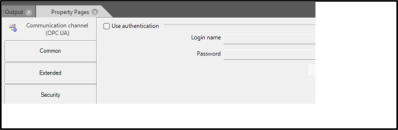
Login
Additional Security Settings
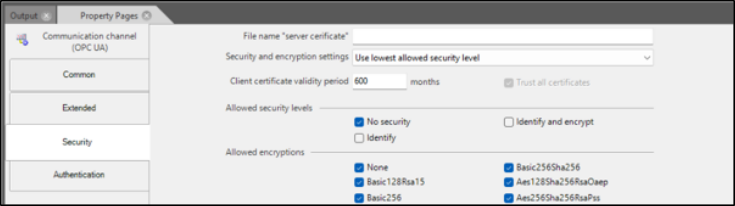
Security Property Pages
Adjusting the recipe path
-
Previously:
\sdcard\plc\recipes customize
-
New:
./PlcUserData/Recipes
Troubleshooting
Unable to connect to the Controller
• Port configured incorrectly
• Port not enabled on the Controller
• Firewall is blocking the connection
• User management is active, but no login has been performed
• Project download fails
Project download fails
• Parameter 0x5915:1 not enabled
• Invalid authentication
• Communication port set incorrectly
Landing page not accessible
• 0x5915:5 not enabled
• Network connection faulty
• Firewall is blocking access
Existing visualization is no longer connecting
• User management is enabled
• OPC UA authentication is not configured
• Login credentials are not stored
Checklist
Before downloading an EASY UI project for the first time, you should check the following:
Controller
☐ 0x5915:5 enabled
☐ 0x5915:2 enabled
☐ 0x5915:1 enabled
Communication
☐ Communication port specified
☐ Port enabled on controller
☐ Firewall configured accordingly
User Management
☐ Login credentials known
☐ Login possible
☐ User management intentionally enabled or disabled
Existing Projects
☐ OPC UA authentication verified
☐ Username stored
☐ Password stored
Secure Communication
☐ Port 7200 configured (recommended)
☐ TLS connection successfully established