EasyStarter.Certificate
This function has been available since version 01.25.00 of the »EASY Starter Suite«.
First, we will describe when the »EASY Starter Suite« requires certificate handling. This decision does not lie with the »EASY Starter Suite«, but rather with the communication partner, in this context the controller. Furthermore, the behavior is the same for the »EASY Starter«, the »EASY Firmware Loader« and the Application Loader and therefore the term »EASY Starter Suite« is used in the following table.
|
Configuration of the Controller |
Certificate Handling for »EASY Starter« Suite |
|---|---|
|
Controller.UserManagement |
The Certificate Handling is not dependent on the Controller.UserManagement activation. |
|
EngineeringItf-User |
The Certificate Handling is not dependent on the existence of the default Engineering User "EngineeringItf". |
|
Anonymous Login |
The Certificate Handling is not dependent on the existence of the activation of the Anonymous Login. |
|
Encrypted Communication |
The Certificate Handling is not dependent on the encrypted communication between »PLC Designer« and Controller. |
|
User Enforced Encryption |
The Certificate Handling is not dependent on the User "Enforced Encrypted Communication" in the Security Screen of »PLC Designer«. |
|
Device Enforced Encryption |
The Certificate Handling is only dependent on the Device "Enforced Encrypted Communication" in the Security Screen of »PLC Designer«. No encryption: The »EASY Starter Suite« will not handle certificates for communication. Optional encryption: The »EASY Starter Suite« will not handle certificates for communication. Enforced encryption: The »EASY Starter Suite« has to handle certificates for communication. |
In the following, the procedure for mutual trusting is described using the example of a connection setup between the »EASY Starter« and the controller.
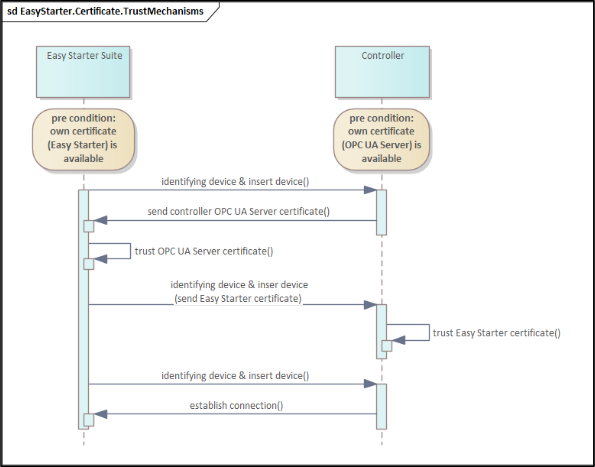
Trust Mechanisms
Handling own certificates
As a prerequisite, the »EASY Starter Suite« and the controller must create their own certificates.
-
The »EASY Starter Suite« creates its own certificate automatically during the first connection to the controller. Fore more information see EasyStarter.Certificate.
-
The controller creates its own certificate "Lenze OPC UA Server" automatically at the first boot. For more information, see Controller.OPCUAServer.Certificate.
In both cases, the user does not have to take any action. This step does not require any interaction, but is described in order to better understand the function.
First connection and trust Controller Certificate in the »EASY Starter Suite«
A new device can be added to the »EASY Starter« on the basis described above (see the following figure under (1)). To do this, the IP address and, if Controller.UseManagement is activated, the "User name" and the "Password" must be entered. After pressing the Insert button, another window opens where the connection setup is initialized.
More information is listet in the chapter User Management.

Trust Controller Certificate
The controller is displayed as a device with its IP address and the connection setup is initialized. The controller's certificate is sent to the »EASY Starter« and displayed in the window with some data for Identification.
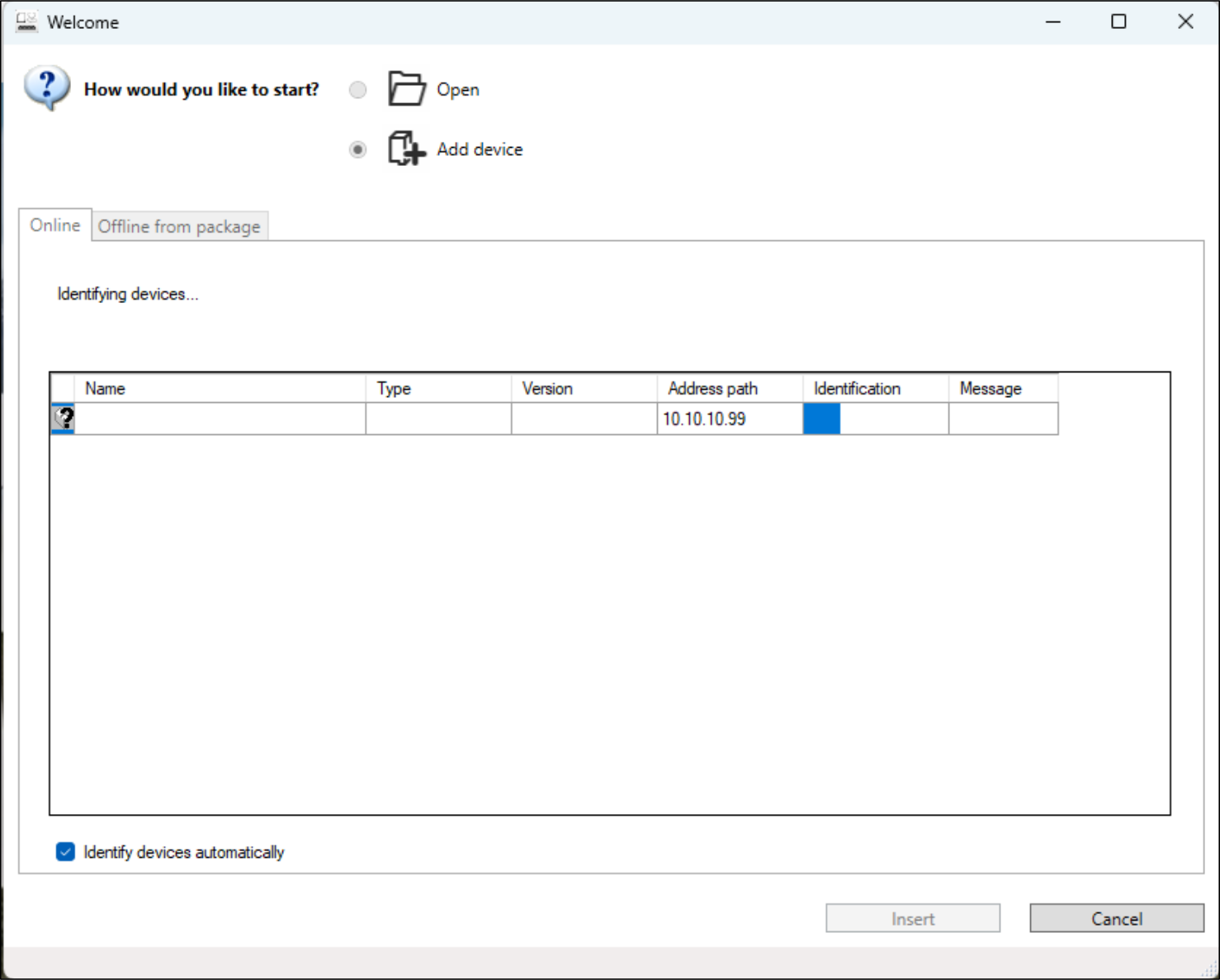
Connecting to the plc
The User now has three different options:
-
Do not trust the certificate
The certificate is not trusted and the connection is terminated. At the same time, the certificate is stored in the Windows Certificate Store under "\Untrusted Certificates\Certificates" so that when a connection is established again, it is immediately recognized that thiscCertificate is not trusted.
-
Trust the certificate
The certificate is trusted and the connection is further established. At the same time, the certificate is stored in the Windows Certificate Store under "\Controller Certificates\Certificates" so that when a connection is established again, it is immediately recognized that this certificate is trusted.
-
Close the window
The certificate is not trusted and the connection is terminated. At the same time, the certificate is stored in the Windows Certificate Store under "\Untrusted Certificates\Certificates" so that when a connection is established again, it is immediately recognized that this certificate is not trusted.
Trust »EASY Starter« Certificate in the »PLC Designer« (Commissioning Use Case)
In the commissioning phase of the machine, the programmer has to start the »PLC Designer«, connect to the controller and trust the certificate from the EASY Starter.
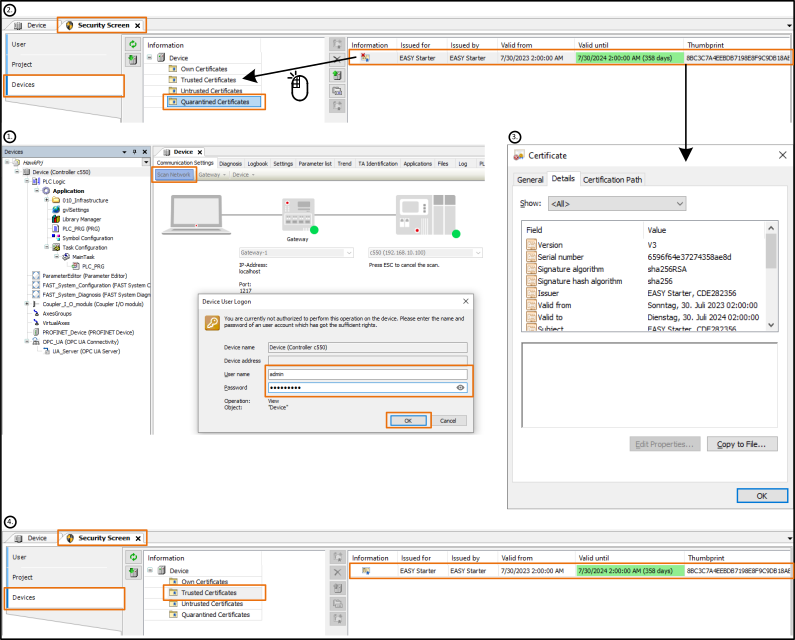
Trust »EASY Starter« Certificate
The following steps must be carried out here:
-
With the help of the »PLC Designer«, a "Scan Network" must be carried out and if the Controller.UserManagement is activated, the "User name" and the "Password" must be entered.
-
After the connection has been established,open the security screen and open the "Devices" tab. After synchronization, the certificates can be viewed. The »EASY Starter« certificate is located in the "Quarantined Certificates" directory.
-
For better identification, the certificate can be opened with a double click and details can be viewed.
-
The certificate can be moved from "Quarantied Certificates" to "Trusted Certificates"using drag-and-drop.
This completes the trust of the »EASY Starter« certificate.
Trust »EASY Starter« Certificate in the Advanced Visualization (Production Use Case)
Connecting the ‘EASY Starter’ during commissioning is carried out in exactly the same way as during programming. The only difference is that the ‘PLC Designer’ cannot be used by the controller for trust verification, as the operator does not usually have access to the ‘PLC Designer’ project. For this use case, a certificate handler has been developed as part of the control system’s web visualisation. Using this mechanism, the certificate for the “EASY Starter” can be classified as trustworthy. (Controller.CertificateStore.viaAdvancedVisu).
Establish Connection
After trusting the certificates on both sides, the user can insert the controller into the »EASY Starter« and go online.
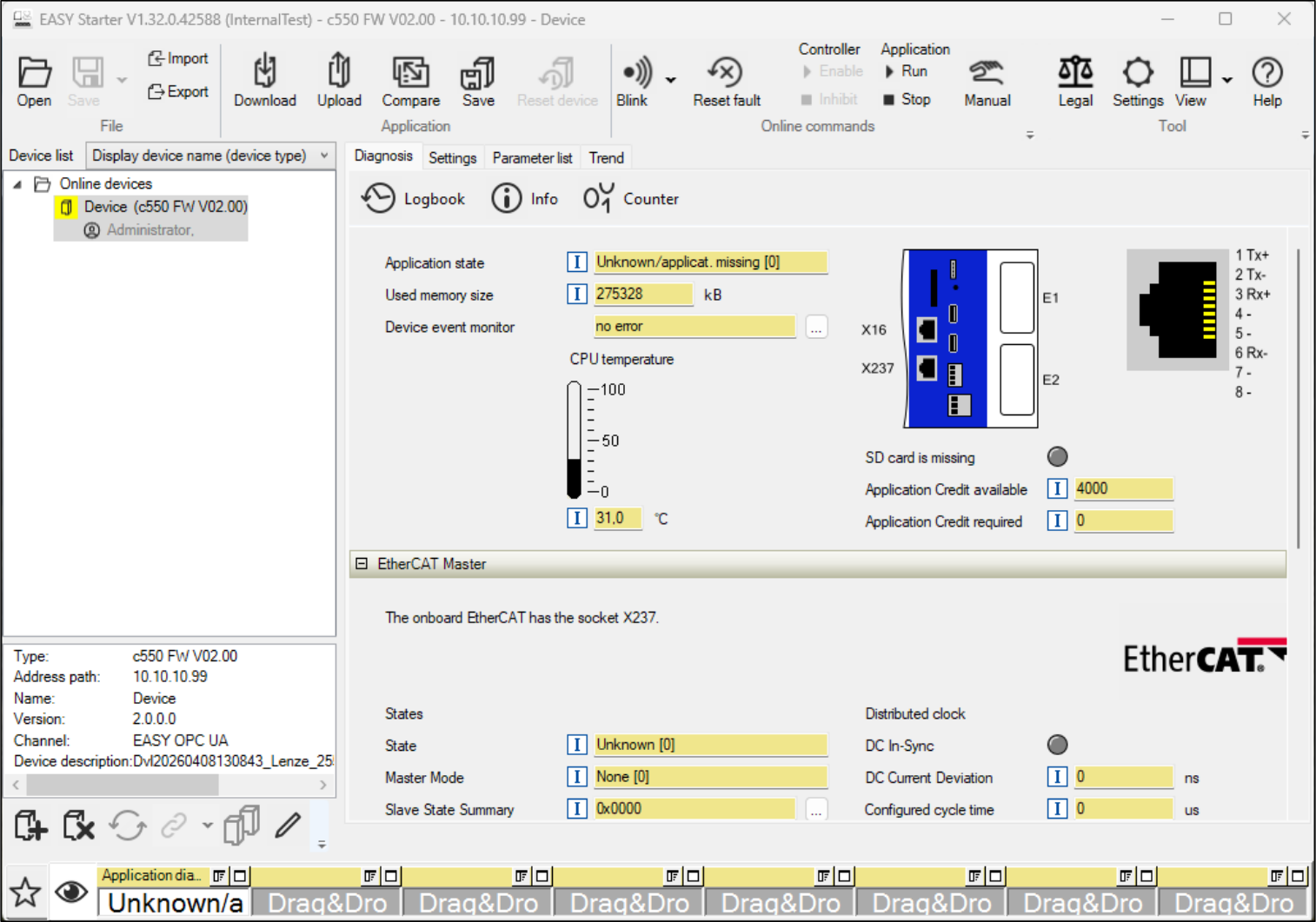
Establish Connection
Handling existing certificates in the »EASY Starter Suite«
In order to handle the existing certificates, it is possible to call up an overview in the »EASY Navigator« under the link "Certificates".
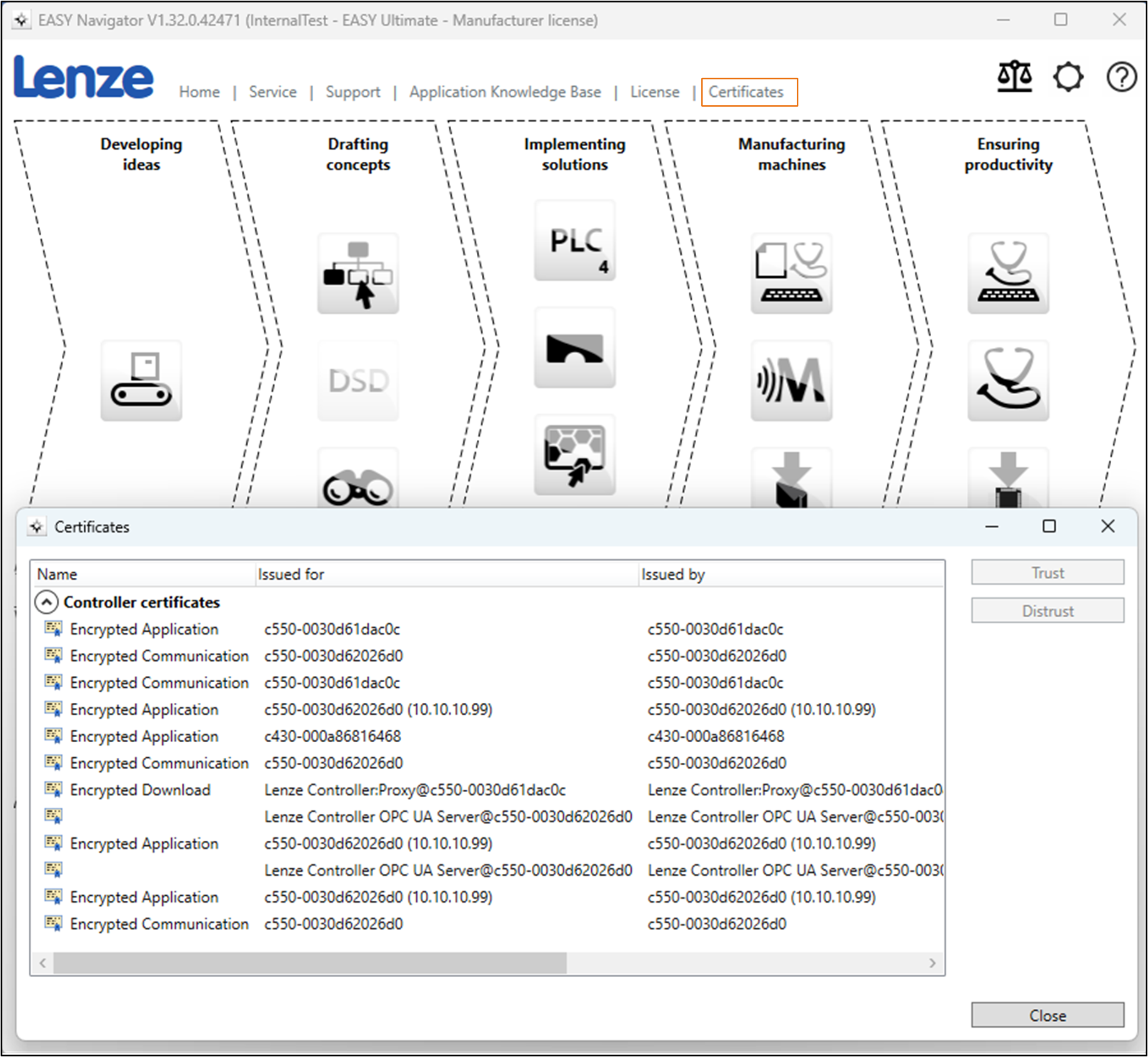
Handling existing Certificates
A window opens here that shows all trusted and untrusted certificates. In addition to displaying information, two actions can be performed:
-
When selecting an untrusted Certificate, the user can trust this certificate.
-
When selecting an trusted Certificate, the user can untrust this certificate.
EasyStarter Security Functionality Verification
The user management has to be activated. Establishing a connection with the EasyStarter without usage of the correct name and password is not possible.
To use an encrypted communication, the EasyStarter uses a certificate which is located in the trust folder of the PLC Designer or the certificate has been trusted with the EASY Starter Suite. To test the security functionality, move the certificate to the untrusted folder of the PLC Designer or untrust the certificate with the EASY Starter Suite.