FAST.Library.Signature
To make sure that the used libraries also come from the specified sender, they should be signed. Source code protection can be achieved via the compiled library mechanism. In this context, the signature increases security because the integrity and authenticity of the library can also be checked.
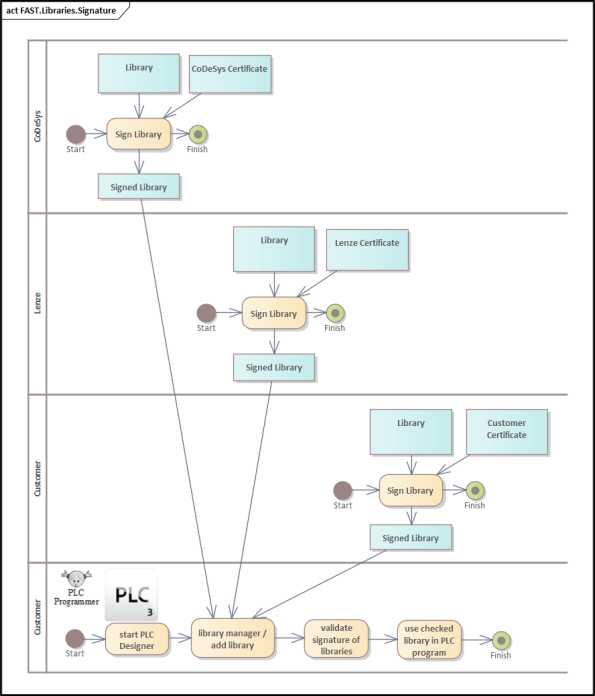
Activity Diagram
Four use cases are presented below
-
Signed Libraries from CODESYS
-
Signed Libraries from LENZE
-
Signed Libraries from the User
-
Validate signed Libraries
Signed Libraries from CODESYS
Some libraries of CODESYS are already signed. No action by the user is required.
Signed Libraries from LENZE
Some libraries of Lenze are already signed. No action by the user is required.
Signed Libraries from the User
This section describes how a customer can sign their own libraries with their own certificate.
Requirements for signing a library and requirements for the needed certificate:
-
»PLC Designer« with version > V3.22
-
X509.Certificate for Code Signing (keyUsage = digitalSignatur) in *.pfx file.
-
Extended-Validation-Certificate (EV-Certificate)
-
Recommendation of an additional timestamping certificate to guarantee a forgery-proof time at the time of signing. Access to RFC-3161 Timestamping-Server
In the first step, the own code-signing certificate must be integrated into the Windows Certificate Store. This can be accessed using the Windows command "certmgr".
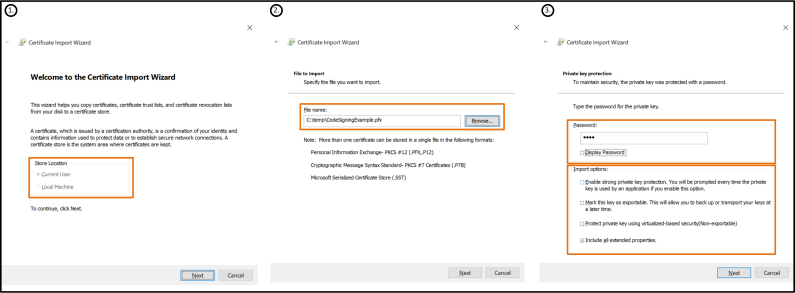
Import Certificate
Now, the PLC Designer must be started, and a new project must be generated with the category "Libraries" and the template "Empty Library." Open the Security Screen with the menu option "View" > "Security Screen." After selecting the "User" tab, the certificate for the digital signature can be selected.
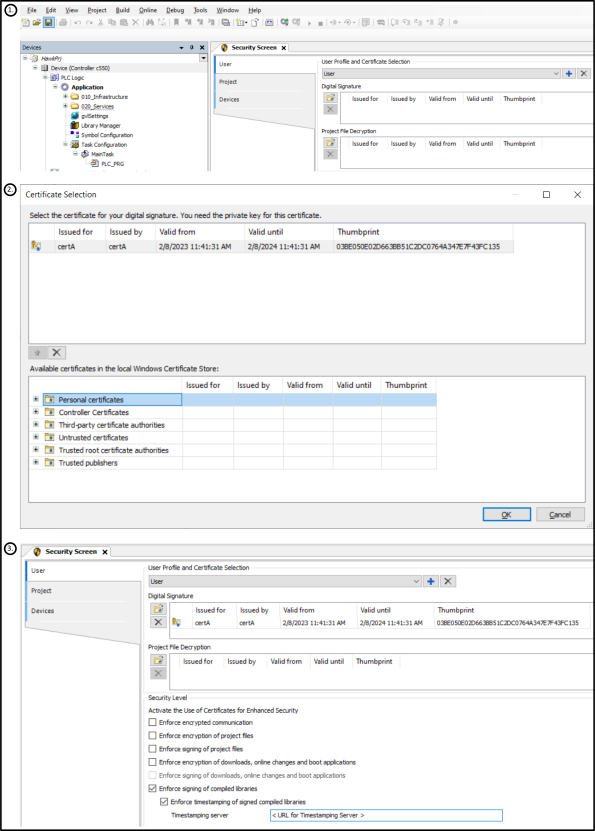
Signing Libraries
The last activity is to save the library as a compiled library with the command "Save Project and Install into Library Repository". The library will be saved as a "COMPILED-LIBRARY-V3” format.
-
Once the library is signed, the public keys of the signing and timestamping certificates are integrated into it.
Validate signed Libraries
When integrating libraries, the Library Manager must be called in the »PLC Designer«. The existing libraries are displayed with a respective icon:
-
Yellow sign on a green background
Library is signed with a trusted certificate, but the library uses at least one dependent unsigned library -
White lock on a green background
Library is signed with a trusted certificate -
Yellow Box
Library is not signed
When selecting the library, the Details button shows information, including the signing certificates.
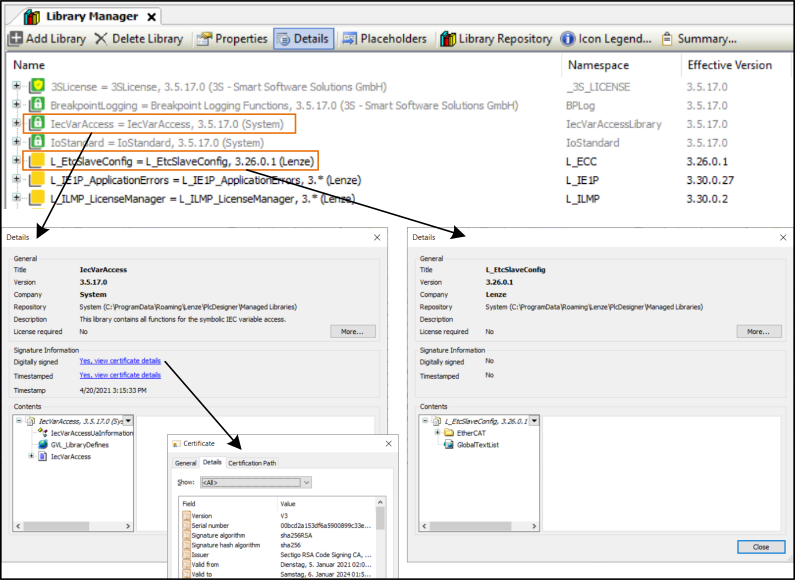
Verify Signature
Note: The Library Manager requires an Internet connection to verify the status of the installed libraries. If no Internet connection is available, the PLC Designer cannot check the status of the libraries. Therefore, in this case, the icon color for the libraries is yellow instead of green