Configuration Example with UA Expert
The configuration can be done with the UAExpert V1.7.1 or higher.
The Version V1.7.1 of the UA Expert supports the data set configuration of simple data types (Bool, SByte, Byte, Int16, UInt16, Int32, UInt32, Int64, UInt64, Float, Double, String, DateTime, ByteString) and structures of simple data types.
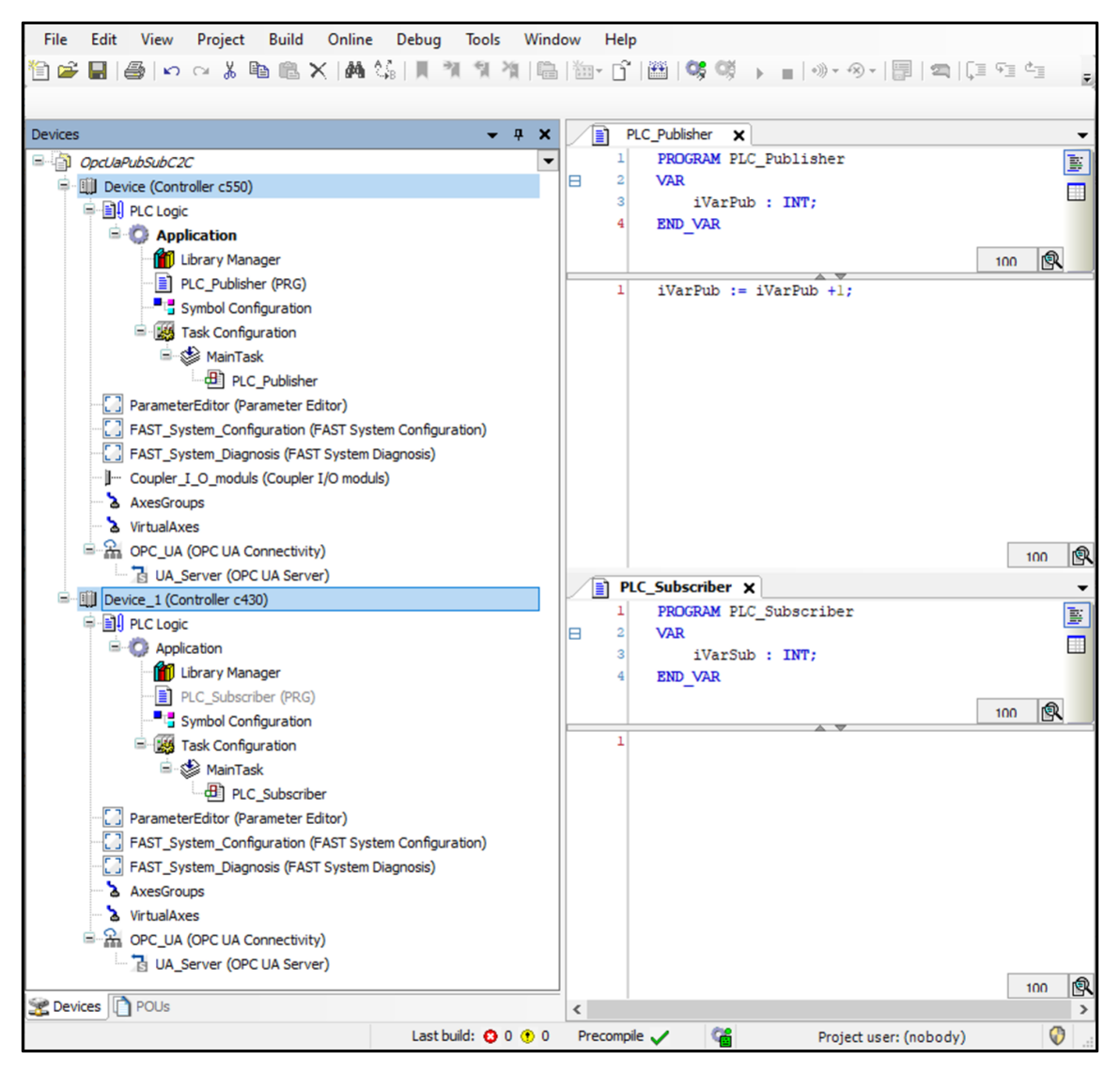
The use case in this example is to setup one Lenze controller as an OPC UA Publisher and another Lenze controller as an OPC UA Subscriber. Both controllers are connected to an Ethernet switch.
For this use case the PLC applications for the Publisher and Subscriber are presented in the following figure. The Publisher and Subscriber IEC variables are enabled for OPC UA communication via the symbol configuration.
The PubSub functionality is activated (Configuration and Diagnosis) and an OPC UA Lenze Licence (OPC UA licenses) is configured .
-
The following configuration steps are necessary for the PubSub example in UAExpert:
-
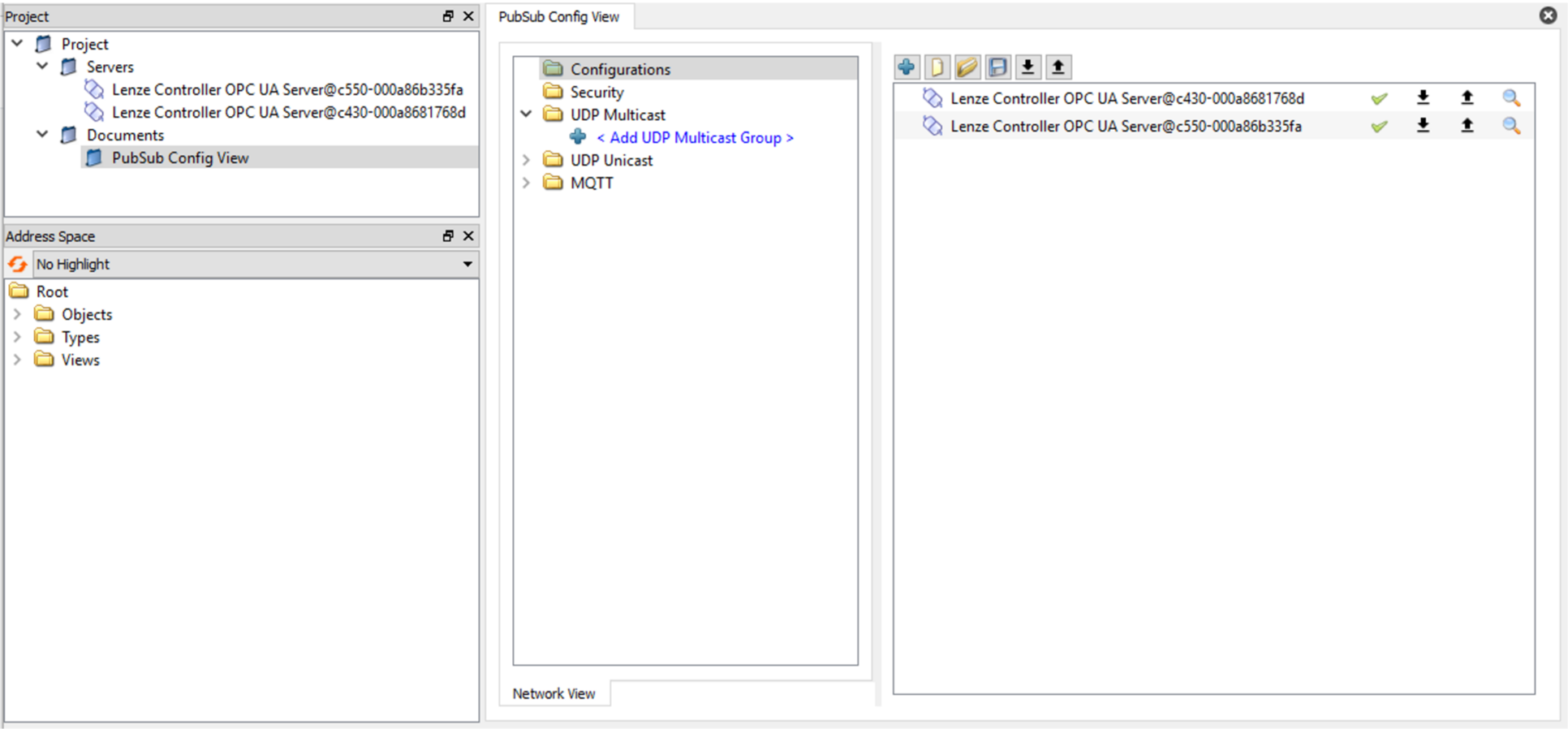
Connect to both OPC UA Servers (Publisher device and Subscriber device) with an authorized user token.
-
Add the "PubSub Config View" via the "Document" menu.
-
Add an "UDP Multicast Group".
This is the PubSub Connection e.g. "UDP 239.0.0.1 Port 4840".
-
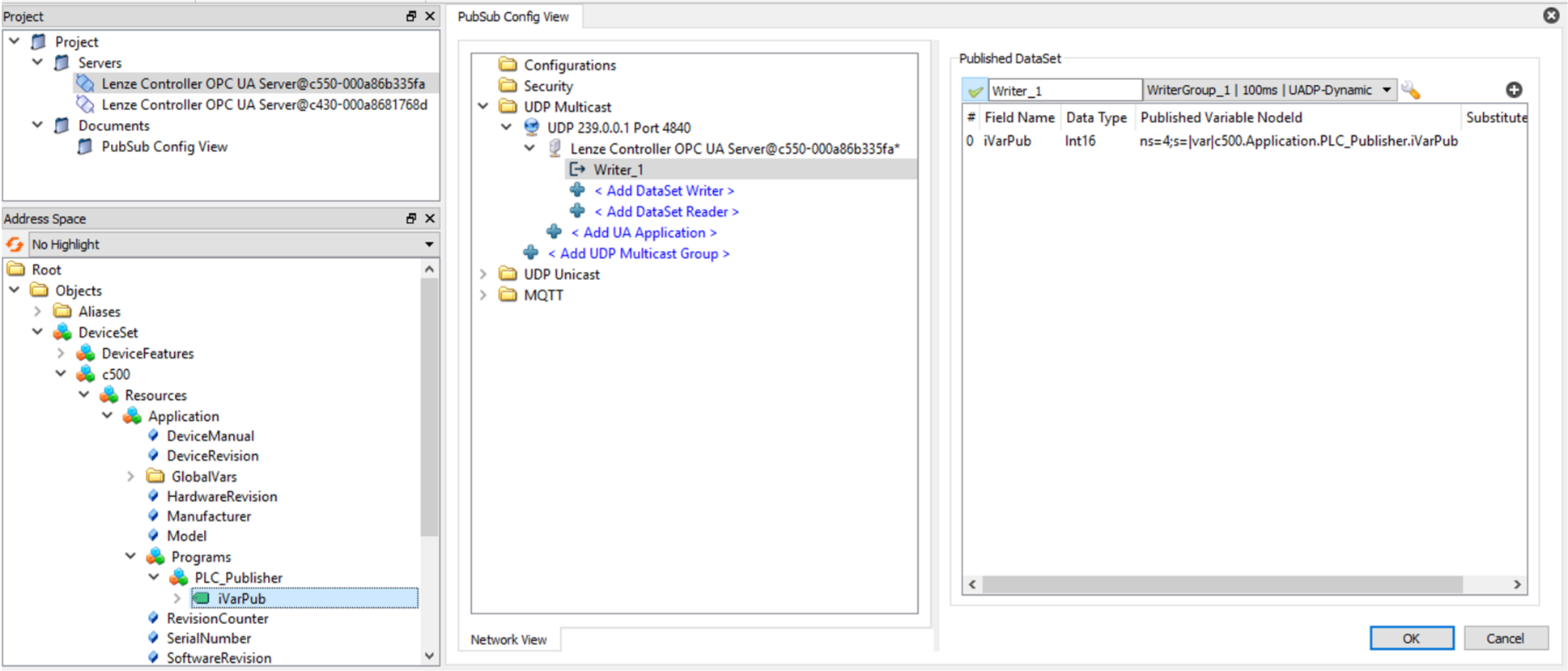
Add an "UA Application" to the "UDP Multicast Group" and select the Lenze OPC UA Server which should publish data (Device c550).
-
Add a "DataSet Writer".
-
The variable to be published can be added to the "Published DataSet" from the Server information model by drag and drop.
-
Apply the configuration.
-
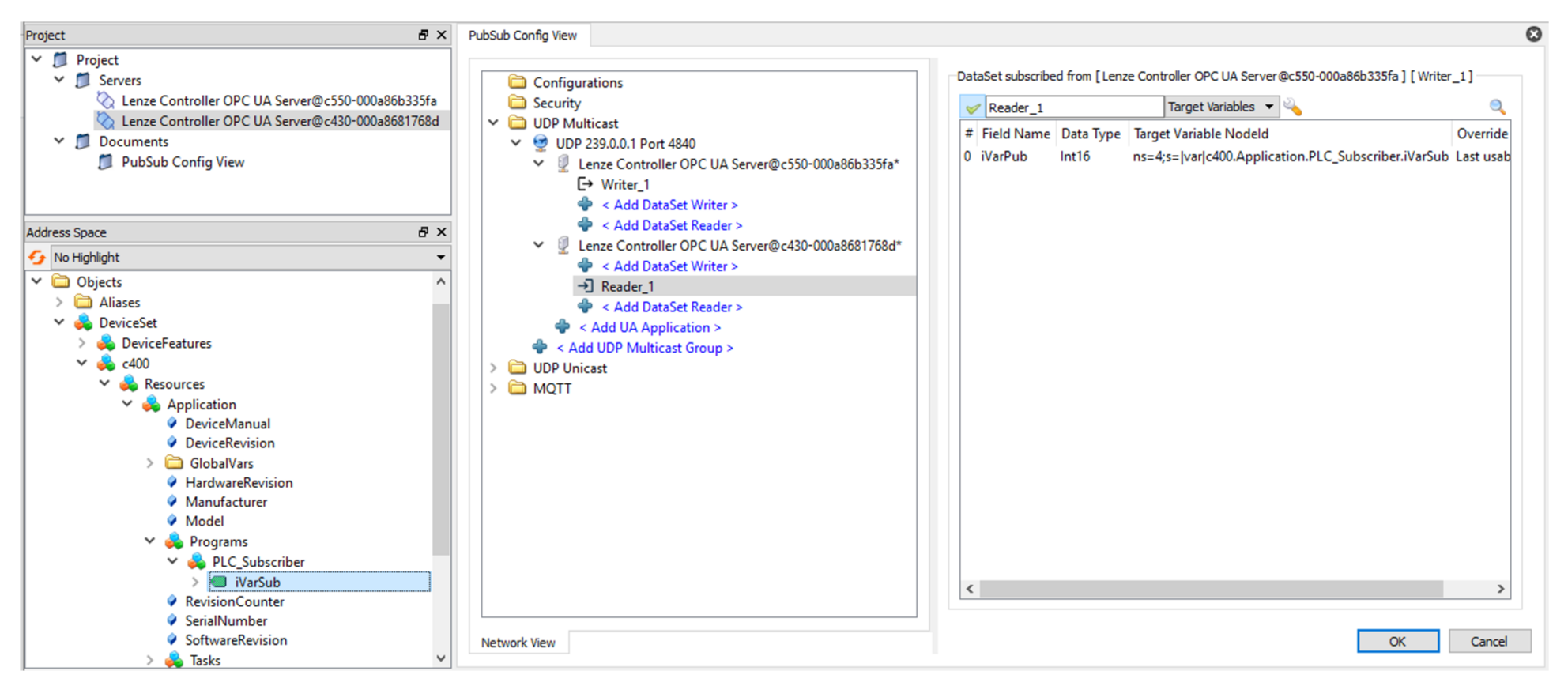
Add an additional "UA Application" and select the Lenze OPC UA Server which should subscribe data (Device_1 c430).
-
Add a "DataSet Reader" and select the template from the applied DataSet Writer.
-
The target variable can be added to the "Subscribed DataSet" from the Server information model by drag and drop.
-
Apply the configuration.
-
Download the configurations to both OPC UA Server on the devices.
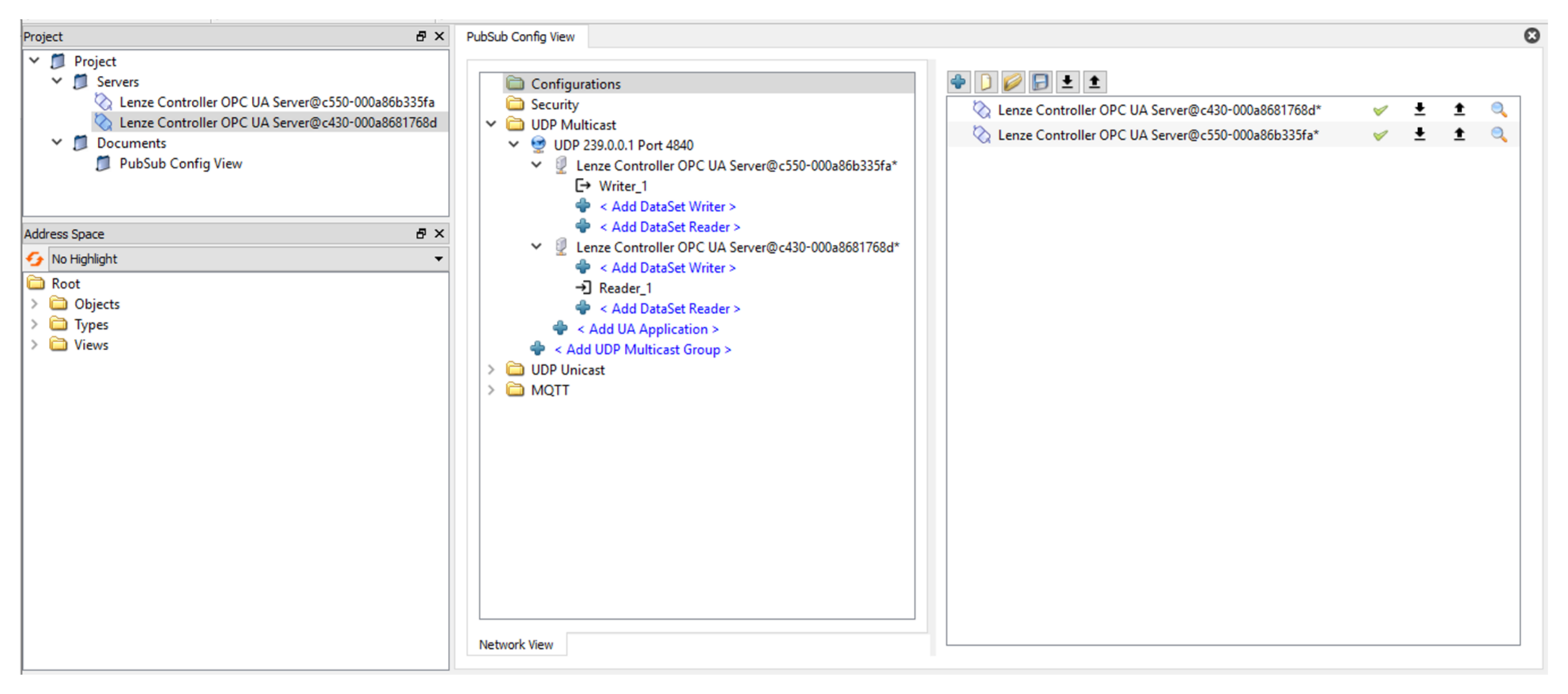
-
The publisher starts publishing the variable directly and the subscriber receives it.