Dialog: Project Settings: Visualization

Symbol: _visu_icon.png

Function: Configures the project-wide settings for the Visualization type objects

Call: Project → Project Settings menu, Visualization category

Requirement: A project is open.

Tab: General

Table 115. Visualization Directories

Text list files

Directory that contains text lists which are available in the project to configure texts for different languages. uses the directory, for example to import or export text lists.

After you click _cds_icon_three_dots.png, the Select Directory dialog opens for you to select a directory in the file system.

Image files

Directory which contains image files that are available in the project. Multiple folders are separated with a semicolon. uses the directory, for example to import or export image files.

After you click _cds_icon_three_dots.png, the Select Directory dialog opens for you to select a directory in the file system.


Table 116. Advanced

Activate property handling in all element properties

_cds_icon_option_activated_copy.png: You can also configure a visualization element with a _visu_icon_object_property.png property in those properties where you select an IEC variable. Then creates additional code for the property handling when a visualization is compiled.

Requirement: Your IEC code contains at least one Interface property object type (a _visu_icon_object_property.png.property).
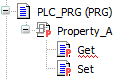
visu_img_devices_property.png

Requirement: Visible is selected.


Tab: Symbol Libraries

Table 117. Visualization Symbol Libraries

Symbol libraries

List of all installed symbol libraries

Example: VisuSymbols

Assigned

_cds_icon_option_activated_copy.png: The symbol library is selected in the project and makes it available in the Visualization ToolBox view of a visualization.

_cds_icon_option_deactivated.png: Symbol library is installed in the library repository, but does not make it available in the Visualization ToolBox view of a visualization.