Dialog options (IDE)
In the Options dialog of the IDE, you can adjust some functionalities of the (Undefined variable: docInfo_DE.Produktname) development. For example, you can change the language of the user interface or change the storage location for projects.
To open the dialog, select Tools > Options in the ribbon.
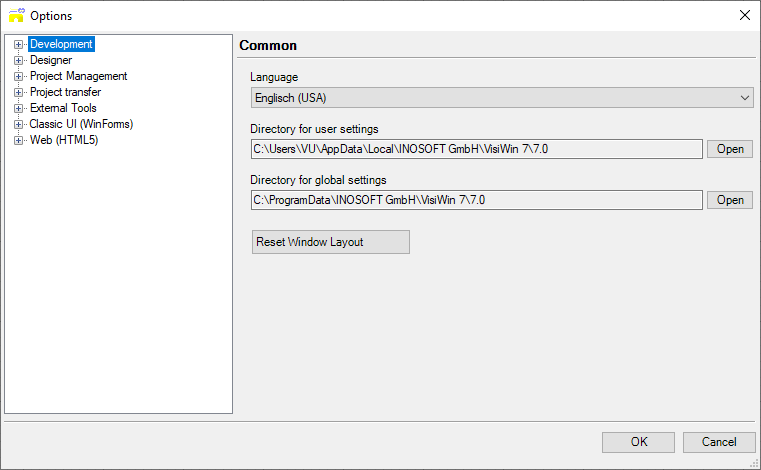
On the left pane, the options are organized by subject in a navigation tree. You can expand the individual nodes. Click on a subnode to see the available options on the right pane of the dialog.
Some options become effective only after you close and restart the IDE.
A very useful feature that you can enable using the Options dialog is the Track active document in the project explorer option (expand Development > Extended).
Development
Global options for the development or for individual components are available under this node.
General
Language
Defines the language of the user interface of the development.
Directory for user settings
Specifies the directory in which the file for user-specific settings for the development is saved (VisiWin7.IDE.vwsettings). User-specific settings have priority over global settings.
If you want to reset the user-specific settings, close the development and delete the "VisiWin7.IDE.vwsettings" file in the user directory or rename the file. When the development is restarted, the global settings are then loaded from the VisiWin7.IDE.vwsettings file in the global settings directory.
Directory for global settings
Specifies the directory in which the file for global, user-independent settings for the development is saved (VisiWin7.IDE.vwsettings).
Reset window layout
You can customise the layout of the(Undefined variable: docInfo_DE.Produktname) development. You can use this button to restore the default layout.
Variable selection dialog
If the "Show filter settings" option is activated, an additional button with a filter symbol is displayed in the Copy variable to clipboard and Select variable dialogs, which opens a dialog for configuring the filter.
Diagnostics
Errors that occur in the development are logged in the "VisiWin7.Development0.log" file. If a project was loaded in the development when the error occurred, the log file can be found in the project folder. If no project was loaded, then in the directory for user settings. If the log file has reached its maximum size, a new one is created with the index 1 (VisiWin7.Development1.log). A maximum of four files can be created (up to VisiWin7.Development3.log), after which the older file is overwritten. The size and number of these log files cannot be configured.
Editors
The table editor can be configured using the options offered.
Font
Defines the font and font size for the text display in the table editor.
Maximum line height
The rows in the table editor can be enlarged up to this maximum height.
Minimum row height
The rows in the table editor can be reduced to a maximum of this height.
Row height
Defines the row height in the table editor.
Color of frozen columns
Specifies the background colour for the column that cannot be moved or removed from the table editor. By default, there is only one frozen column in each system module (e.g. "Alias" or "Name"). The "frozen" status cannot be cancelled.
Allow carry
Specifies that the order of the columns in the table editor can be changed using drag & drop.
Allow sorting
Specifies that clicking on the column header sorts the columns in ascending or descending order.
Allow editing
Specifies that the editing of cell contents (parameter values) is blocked in the table editor. However, it is then still possible to edit the parameter values via the property pages.
Query before deleting
Specifies that the deletion of a definition must be confirmed.
Extended
Advanced options for the (Undefined variable: docInfo_DE.Produktname) development can be found here.
Automatically compress the database when opening the project
Specifies that the MS Access function "Compress and repair" is executed for the project file (.vw7). This ensures data consistency, but can take some time under certain circumstances. The function can be deactivated if the project cannot be loaded and this function is the cause.
Kb2484841DotNetFix
Activating this option deactivates the user interface automation of WPF (Microsoft UI Automation) within the (Undefined variable: docInfo_DE.Produktname) development. This can be helpful if the development is slow and sluggish.
Error reports can be ignored
Specifies that errors of a component (not the IDE) are ignored by the IDE in order to avoid a crash and thus data loss. Projects can then still be saved.
Show error reports
Specifies that, in the event of an IDE error, a dialog is displayed in which the user is asked whether the error report should be sent directly to INOSOFT for evaluation and improvement or whether it should be saved first. The encrypted report file has the extension *.saencryptedreport and can be forwarded to support at a later date, for example by e-mail.
Automatically display output window for new entries
Specifies that the output window is activated when an error occurs. If it was previously closed, it is displayed in the event of an error and appears in the foreground.
Track active document in the project explorer
Specifies that the document currently active in the Designer is automatically selected in the project explorer.
Create the directory structure for templates and assets in the user directory
If the function "Create the directory structure for templates and assets in the user directory" is executed, the corresponding files are loaded from the user-specific directory at the next restart.
Important: If this function has been executed, any new assets cannot be loaded during a new installation of (Undefined variable: docInfo_DE.Produktname), as the AssetConfiguration.xaml file, in which the assets are listed, is loaded from the user-specific folder and is not overwritten during a new installation. There is also no warning that the assets are not up to date. In this case, the corresponding lines must be copied manually into the "AssetConfiguration.xaml" file in the user directory.
To check whether the "AssetConfiguration.xaml" in your user directory is up to date, compare this file with the "AssetConfiguration.xaml" in the (Undefined variable: docInfo_DE.Produktname)installation directory.
When loading a project, the IDE indicates in the output window from which directory the assets are loaded, e.g:
"AssetConfiguration loaded from: C:\Program Files (x86)\INOSOFT GmbH\VisiWin7\7.2\Development\Assets\WPF\AssetConfiguration.xaml"
Cross reference
Here you can specify that variable and/or text definitions that are not used in the application and are therefore superfluous are listed in the cross-referenceand marked as a warning.
This option can be used to optimise the project file. If too many variables or text definitions have been imported or created, this can lead to problems with the performance of the IDE. The number of variables is limited to 300,000. You can use this option to display the superfluous definitions and delete them if necessary.
Project explorer
Here you can specify which file types are displayed in the project explorer.
All
All files that have been added to the project are displayed.
Standard
Only the standard file types are displayed. For Modern UI projects, these are *.xaml files and image files, e.g. *.png and *.ico.
User-defined
Only the file types in the list are displayed by the project explorer. To add a file type to the list, select the desired file type from the drop-down menu to the right of the list and click on Add. To delete a file type, select the file type in the list under "User-defined" and click on Remove.
Designer
Options for configuring the Designer are available in this area.
General settings of the Designer for Modern UI and Web UI.
Background colour
Defines the background colour of the Designer.
Grid line spacing
Defines the distance in pixels between the individual lines of the grid that can be used in the Designer to align control elements.
Default spacing
Defines the default distance between two neighbouring controls. When moving a control with the mouse, a red, slightly translucent line is displayed between this control and its neighbouring control as soon as the distance specified in this option is reached.
Default inner spacing
Defines the default distance to the edge of the parent container of the control. When moving a control with the mouse, a red, slightly translucent line is displayed between this control and the edge of its container as soon as the distance specified in this option is reached.
Show grid for docking
Determines whether the Show grid for docking button (
 ) is activated when the Designer is loaded.
Activate docking on grid lines
Defines whether the Dock to grid lines button (
 ) is activated when the Designer is loaded.
Enable docking to alignment lines
Defines whether the Dock to alignment lines button (
 ) is activated when the Designer is loaded.
Automatically adjust view when opening the Designer
Defines whether the Adjust view function is activated when the Designer is loaded. If this option is deactivated, all documents are opened with a zoom setting of 100%.
Insert control elements with offset when copying and pasting
Determines whether the copy is inserted at a position further to the bottom right when copying a control element so that both control elements are immediately visible in the Designer. If this option is switched off, the copy of the control element is inserted at exactly the same position as the first control element. It is then not recognisable in the Designer whether a copy is above a control and how many copies are already above the control.
Note: This option only affects controls that are placed on a grid or canvas (Modern UI) in the Modern UI and on an AbsoluteLayout in the Web UI.
Reset
Resets the settings in theGeneral" section to their respective default values.
Documents
Provides options for handling the files opened in the Designer.
Restore open documents when loading the project
Specifies that the files that were open in the Designer when the project was closed are automatically opened in the Designer the next time the project is opened. If this option is deactivated, no files are automatically loaded into the Designer when a project is opened.
Defines whether files are automatically saved after x seconds.
Automatically reload documents after external file changes
If a file is opened in VisiWin 7 as well as in another programme (e.g. in Visual Studio) and edited and saved in this other programme, the file displayed in VisiWin 7 is no longer up-to-date. To update the displayed file, you must reload it into the Designer. If a file is changed by another program, a dialog appears in the development in which you can reject or accept the reload into the Designer. If you want the open files to be reloaded when changes are made outside VisiWin 7 without this dialog appearing, you can activate the option "Automatically reload documents when external files are changed".
Web (HTML5)
For Web UI projects, specifies which type of messages from the Designer the Output window should display.
Error
Only errors are displayed. This significantly reduces the number of messages.
Errors and warnings
Only errors and warnings are displayed.
All outputs
All messages are displayed (errors, warnings and information). The number of messages is highest with this option.
Bypass any proxy servers when loading the Designer
Enable this option if the graphical designer takes an unusually long time to load or freezes for several seconds upon opening (common in virtual machines). This skips the time-consuming search for network proxies.
If you do not require an internet connection within the software or are working offline, you can safely enable this option. If content is missing from the designer after activation, disable the option again.
For the changes to take effect, please reload the project within the development environment.
Project management
This area contains options for project management.
General
Automatically reregister projects
If this option is deactivated (default setting), a query appears asking whether the project should be re-registered when moving or copying projects to another directory. The project is only re-registered once this query has been confirmed. This can be annoying if there are a large number of projects to be copied. In this case, this option can be activated.
Update projects automatically
If this option is deactivated, a dialog appears when you want to open a project that has an older project file version, in which you can confirm or cancel the updating and opening of the project.
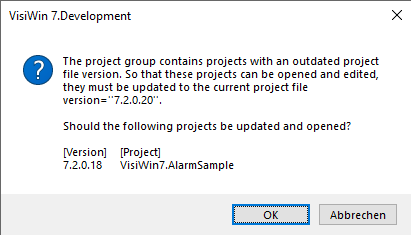
If this option is activated (default setting), older projects are automatically updated to the current project file version when they are opened.
Clear the list of 'Recent Projects'
You can use this button to clear the list of projects in the menufileWRecent Projects.
Consider Windows environment variables when creating projects and views
Activate this option if you have defined your own Windows environment variables and the corresponding placeholders (e.g. "%MyEnvironmentVariable%") are to be replaced by the value of the environment variables in your own view and project templates.
Directories
Defines the directories for your own projects and templates.
Create
Defines how detailed the project build information displayed in the Outputwindow should be. Further information can be found in the Microsoft documentation for MSBuild.
Plugin
Defines the type of information about the plugin merge process to be displayed in the Output window.
This area contains options for configuring the transfer of projects to the target system.
General
Contains settings that are valid both for the transfer via Remote Access Manager and for the transfer via Server Manager.
Connection type
Sets the default value for the Connection typeparameter of the target device manager.
Project creation
Defines whether projects should be compiled before transferring.
Create new project folder
All projects in the solution are recompiled before transfer (rebuild). The files in the output directory and the <project name>.exe then have the time stamp of the rebuild.
Create project folder
Default setting. If there are changes in the projects of a solution, they are compiled before being transferred (build). Only the changed files will then have the timestamp of the build.
Do not create project
The projects are not compiled before being transferred. What is in the output directories is transferred (usually bin/debug).
Server Manager
The default values for the parameters Portand Timeout (s) of a connection for transfer via the Server Manager are defined here.
Remote Access Manager
The default values for the Portand Timeout (s) parameters of a connection for transmission via the Remote Access Manager are defined here.
Web (HTML5)
Disable update notifications
If the(Undefined variable: docInfo_DE.Produktname) installation contains updated Web UI components, a notification appears after loading a Web UI project that uses older components, informing you of this and giving you the option of copying the updated components into the project. This update notification appears every time the project is loaded into the development. You have the following options to prevent this notification from being displayed:
Switch off the update notifications for this project only:
Activate the "Do not show again for this project" option directly in the update notification.
or
Activate the "disable update notifications" parameter in the project configuration of the web client project(ProjectconfigurationWGeneral).
Switch off the update notifications for all web UI projects with older components:
Activate the "Disable update notifications" option in the Options dialog.