Project does not start - occupied port
If at project startup a message appears stating that the web server could not be started, or if a 404 error is displayed in the browser, the HTTP or HTTPS port configured for the VisiWin 7 web server is probably already occupied by another process. In this case, you can either terminate the interfering process or adjust the port settings of the web server to fix the problem.
Symptoms
-
If you start the project in the IDE, the following message appears:
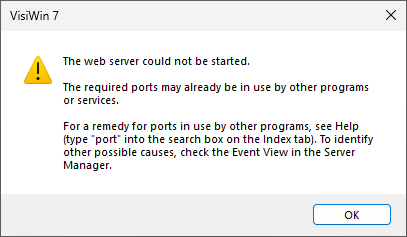
Message in the IDE
-
If you start the project on the web server home page, the 404 error is displayed by the browser.
Cause
By default, the ports 80 (HTTP) and 443 (HTTPS) are used for the communication with the web server. However, these ports can be used by other processes on the computer, too. If another process occupies these ports, the connection to the VisiWin 7 web server cannot be established.
Solution 1: Check port and terminate process
You can check which ports are being used by which processes by means of the Windows Command Prompt.
-
Start the Windows Command Prompt by typing cmd in the search field of the taskbar and clicking on Command Prompt in the results list.
-
To search for processes that are currently using, for example, Port 80, type netstat -ano | findstr :80 and press Enter to confirm.
If there is no output, the port is not in use. If the port is in use, the TCP connections using it will be displayed in a table with 5 columns. The columns have the following meanings:
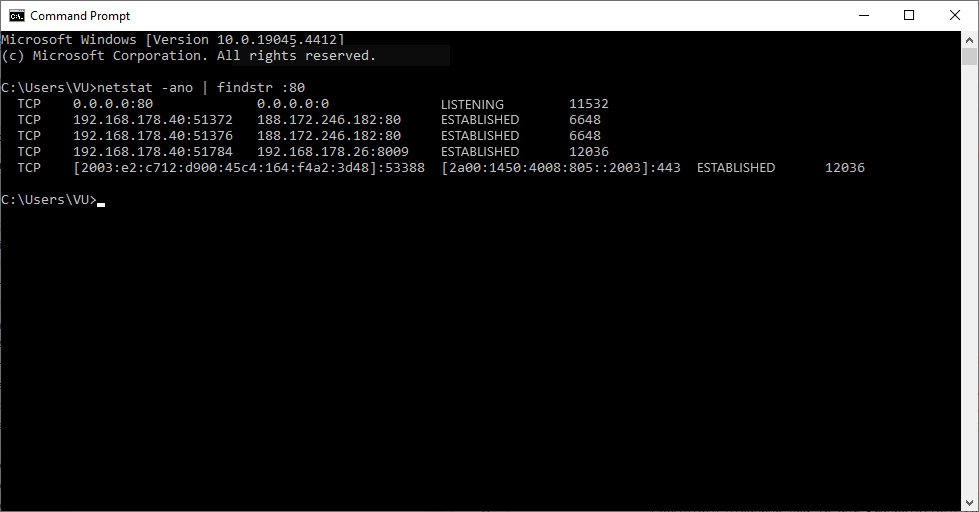
In this example, the first line of the output indicates that a local web server or similar with the process ID (PID) 11532 is listening on port 80.
-
To find out which program is behind the PID, enter tasklist | findstr PID. Instead of PID, type the number from the previous output.
The process with the ID 11532 is the VisiWin 7 web server in this case (VisiWin7.Web.Services.Console.exe).
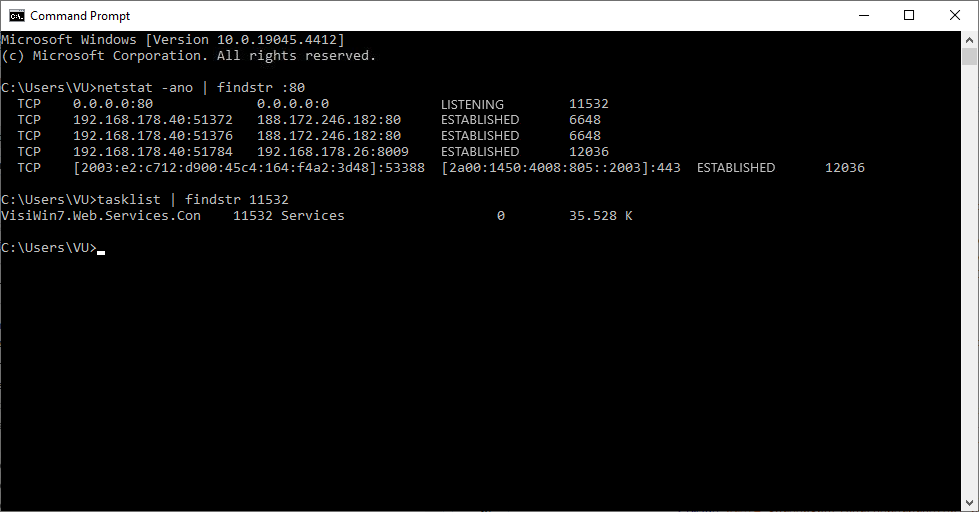
-
If port 80 or 443 is occupied by a process other than VisiWin 7, terminate that process.
-
Test if the project now starts. Some processes cannot be terminated or start automatically again. In that case, try Solution 2.
Solution 2: Change ports for VisiWin 7 web server
If the process occupying the port cannot be terminated or if you don’t want to terminate it, you can change the port for the VisiWin 7 web server.
Administrator rights are needed for this solution.
-
Open the file appsettings.json, which can be found in the WebServices folder within the VisiWin 7 installation directory, in an editor of your choice, e.g. Notepad++.
C:\Program Files (x86)\INOSOFT GmbH\VisiWin 7\WebServices\appsettings.json
-
Change the values of the Port and HttpsPort options and save the file.
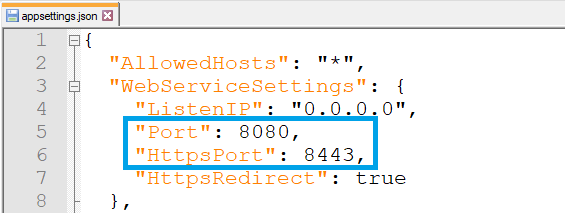
-
To show the Server Manager user interface, click the Server Manager icon in the taskbar notification area, also called system tray or just tray.
-
In the Server Manager, select Settings > Web server and enable and disable again the Start web server with Server Manager option.
The displayed ports change accordingly.
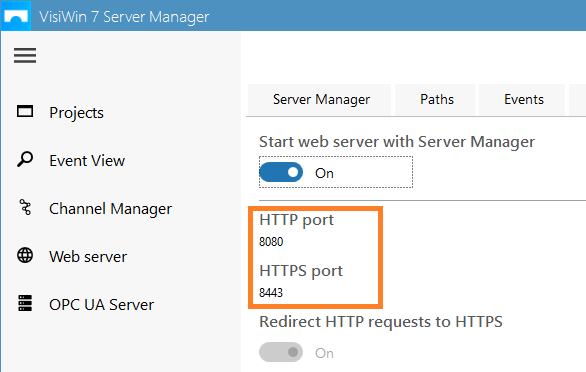
Restart the project. If the web server still cannot be started, the Event View in the Server Manager can help you find the cause.