Scale
Representation of a numerical scale.
The scale represents a straight line or an arc with smaller lines (scale lines) at right angles to it, which are evenly distributed across the scale. Scale values can be displayed on the scale lines. The scale is always limited to a specific range of values. It makes it easier to read and categorise a variable value displayed in the control element within the value range.
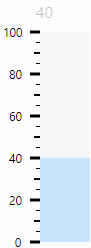
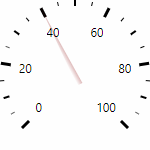
Straight scale and round scale
The value range represented by the scale is defined by the limitsthat apply to the control element or the linked variable.
The properties for configuring the scale can be found in the "Properties" window in the "Scale" category.
MajorSteps, MiddleSteps, MinorSteps
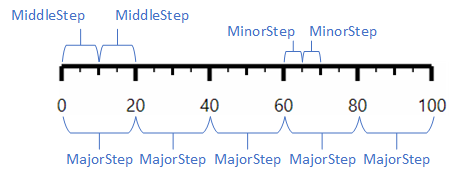
Defines the number of steps in each larger step. The "ScaleMode" property determines whether the number of steps (properties "...Steps") or the step size (properties "...StepSize") is used to divide the scale.
Example: In this scale, the value range is divided into 5 large steps (MajorSteps = 5), 2 medium steps (MiddleSteps = 2) and 2 small steps (MinorSteps = 2).
MajorStepSize, MiddleStepSize, MinorStepSize
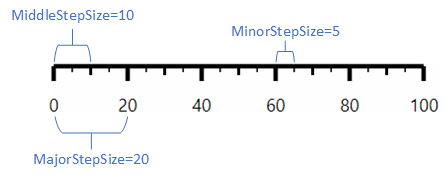
Defines the respective step size. The "ScaleMode"property determines whether the number of steps (properties "...Steps") or the step size (properties "...StepSize") is used to divide the scale.
Example: For this scale, the step sizes are specified as follows: MajorStepSize = 20, MiddleStepSize = 10 and MinorStepSize = 5.
MajorTicksLength, MiddleTicksLengh, MinorTicksLength
Defines the length of the scale lines that are drawn between two steps of the same category.
MajorTicksWidth, MiddleTicksWidth, MinorTicksWidth
Defines the thickness of the scale lines that are drawn between two steps of the same category.
ShowMajorTicks, ShowMiddleTicks, ShowMinorTicks
Determines whether the scale lines are drawn between two steps of the same category.
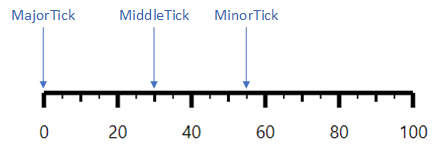
-
These properties are activated by default. If the "ShowMajorTicks" property is deactivated, the MiddleTicks and MinorTicks are also not displayed, even if the "ShowMiddleTicks" and "ShowMinorTicks" properties are activated. In addition, the scale values(MajorLabels) are then hidden, even if "ShowMajorLabels" is activated. If the "ShowMiddleTicks" property is deactivated, the MinorTicks are also not displayed, even if the "ShowMinorTicks" property is activated.
ScaleHeight
Defines the height of the scale.
By default, this property is set to 100%, as is the height of the bar (BarHeight). If caleHeight = 100 %, the scale (Scale) is just as high as the bar (BarRangeContainer), if ScaleHeight = 50 %, half as high, if ScaleHeight = 200 %, twice as high, etc.
-
In the following graphics, the Scale element is shown with a pink background for better visibility.
|
|
|
|
ScaleHeight with vertical alignment of the " Bar" control element |
|
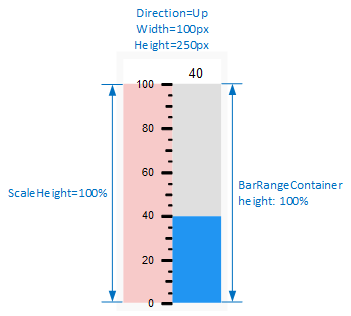
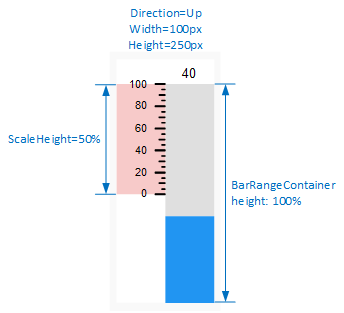
|
|
|
|
ScaleHeight with horizontal alignment of the "Bar" control element |
|
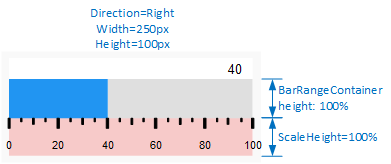
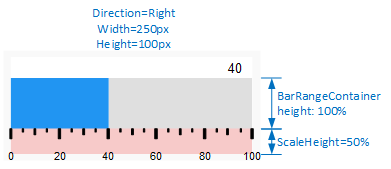
-
The length of the scale bars and the distance between the scale values and the scale bars are not affected by the "ScaleHeight" property. Instead, there are the "MajorTicksLength" and "MajorLabelsOffset" properties.
ScaleLimitsVisibility
Determines whether the limit values are displayed with the corresponding scale lines on the scale.
-
Always
The limit values are displayed (default setting).
-
Never
The limit values are not displayed.
ScaleMargin
Defines the outer distancesfor the scale.
ScaleMode
Determines whether the number of steps or the increment is used to divide the scale.
-
Steps
The "MajorSteps", "MiddleSteps" and "MinorSteps" properties are analysed.
-
StepSize
The "MajorStepSize", "MiddleStepSize" and "MinorStepSize" properties are evaluated.
ScalePlacement
Determines whether the scale lines and scale values of the scale are directed inwards or outwards.
-
Inside
The scale lines and the scale values are directed inwards in the control element.
-
Outside
The scale lines and the scale values are orientated outwards in the control element (default setting).
ScalePosition
Determines where the scale is positioned in the control element. Whether the individual settings have a visual effect depends on the setting of the "Direction" property.
-
Direction = Up/Down: The scale can be positioned on the left or right of the control element using the "Left" and "Right" settings.
-
Direction = Left/Right: The scale can be positioned at the top or bottom of the control using the "Top" and "Bottom" settings.
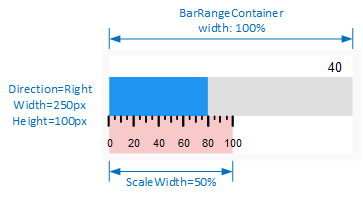
ScaleWidth
Defines the width of the scale.
By default, this property is set to 100 %, as is the width of the bar (BarWidth). With ScaleWidth = 100 %, the scale (Scale) is just as wide as the bar (BarRangeContainer), with ScaleHeight = 50 % half as wide, with ScaleHeight = 200 % twice as wide, etc.
-
In the following graphics, the "Scale" element is shown with a pink background for better visibility.
|
|
|
|
ScaleWidth with vertical alignment of the "Bar" control element |
|
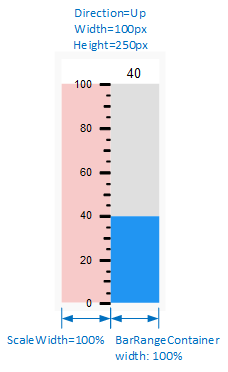
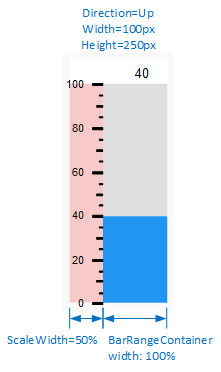
|
|
|
|
ScaleWidth with horizontal alignment of the "Bar" control element |
|
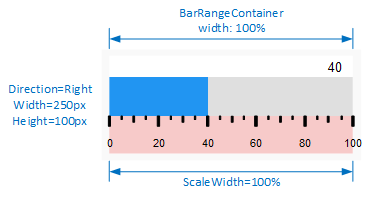
-
The length of the scale bars and the distance between the scale values and the scale bars are not affected by the "ScaleWidth" property. Instead, there are the "MajorTicksLength" and "MajorLabelsOffset" properties.
ScaleRadius
Specifies the radius for the circle on the inside or outside of which the round scale is displayed. By default, "ScaleRadius" is set to 100 %, i.e. the circle is displayed as large as possible in the control element. If a number without a percentage sign is specified in the property, this is interpreted as a specification in pixels. The "ScalePlacement" property determines whether the scale is displayed on the inside or outside of the circle.
ShowScale
Determines whether the scale should be displayed.
ShowScaleBaseLine
Indicates a line for a straight scale and an arc for a round scale, on which the scale lines lie.
Affects these controls: