Options dialogue (table editor)
In the Options dialogue of the table editor, you can show or hide the parameters to be displayed as columns and change the order of the columns.
To call up the dialogue, right-click on the table editor and select "Options" from the context menu.
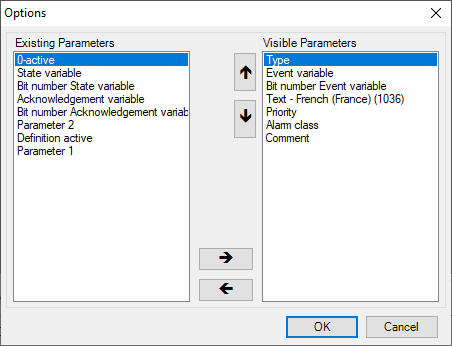
Dialogue options
The "Displayed parameters" list contains all parameters for this type of definition that are currently displayed as columns in the table. The existing parameters that are not currently displayed as columns in the table editor are contained in the "Existing parameters" list. Frozencolumns are not displayed in either list.
The dialogue offers the following options for configuring the table columns:
Show or hide columns
To display a parameter as a column in the table, select the desired parameter in the "Existing parameters" list and click on the button with the arrow pointing to the right(à). The parameter is now included in the list of displayed parameters. To remove a column from the table, select the desired parameter in the "Displayed parameters" list and click on the button with the arrow pointing to the left(ß). Confirm your configuration using the OK button
Change the order of the columns
To change the order of the columns in the table, select the desired parameter in the "Displayed parameters" list and click on the button with the up(á) or down(â) arrow. The order of the parameters from top to bottom reflects the order of the columns from left to right in the table.