Add a navigation button
This guide shows you how to add a navigation button to the menu in the FixClassical or FixTop layout.
In the FixClassical layout as well as in the FixTop layout the buttons for navigation are defined in the view ButtonView.html.
-
To add a button:
-
In the Project Explorer, expand the folders [ProjectName]_Client > Design > views.
-
Double-click the ButtonView.html entry to open the file in the Designer workspace.
-
Select the TabBar control in the Document Outline.
-
In the Properties window under Common Properties > Items (Collection), click the
 button.
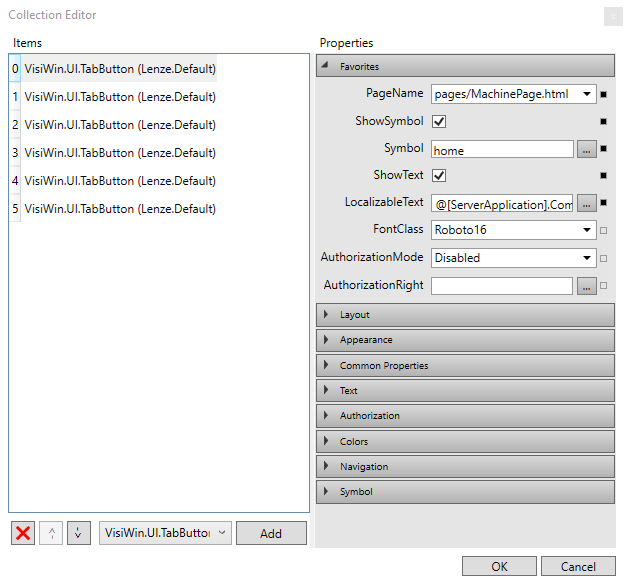
The Collection Editor dialog appears:
-
Select a TabButton or a TabMenuButton (button with submenu) in the drop down box and click Add.
You can use the two buttons
 to move a selected entry to the desired position.
 -
Set the properties of the button.
-
Under Favorites > PageName, you can select the target page to be displayed when the button is pressed.
-
Under Favorites > LocalizableText, you can assign a localizable text to the button.
-
-
Click the OK button to apply the changes.
Related topics: