FixClassical
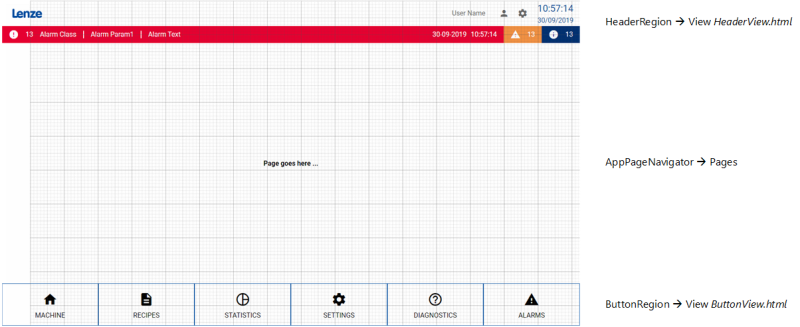
The FixClassical layout has a header and a series of navigation buttons at the bottom of the screen that can be used to call up the various pages of the machine visualisation. Elements can only be positioned absolutely, so this layout is only suitable for display sizes with a similar resolution.
The buttons  (user) and
  (settings) in the header refer to the server-side user management and language switching functions.
Document outline
The associated main view "AppShell.html" contains the following elements in the document structure.
HeaderRegion
The HeaderRegion contains the header. By default, the "HeaderView.html" view is displayed in this region.
AppPageNavigator
The AppPageNavigator displays the various pages with the actual content at runtime. Therefore, do not insert any elements in this area, but create the visualisation on the respective page, for example "MachinePage.html".
ButtonRegion
The ButtonRegion contains the buttons for navigation. By default, the "ButtonView.html" view is displayed in this region.
All user interfaces of the project are contained in the client folder under "Design". Double-click on an entry to open the corresponding file in the Designer workspace.
Header
The "HeaderView.html" view defines the header of the application.

-
The image element can be used for a logo, for example. You can select the graphic to be displayed in the properties window for the image element under ImageWImage.
-
The label element displays the user who is currently logged in. It is updated in the background via the "DataContext" property.
-
The button
(user) opens the dialogue "UserDialog.html" via the "showDialogAction" configured at  , in which various settings for user administration are offered. In the action settings in the properties window of the button, DialogWMode can be used to configure whether the dialogue requires an interaction (e.g. close, confirm) (Modal) or whether it disappears by clicking on other elements without further interaction (NonModal).
 -
The button
(settings) is a button element that calls up the dialogue "SettingsDialog.html". -
The time/date display is a clock element.
-
The bottom line is an AlarmLine element that displays the corresponding information at runtime if an alarm is triggered.
Navigation buttons
The ButtonView.html view defines the buttons for navigation.

-
As can be seen in the document structure, the view contains a TabBar control element, which in turn contains a TabButton element for each navigation button.
-
You can select the page that is to be loaded when the visualisation is started in the properties window for the TabBar element under NavigationWStartPageName.
-
Each TabButton element is assigned a language-switchable text in the properties window under TextWLocalizableText.
-
You can select the target page for a TabButton element in the properties window for the TabButton element under NavigationWPageName.
-
By default, the following target pages are defined for the buttons:
-
MACHINE: pages/machinePage.html
-
RECIPES: pages/RecipesPage.html
-
STATISTICS: pages/StatisticsPage.html
-
SETTINGS: pages/SettingsPage.html
-
DIAGNOSTICS: pages/DiagnosticsPage.html
-
ALARMS: pages/AlarmsPage.html
-
Related topics: