Image
Display of a graphic.
|
Symbol |
|
|
Menu ribbon |
Start > Controls > Input/output > Graphic > Image |

The "Image" control element displays a graphic depending on the value of the linked binary or numerical process variable, e.g. to indicate a status.
The image shows a different graphic depending on the variable value
|
Variable value |
Representation |
|---|---|
|
0 |
|
|
1 |
|
|
2 |
|


Functionalities
The control element supports the following functionality:
-
Connection to a specific process variable for the data source
-
Display of a graphic in the control element
-
Connection to the user administration for blocking operability
-
Display of the background, the frame, the shadow, etc.
-
Color display of the background and frame, also depending on the status of the control element
You can configure these functionalities via the properties in the Properties window when you select the control in the Designer or in the document outline.
Style
There are no system styles available for the control. You can create your own styles for the control. These styles are available for selection in the "Style" property after creation.
Structure
The control element contains a "Symbol" element that represents the graphic.
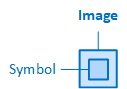
The image contains an icon
The control element can switch between different graphics ("Symbol" element), depending on the value of the linked variable. To define changing graphics depending on the variable value, use the "ImageList" property to create a list with elements of type "ImageState".
In addition, a static graphic can be configured which is only displayed if:
-
the control element does not contain a status list, the graphic is then permanently displayed,
-
the current value at runtime does not correspond to any of the values defined in the list elements.
The following properties are available in the "Image" category for configuring the static graphic:
Image
Defines the graphic to be displayed. The button  opens a dialogue in which you can select one of the available graphics.
-
The graphics available depend on the settings in the "ImageType" and "IconFont" properties.
ImageType
Defines the graphic type and the source of the graphic.
-
Icon
The graphic should be an icon and obtained from the imagesWiconfonts folder in the project directory.
-
Svg
The graphic should be a vector graphic in SVG format from the imagesWsvgs folder.
-
Bitmap
The graphic should be a pixel graphic (BMP, PNG, GIF, JPG) from the imagesWbitmapsfolder.
-
SvgIcon
The image is a scalable vector image (*.svg) located in the images\svgicons folder within the project directory. In contrast to the images in the svgs folder, these images can be displayed in the color indicated in the ForegroundColor, CheckedForegroundColor, etc. properties. They look like icons from an icon font but have the *.svg format.
You can draw your own SVGs using a tool of your choice or use third-party SVGs as SvgIcons. When doing that, consider the following:
-
In the <svg> element, the xmlns attribute with the namespace URI is obligatory.
Copy<svg xmlns="http://www.w3.org/2000/svg" ...> -
In the <svg> element, set the viewBox attribute to ensure that the image is scaled to the size of the image container.
Copy<svg xmlns="http://www.w3.org/2000/svg" viewBox="0 0 100 100"> -
Elements that you want to fill with the color indicated in the ForegroundColor, CheckedForegroundColor, etc. properties must be direct children of the <svg> element, i.e. they must not be grouped.
CopyDon’t do this: The two <path> elements are not direct children of <svg> since they are encapsulated within a <g> element.
<svg
  viewBox="0 0 100 100"
  xmlns="http://www.w3.org/2000/svg">
  <g>
    <path
      d="M 50,0 C 22.415401,0 0,22.415396 0,50 0,77.584604 22.415401,100 50,100 77.584599,100 100,77.584604 100,50 100,22.415396 77.584599,0 50,0 Z
       m 0,5 C 74.8824,5 95,25.117593 95,50 95,74.882407 74.8824,95 50,95 25.1176,95 5,74.882407 5,50 5,25.117593 25.1176,5 50,5 Z"/>
    <path
      d="M 49.8995,0 6.25,74.38 H 93.75 Z M 49.8995,9.8819 85,70.1181 H 15 Z"/>
  </g>
</svg>CopyDo this: The two <path> elements are direct children of <svg>.
<svg
  viewBox="0 0 100 100"
  xmlns="http://www.w3.org/2000/svg">
  <path
    d="M 50,0 C 22.415401,0 0,22.415396 0,50 0,77.584604 22.415401,100 50,100 77.584599,100 100,77.584604 100,50 100,22.415396 77.584599,0 50,0 Z
       m 0,5 C 74.8824,5 95,25.117593 95,50 95,74.882407 74.8824,95 50,95 25.1176,95 5,74.882407 5,50 5,25.117593 25.1176,5 50,5 Z"/>
  <path
    d="M 49.8995,0 6.25,74.38 H 93.75 Z M 49.8995,9.8819 85,70.1181 H 15 Z"/>
</svg> -
The fill attribute must not be set for elements that you want to fill with the colors indicated in the ForegroundColor, CheckedForegroundColor, etc. properties.
CopyDon’t do this: The fill attribute is set in the <path> elements.
<svg
  viewBox="0 0 100 100"
  xmlns="http://www.w3.org/2000/svg">
  <path
    d="M 50,0 C 22.415401,0 0,22.415396 0,50 0,77.584604 22.415401,100 50,100 77.584599,100 100,77.584604 100,50 100,22.415396 77.584599,0 50,0 Z
       m 0,5 C 74.8824,5 95,25.117593 95,50 95,74.882407 74.8824,95 50,95 25.1176,95 5,74.882407 5,50 5,25.117593 25.1176,5 50,5 Z"
    fill="lightblue"/>
  <path
    d="M 49.8995,0 6.25,74.38 H 93.75 Z M 49.8995,9.8819 85,70.1181 H 15 Z"
    fill="lightcoral"/>
</svg>CopyDo this: There is no fill attribute in the <path> elements.
<svg
  viewBox="0 0 100 100"
  xmlns="http://www.w3.org/2000/svg">
  <path
    d="M 50,0 C 22.415401,0 0,22.415396 0,50 0,77.584604 22.415401,100 50,100 77.584599,100 100,77.584604 100,50 100,22.415396 77.584599,0 50,0 Z
       m 0,5 C 74.8824,5 95,25.117593 95,50 95,74.882407 74.8824,95 50,95 25.1176,95 5,74.882407 5,50 5,25.117593 25.1176,5 50,5 Z"/>
  <path
    d="M 49.8995,0 6.25,74.38 H 93.75 Z M 49.8995,9.8819 85,70.1181 H 15 Z"/>
</svg>
-
IconFont
Defines the graphic collection for the "Icon" graphic type.
-
material-icons
Specifies that Google's material icons are offered for selection in the graphic selection dialogue (button
behind the property "Symbol", "LeadingSymbol", "TrailingSymbol" etc.). -
winjs-icons
Specifies that the WinJS icons from Microsoft are offered for selection in the graphic selection dialogue (button
 behind the property "Symbol", "LeadingSymbol", "TrailingSymbol" etc.).
ImageSize
Determines the display size of the graphic. The graphic is always displayed in a square (ImageSize=width=height) and scaled to the set display size. As the CSS properties "width" and "height" are used internally for the graphic, all specifications that are permitted for these CSS properties are permitted in "ImageSize", e.g. [px], [cm], [%] etc. If a number without a unit is entered as a value, this is interpreted as a specification in pixels.
Related topics: