Layout
Size, spacing and position of control elements.
The layout relates to properties of the control or container that can be used to define the following:
-
Size and spacing
-
Manual (absolute) positioning
-
Flexible enlargement and reduction
-
Dealing with excess content
Size and spacing
The layout of each Web UI control element is based on the so-called CSS box model. Accordingly, each element is a box with the following characteristics:
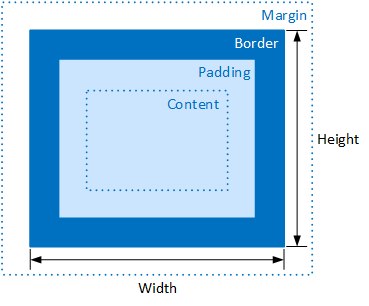
CSS box model (border box)
Contents
Content, may contain additional elements.
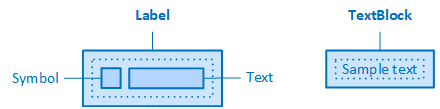
Example: The Label control element contains two elements: Symbol and TextBlock (labelled "Text" in the graphic). A TextBlock only contains the actual text.
Padding
The distance to the inside is defined by the "Padding" property. The padding is transparent.
Border is defined by the properties "BorderRadius", "BorderStyle" and "BorderWidth".
Margin
The distance to the outside is defined by the "Margin" property. The margin is transparent.
The size of the control element is defined via the "Width" and "Height" properties. The alternative CSS box model (border box) is used in VisiWin. Accordingly, the "Width" and "Height" properties define the width and height of the box, including the inner spacing and the border.
Defines the width/height of the element including the inner spacing and the frame. If the size of the control element is adjusted manually in the Designer using the mouse, the corresponding values are transferred to the "Width"/"Height" properties. The values can be entered in pixels or as a percentage of the width/height of the parent element. The value "auto" means that the width/height of the element is automatically determined by its content.
Defines the outer spacing of the element for the top, right, bottom and left. The values are specified in pixels or as a percentage of the length/width of the parent element. Negative values are permitted. If a background ("Background" property) or a background colour ("BackgroundColor" property) is specified for the parent element (e.g. FlexLayout), the background or background colour is visible through the margin.
-
The "Margin" property is only available if the element has been added to a FlexLayout.
Defines the internal spacing between the frame and the content of the element for the top, right, bottom and left. The values are specified in pixels or as a percentage of the length/width of the parent element. Negative values are not permitted. If a background ("Background" property) or a background colour ("BackgroundColor" property) is specified for the control element, the background or background colour is visible through the padding.
-
The "Padding", "MinWidth"/"MinHeight" and "MaxWidth"/"MaxHeight" properties are only available if the control element does not use a style (style = default).
MinWidth/MinHeight
Defines the minimum width/minimum height of the control element. The property prevents the element from becoming smaller than specified in "MinWidth"/"MinHeight". Therefore, the property only has an effect if it is greater than "Width"/"Height" or "MaxWidth"/"MaxHeight". Specifications are possible in pixels or as a percentage of the width/height of the parent element. Negative values are not permitted.
-
The "Padding", "MinWidth"/"MinHeight" and "MaxWidth"/"MaxHeight" properties are only available if the control element does not use a style (style = default).
MaxWidth/MaxHeight
Defines the maximum width/height of the control element. The property prevents the element from becoming larger than specified in "MaxWidth"/"MaxHeight". The property therefore only has an effect if it is smaller than "Width"/"Height". Possible values are in pixels or as a percentage of the width/height of the parent element. Negative values are not permitted.
-
The "Padding", "MinWidth"/"MinHeight" and "MaxWidth"/"MaxHeight" properties are only available if the control element does not use a style (style = default).
Manual (absolute) positioning
The following properties are available in a control element if it is in a fixed (absolute) position, e.g. in an AbsoluteLayout or in a ViewBox.
Defines the distance of the element to the left/upper edge of the parent element (in pixels). Negative values are permitted.
Bottom/Right
Defines the distance to the bottom/right edge of the parent element (in pixels). Negative values are permitted.
The "Bottom"/"Right" properties are calculated automatically when the control is placed on the AbsoluteLayout in the Designer. If they are set explicitly (manually), they only have an effect if the "Width"/"Height" properties of the control are set to "auto" and the "MaxWidth"/"MaxHeight" and "MinWidth"/"MinHeight" properties do not overwrite the "Width"/"Height" property. In this case, the control element is given the size that is specified by the information in "Left"/"Top" and "Bottom"/"Right".
Example: The width/height of the TextBlock control is set to "auto" by default. When placing the control element on an AbsoluteLayout in the Designer, the "Left"/"Top" property is set automatically. If the "Bottom" and "Right" properties are set manually, the control element is given the size specified by the "Left", "Top", "Bottom" and "Right" properties.
Flexible enlargement and reduction
In a FlexLayout, control elements can take up the available space so that there is no empty space. If there is not enough space, they can reduce their size to fit in.
If the control element is placed on a FlexLayout, the following properties are available in the control element:
-
The "FlexBase", "FlexGrow" and "FlexShrink" properties affect the width of the control element if the FlexLayout aligns its elements horizontally (Orientation = Horizontal) and the height if the FlexLayout aligns its elements vertically (Orientation = Vertical).
FlexBasis
Defines the initial width or the initial height of the control from which the control may grow or shrink.
FlexGrow
Defines the factor for enlarging the control in a FlexLayout if there is free space in the FlexLayout. If "FlexGrow" is set to 0, the control element is not enlarged.
The following example demonstrates how the setting in "FlexGrow" affects the width of the control element.
A FlexLayout contains three control elements of the button type.
The FlexLayout has the following settings:
|
Container |
Width |
Orientation |
|---|---|---|
|
FlexLayout |
800 px |
Horizontal |
The controls contained in the FlexLayout have the following settings:
|
Control element |
Width |
Margin |
FlexGrow |
|---|---|---|---|
|
Button1 |
160 px |
0,0,0,0 |
1 |
|
Button2 |
160 px |
0,0,0,0 |
2 |
|
Button3 |
160 px |
0,0,0,0 |
1 |
Control elements for which the "FlexGrow" property is set (not equal to 0) attempt to divide the free space between them. To do this, the space to be distributed is first determined:
-
Free space: 800 px - 3 × 160 px = 320 px
The free space is now distributed to the controls according to their "FlexGrow" property setting. Each control element is given this much space in addition to its width:
-
Button 1: 320 px : (1 + 2 + 1) × 1 = 80 px
-
Button 2: 320 px : (1 + 2 + 1) × 2 = 160 px
-
Button 3: 320 px : (1 + 2 + 1) × 1 = 80 px
For the final width of the control element, the additional width is added to the set width:
-
Button 1: 160 px + 80 px = 240 px
-
Button 2: 160 px + 160 px = 320 px
-
Button 3: 160 px + 80 px = 240 px
FlexShrink
Determines how much the control may shrink in comparison to the other controls in a FlexLayout if the width of the FlexLayout is not sufficient for all controls. If "FlexShrink" is set to 0, the width of the control is not reduced.
Example: The calculation of the shrinkage is based on the example for "FlexGrow". In this example, the FlexLayout has less space available (400 px instead of 800 px). There is therefore too little space for the control elements in the FlexLayout.
-
Missing space: 400 px - 3 × 160 px = -80 px
The missing space is now distributed to the controls according to their "FlexShrink" property setting:
-
Button 1: -80 px : (1 + 2 + 1) × 1 = -20 px
-
Button 2: -80 px : (1 + 2 + 1) × 2 = -40 px
-
Button 3: -80 px : (1 + 2 + 1) × 1 = -20 px
For the final width of the control element, the missing width is added to the set width:
-
Button 1: 160 px - 20 px = 140 px
-
Button 2: 160 px - 40 px = 120 px
-
Button 3: 160 px - 20 px = 140 px
Dealing with excess content
For some containers(FlexLayout, Region, CardContent), you can set what happens to the excess content of the container if the width/height of a container is limited. The handling of this excess content is defined via the following property of the container:
Determines whether and how excess content is displayed.
-
Visible
The excess content of the container is displayed, even if it extends beyond the edge of the container.
-
Hidden
The excess contents of the container are cut off at the edge of the container.
-
Scroll
The container should display a vertical and a horizontal scrollbar. If there is no excess content, the scrollbars are inactive. If there is excess content, the scrollbars are activated. They can then be used to navigate to the excess content.
-
Car
If required, a scrollbar is displayed at the edge of the container to navigate to the excess content.