FlexLayout
Container for automatic positioning of control elements.
|
Symbol |
|
|
Menu ribbon |
Start > Controls > Container > Layout > FlexLayout |

The "FlexLayout" control element is a container for automatically positioning the elements it contains. The FlexLayout is placed on a higher-level container, e.g. on a page, in the Designer.
Functionalities
The FlexLayout supports the following functionality:
-
Automatic positioning of the contained elements
-
Connection to the user administration for blocking operability
-
Display of the background, the frame, the shadow, etc.
-
Color representation of the background and the frame
You can configure these functionalities via the properties in the Properties window when you select the control in the Designer or in the document outline.
Style
There are no system styles available for the layout container. You can create your own styles for the control element. These styles are available for selection in the "Style" property after creation.
Structure
If a FlexLayout is placed on a page, it initially has no other elements. Control elements that are placed on the FlexLayout are added to the FlexLayout as sub-elements.
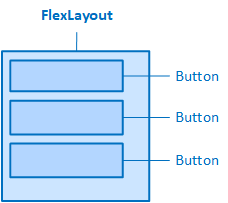
The FlexLayout can accommodate any control elements.
The FlexLayout automatically arranges the elements placed on it in rows or columns. If the size of the FlexLayout is changed, the control elements can jump to the next row or column. The elements can also be aligned within the rows or columns.
If a control element is placed on the FlexLayout, the "FlexGrow" and "FlexShrink" properties are available in the "Layout " category, which allow the control element to shrink or expand as required.
The following properties are available in FlexLayout for the automatic positioning of contained elements:
Determines whether the elements contained are arranged in rows (Horizontal) or columns (Vertical).


Orientation=Horizontal and Orientation=Vertical
Wrap
Specifies that excess elements automatically jump to the next row or column if they require more space than the width or height of the container. If Wrap = true, then the respective row is as high as the highest element in the row and the respective column is as wide as the widest element in the column.
-
The "Overflow"property determines whether the excess content is visible or is cut off (as with element 3 in the first of the two illustrations).


Wrap = False and Wrap = True
Defines the alignment of the elements perpendicular to the setting of the "Orientation" property. If there are several rows/columns with the elements in the FlexLayout (Wrap = true), then "AlignItems" defines the alignment of the elements within each row/column perpendicular to the "Orientation" setting.
-
Start
Aligns the elements to the top edge of the container/the respective row or to the left edge of the container/the respective column.
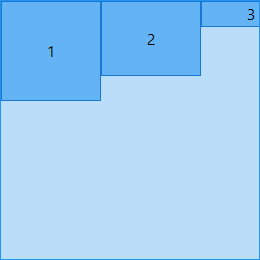
Orientation = Horizontal, Wrap = False, AlignItems = Start
-
End
Aligns the elements to the bottom edge of the container/the respective row or to the right edge of the container/the respective column.

Orientation = Horizontal, Wrap = False, AlignItems = End
-
Centre
Places the elements in the centre of the container or the respective row/column.
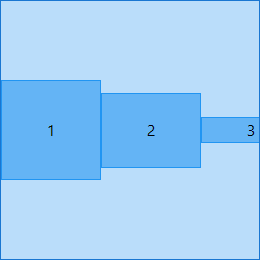
Orientation = Horizontal, Wrap = False, AlignItems = Centre
-
Baseline
Aligns the elements to the base line (baseline, font line) of your texts.
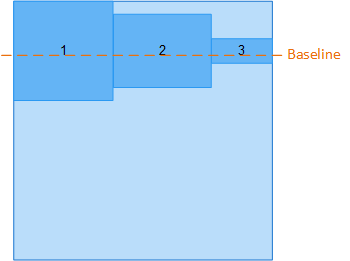
Orientation = Horizontal, Wrap = False, AlignItems = Baseline
-
Stretch
The elements are stretched so that they take up the entire container or the entire row height/column width.
-
The "Stretch" setting only affects elements whose "Height" or "Width" property is set to "auto". In the illustration below, this is the case for element 3.

Orientation = Horizontal, Wrap = False, AlignItems = Stretch
-
If there is more than one row/column with the elements in the container, this property defines the position of the rows/columns. The property acts perpendicular to the setting of the "Orientation" property.
-
Start
Places the rows with the elements at the top of the container or the columns on the left of the container.
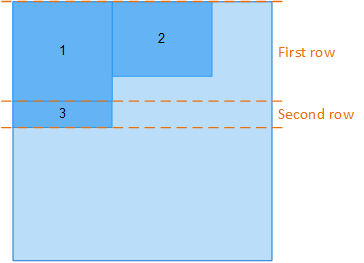
Orientation = Horizontal, Wrap = True, AlignContent = Start
-
End
Places the rows with the elements at the bottom of the container or the columns on the right of the container.
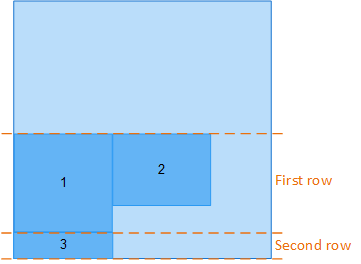
Orientation = Horizontal, Wrap = True, AlignContent = End
-
Centre
Places the rows/columns with the elements in the centre of the container.
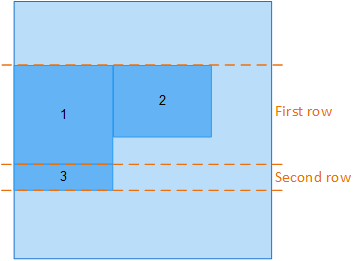
Orientation = Horizontal, Wrap = True, AlignContent = Centre
-
Stretch
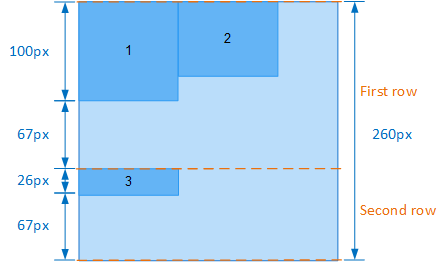
Stretches the rows or columns in such a way that the excess space in the container is distributed evenly across the rows or columns.
-
Example: The container in the illustration below is 260 px high. By default, a row is at least as high as the highest element of this row. The first row is at least 100 px high, the second at least 26 px. The minimum heights of the two rows add up to 100 px + 26 px = 126 px. The excess height in the container is 260 px - 126 px = 134 px. As there are two rows, the excess height is divided by two, each row is stretched by 134 px / 2 = 67 px. The height of the first row is therefore 100 px + 67 px = 167 px, the height of the second row is 26 px + 67 px = 93 px.
-
-
Space-between
Distributes the space available in the container evenly between the rows/columns.
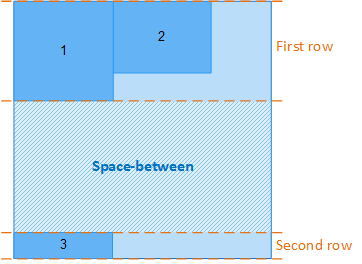
Orientation = Horizontal, Wrap = True, AlignContent = Space-between
-
Space-around
Distributes the space available in the container evenly around the rows/columns.
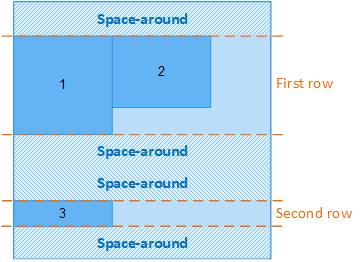
Orientation = Horizontal, Wrap = True, AlignContent = Space-around
Defines the orientation of the elements within the row(s)/column(s). The property works in the direction of the Orientation property setting.
-
Start
Places the elements left-aligned in the respective row or at the top of the respective column.
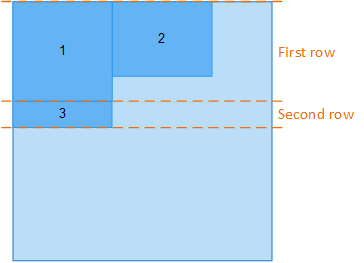
Orientation = Horizontal, Wrap = True, JustifyContent = Start
-
End
Places the elements right-aligned in the respective row or at the bottom of the respective column.
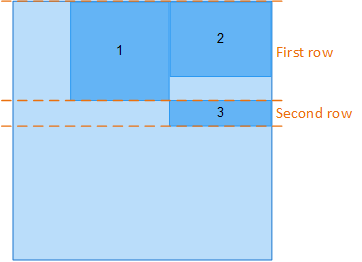
Orientation = Horizontal, Wrap = True, JustifyContent = End
-
Centre
Places the elements in the centre of the respective row/column.
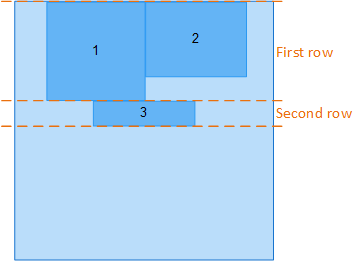
Orientation = Horizontal, Wrap = True, JustifyContent = Centre
-
Space-between
Distributes the space available in the row/column evenly between the elements.
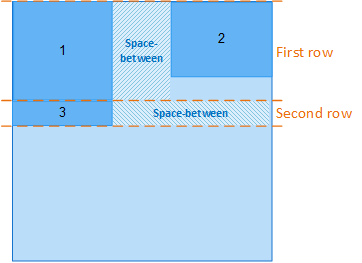
Orientation = Horizontal, Wrap = True, JustifyContent = Space-between
-
Space-around
Distributes the space available in the row/column evenly around the elements.
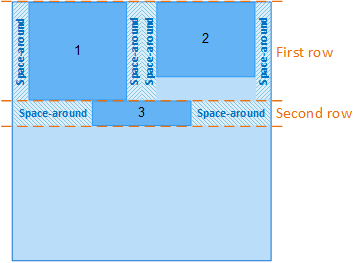
Orientation = Horizontal, Wrap = True, JustifyContent = Space-around
-
Space-evenly
Distributes the space available in the row/column evenly between an element and the container edge/the next element.
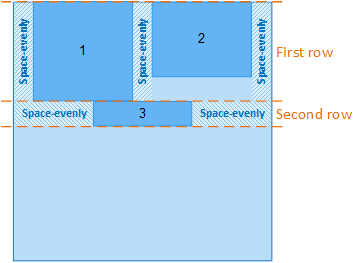
Orientation = Horizontal, Wrap = True, JustifyContent = Space-evenly
Gap
You can set a vertical gap (Row Gap) or a horizontal gap (Column Gap) between all child controls of the FlexLayout container.
-
 Row Gap
Sets the vertical gap (in y-direction) between rows (if Orientation=Horizontal) or between elements in a column (if Orientation=Vertical).
-
 Column Gap
Sets the horizontal gap (in x-direction) between elements in a row (if Orientation=Horizontal) or between columns (if Orientation=Vertical).
Several columns or rows can only appear if there are more elements than fit into a column (if Orientation=Vertical) or row (if Orientation=Horizontal) and if the Wrap property was enabled.

Orientation=Vertical, Wrap=true, Row Gap, Column Gap

Orientation=Horizontal, Wrap=true, Row Gap, Column Gap
The visible space between the child elements in a FlexLayout can differ from what is set in the Gap property since the AlignItems, JustifyContent, AlignContent as well as Margin and Padding properties are included in the calculation of the visible space.

Orientation=Vertical, Wrap=true, Row Gap, Column Gap, Margin

Addition of gap and margins
Related topics: