System styles
Styles that are already included in the EASY UI Designer installation.
Two style families are available in EASY UI Designer Web UI: Plain and Material. Each style family contains several styles, e.g. Default, Flat and Icon.
| Style | Standard display |
|---|---|
| Default (no style) |
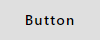
|
| Plain.default |

|
| Plain.flat |
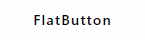
|
| Plain.icon |

|
| Material.default |
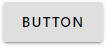
|
| Material.flat |
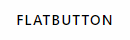
|
| Material.icon |

|
| Material.Outlined |
|
A style defines certain properties for all controls of a type. For example, the Plain.Default style defines the following property values for all controls of the Button type:
| Feature | Value | Description of the |
|---|---|---|
| Width | 145px | Width of 145 pixels. |
| BorderRadius | 2px | Radius for rounding corners of 2 pixels. |
| SymbolSize | 18px | Size of the container for the graphic of 18x18 pixels. |
| BackgroundColor | @PrimaryColor | Background colour corresponds to the colour defined in the themesfor @PrimaryColor. |
| HoverBackgroundColor | @PrimaryLightColor | Background colour in hover state corresponds to the colour defined in the themes for @PrimaryLightColor. |
| PressedBackgroundColor | @PrimaryDarkColor | Background colour in the Pressed state corresponds to the colour defined in the themes for @PrimaryColor. |
| DisabledBackgroundColor | @DisabledCheckedBackgroundColor | Background colour in the Disabled state corresponds to the colour defined in the themes for @DisabledCheckedBackgroundColor. |
| ForegroundColor | @White | Text colour corresponds to the colour defined in the themesfor @White. |
| PressedForegroundColor | @White | Text colour in the Pressed state corresponds to the colour defined in the themesfor @White. |
These property-value pairs are defined in the plainstyles.json file in the project folder under resources/styles.
"VisiWin.UI.Button.Plain.Default": { "options": { "width": "145px", "borderRadius": "2px", "symbolSize": "18px", "backgroundColor": "@PrimaryColor", "hoverBackgroundColor": "@PrimaryLightColor", "pressedBackgroundColor": "@PrimaryDarkColor", "disabledBackgroundColor": "@DisabledCheckedBackgroundColor", "foregroundColor": "@White", "pressedForegroundColor": "@White" } },The Plain and Material style families are characterised by the following features:
- Plain
- This style family is very similar to the controls in plain style projects in the Modern UI. Plain styles are characterised by simplicity (minimalism) and two-dimensionality. This style family contains three styles: Plain.Default, Plain.Flat and Plain.Icon. The Plain.Tacho style is available for the RadialInstrument control element. The style family is characterised, for example, by the use of the colour blue (green in the Green Theme) for buttons. Frames, shadows and capital letters are not used by default.
- Material
- This style family is visually based on Google Material Design. The Material style is available in the styles Material.Default, Material.Flat, Material.Icon and Material.Outlined. The Material. Speedometer style is available for the RadialInstrument control element. The style family is characterised by the use of the colours grey/black/white, the ripple effect for buttons, capital letters for text and rounded corners. The Material.Outlined style is characterised by the use of the frame, Material.Default by the use of shadows.
Some elements look very similar in the same style (e.g. Plain.Icon and Material.Icon) in different style families. Not all of these styles are available for every control element.
Subject:
AlarmList, Button, Checkbox, Clock, DateTimeVarIn, DateTimeVarOut, DropDownBox, DropDownBoxItem, HistoricalAlarmList, Key, MenuItem, NumericVarIn, NumericVarOut, RadialInstrument, RadioButton, RadioButtonGroup, Slider, Submenu, Switch, TabBar, TabButton, TabMenuButton, TextVarIn, TextVarOut, ToggleButton, ToggleButtonGroup