RadioButtonGroup
Control element for grouping options, only one of which can be activated at a time.
|
Symbol |
|
|
Menu ribbon |
Start > Controls > Buttons > Switches and buttons > RadioButtonGroup |

The "RadioButtonGroup" control element is used to group several control elements of the RadioButton type, of which only one control element can be activated at a time. A "RadioButtonGroup" contains three RadioButtons by default. Additional RadioButtons can be added to the RadioButtonGroup in the Designer. The RadioButtonGroup also summarises the RadioButtons it contains visually with the help of a heading and a background colour and defines the position of the RadioButtons it contains.
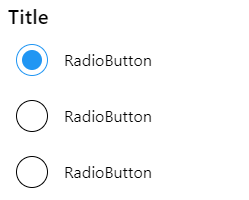
RadioButtonGroup with three RadioButtons
Functionalities
The control element supports the following functionality:
-
Automatic positioningof the included RadioButtons
-
Display of a language-switchable heading in the control element
-
Display of a language-switchable subtitle in the control element
-
Connection to the user administration for blocking operability
-
Display of the background, the frame, the shadow, etc.
-
Colour display of the background, frame, text, etc., also depending on the status of the control element
You can configure these functionalities via the properties in the Properties window when you select the control in the Designer or in the document outline. Whether a property is visible in the properties window depends on the style of the control.
Style
By default, the control uses the "Plain.Default" style. Other system styles are available for the control in the "Style" property from the "General properties" category.
Certain properties may be missing in the Properties window for styled controls. For example, the "Colours" category is not available for controls in the system styles. These properties cannot be edited in the system styles.
You can also create your own styles for the control element. These styles are available for selection in the "Style" property after creation.
-
If a different style is selected for the control element, the style of the contained sub-elements does not change automatically. To change the style of a sub-element, select the element in the Designer or in the document outline and select the desired style in the "Style" property.
The control element consists of a number of other elements. Both the control itself and its elements can be configured via the properties of the control. Properties for a sub-element of the control can usually be found in the category that bears the name of this element.
Example: The properties for configuring the "Title" element can be found in the Properties window in the "Title" category when you select the control element in the Designer or in the document outline.
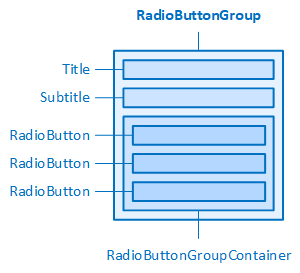
The RadioButtonGroup and its elements
Automatic positioning of the RadioButtons
If the style of the control is reset, properties for the automatic positioning of the subordinate RadioButtons within the RadioButtonGroupContainer (see Structure) are available in the "Group" category. By default, the "RadioButtonGroupContainer" positions the contained RadioButtons in a single column (Orientation = Vertical, Wrap =o), aligned at the top edge (JustifyContent = Start) and left-aligned (AlignItems = Start).
Related topics: