Slider
Slider for the input and output of a variable value.
|
Symbol |
|
|
Menu ribbon |
Start > Controls > Input/output > Variable input > Slider |

The "Slider" control element is used to enter a numerical value by moving the handle on a vertical or horizontal rail.
When moving the handle, the current value and optionally the unit are displayed.
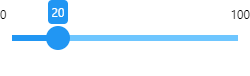
Slider with value display
Functionalities
The control element supports the following functionality:
-
Connection to an analogue process variable(integer value/floating point value) for the data source
-
Limitation of the displayable value range
-
Display of the maximum and minimum values
-
Horizontal or vertical alignment
-
Visualisation of the contact point and the rail
-
Display of the current value and the unit in a display for value and unit
-
Connection to the user administration for blocking operability
-
Display of the background, the frame, the shadow, etc.
-
Color display of the background, frame, text, etc., also depending on the status of the control element
You can configure these functionalities via the properties in the Properties window when you select the control in the Designer or in the document outline. Whether a property is visible in the properties window depends on the style of the control.
Style
By default, the control uses the "Plain.Default" style. Other system styles are available for the control in the "Style" property from the "General properties" category.
Certain properties may be missing in the Properties window for styled controls. For example, the "Colors" category is not available for controls in the system styles. These properties cannot be edited in the system styles.
You can also create your own styles for the control element. These styles are available for selection in the "Style" property after creation.
Structure
The control element consists of a number of other elements. Both the control itself and its elements can be configured via the properties of the control. Properties for a sub-element of the control can usually be found in the category that bears the name of this element.
Example: The properties for configuring the Unit element can be found in the Properties window in the "Unit" category when you select the control element in the Designer or in the document outline.
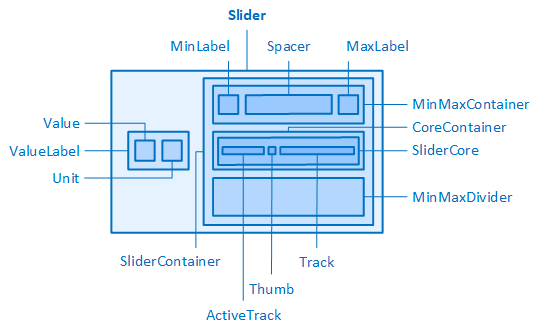
The slider and its elements
Maximum and minimum value
For the slider in the "Plain.Default" and "Material.Default" styles, the maximum and minimum values ("MaxLabel" and "MinLabel") are already preconfigured. If the style of the slider is reset, properties for configuring these elements are available.
MaxLabel/MinLabel
The following can be configured for the maximum and minimum value display using the properties in the "MaxLabel" and "MinLabel" categories:
-
Whether the value display should be shown at all (ShowMaxLabel/ShowMinLabel)
-
Width and height (MaxLabelWidth/MinLabelWidth, MaxLabelHeight/MinLabelHeight)
-
Outer distances (MaxLabelMargin/MinLabelMargin)
-
Text font (MaxLabelFontClass/MinLabelFontClass, MaxLabelTextContrast/MinLabelTextContrast, MaxLabelFontSize/MinLabelFontSize, MaxLabelFontWeight/MinLabelFontWeight)
-
Text display (MaxLabelTextAlignment/MinLabelTextAlignment, MaxLabelLineHeight/MinLabelLineHeight)
MinMaxLabel
The following properties are available in the "MinMaxLabel" category to configure the container for the maximum and minimum value display:
-
The visual effect of the respective setting depends on the setting of the "Orientation"property (category "Slider").
MinMaxLabelAlignItems
-
Orientation = Horizontal: Defines the vertical positioning of the maximum and minimum value display within the container containing them (MinMaxContainer).
-
Orientation = Vertical: Defines the horizontal positioning of the maximum and minimum value display within the container containing them (MinMaxContainer).
MinMaxLabelJustifyContent
This property has no effect, as the transparent "Spacer" element between the two value displays ensures that they are as far apart as possible.
MinMaxLabelPosition
Defines the position of the maximum and minimum value display relative to the rail.
-
Left/Top
Both value displays are shown above the rail for Orientation = Horizontal and to the left of the rail for Orientation=Vertical.
-
Right/Bottom
Both value displays are shown below the rail for Orientation = Horizontal and to the right of the rail for Orientation = Vertical.
MinMaxLabelThickness
-
Orientation = Horizontal: Defines the height of the container for the maximum and minimum value display (MinMaxContainer) and the height of the placeholder (MinMaxDivider) on the opposite side of the rail.
-
Orientation = Vertical: Defines the width of the container for the maximum and minimum value display (MinMaxContainer) and the width of the placeholder (MinMaxDivider) on the opposite side of the rail.
Slider
If the style of the slider is reset, the following properties are available in the "Slider" category:
Orientation
Determines whether the rail is positioned horizontally or vertically.
Horizontal
The rail is positioned horizontally. The values run from left (lower limit value) to right (upper limit value).
Vertical
The rail is positioned vertically. The values run from the bottom (lower limit value) to the top (upper limit value).
SliderContainerPadding
Defines the internal spacing for the "CoreContainer" element, which contains the rail and the handle.
-
The property may influence the height/width of the entire control element and the length of the rail.
-
Example: For the slider, the "Height" property is set to "auto" by default and the "Width" property is set to 250 px. If the slider is positioned horizontally (Orientation = Horizontal), the settings of the "SliderContainerPadding" property for left and right affect the length of the rail, as the width of the entire control element is fixed. If the distances for top and bottom are increased, for example, then the height of the entire control element increases, as the height of the control element adapts to the content.
Thumb
The thumb is already preconfigured for the slider in the "Plain.Default" and "Material.Default" styles. If the style of the slider is reset, the following can be configured for the handle:
-
Width and height (ThumbWidth, ThumbHeight)
-
Outer distances (ThumbMargin)
-
Border (ThumbBorderRadius, ThumbBorderStyle, ThumbBorderWidth)
-
Shadow (ThumbShadow)
Track
The track is already preconfigured for the slider in the "Plain.Default" and "Material.Default" styles. If the style of the slider is reset, the following properties are available in the "Track" category for configuring the track:
TrackBorderRadius
Defines the rounding of the corners of the rail. The setting "0,0,0,0" means that the corners are not rounded. The higher the values, the rounder the corners. The values can be specified in pixels or as a percentage.
TrackThickness
Determines the thickness of the rail.
Related topics: