Limits
Limitation of the displayable/permissible value range.
Control elements can accept or display all values of the linked variables. This value range defined by the data type of the variable can be further restricted. The limit values can either be defined directly in the control element or obtained from the variable definition.
The NumericVarIn and TextVarIn input controls can check whether the entered value is within the value range specified by the limits. If the value range check is activated for the control element, the control element indicates if the input is outside the permissible value range by means of a different colour(ErrorColor), additional text(ErrorText) or a special symbol(ErrorSymbol). An invalid value is not passed on to the variable server by the control element.
Example:
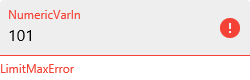
The value 101 exceeds the specified upper limit of 100 in this NumericVarIn, is therefore invalid and is indicated by the red colouring, the error symbol (exclamation mark) and the error text ("LimitMaxError"):
-
To display the control element in the Designer as it will look at runtime in the event of an error, activate the "ErrorMode" property (see Displaying the status at design time).
-
The DateTimeVarIn control displays an error for an invalid date (31 February) even if the value range check for the control has not been activated.
For Bar, DonutGauge, RadialInstrument and Slider output controls, the defined limits determine the range of values that can be displayed by the control. For Bar, DonutGauge and RadialInstrument, the entire displayable range can be divided into sub-rangesand displayed in different colours.
The properties for configuring the limits can be found in the Properties window in the "Limits" category.
IsLimitCheckEnabled
Activates the value range check in the input control. The valid limits are obtained in the RawLimitMin/RawLimitMax, TextLengthMax/TextLengthMin or LimitMin/LimitMax properties or, if the UseVariableLimitsproperty is activated, from the maximum value settings and minimum value settings of the linked variables.
Limits
The button  behind the property opens the Collection Editor, which can be used to create and configure several sub-areas.
RawLimitMax, RawLimitMin
-
Input controls: Defines the highest/lowest value of the permitted range for the input.
-
Output controls: Defines the highest/lowest value of the displayable range. These properties are preset to 0 and 100.
TextLengthMax, TextLengthMin
Defines the maximum/minimum number of characters for the character string to be entered.
UseVariableLimits
Specifies that the limit values are obtained from the parameters for the maximum value and minimum value of the variable definition linked to the control element via the VariableName property.
Segments
In the Bar, DonutGauge and RadialInstrument controls, subranges (BarLimit, DonutGaugeLimit, RadialRangeLimit) can be created and assigned different colours.


Sub-areas of the Bar, DonutGauge and RadialInstrument
The following properties are available for configuring a sub-area:
StartValue, EndValue
Defines the lower/upper limit value for the sub-range.
-
The value of "StartValue" must be less than the value of "EndValue" for the sub-area to be drawn.
Example: For a sub-range of 0 ... -20, configure as follows: StartValue = -20, EndValue = 0.
-
Avoid overlapping sub-areas in the "Bar" control element. If two sub-areas overlap, the second sub-area (and all subsequent ones) will not be displayed. In this case, the indicator is displayed in the standard colour (BarIndicatorColor).
Example:
Element
No overlap
Overlap
BarLimit 0
-
EndValue=20
-
StartValue=0
-
EndValue=20
-
StartValue=0
BarLimit 1
-
EndValue=40
-
StartValue=20
-
EndValue=40
-
StartValue=15
If values are not covered by a sub-area, the standard colour (BarIndicatorColor) is used for the indicator for the bar. In this case, no ring segment is drawn for the RadialInstrument.
-
FillColor
Defines the colour for the sub-area (see colour categories).
InnerRadius
Specifies the radius for the inside of the ring segment. If nothing is specified in "InnerRadius", the setting from RangeInnerRadius applies for this partial area.
OuterRadius
Specifies the radius for the outside of the ring segment. If nothing is specified in "OuterRadius", the setting from RangeOuterRadius applies for this partial area.
Value
Specifies a value or a value range for the sub-range.
|
Specification of... |
Description of the |
Examples |
|---|---|---|
|
Individual values |
|
|
|
Value ranges |
|
|
|
Values and value ranges |
|
|
With the "Bar" control element, all sub-areas covered by the indicator bar are displayed in the colour configured for them by default. However, the indicator bar can also be displayed in just one colour, namely in the colour configured for the sub-range in which the current value is located. This functionality is controlled via the "ShowRanges" property in the "Bar" category of the control.
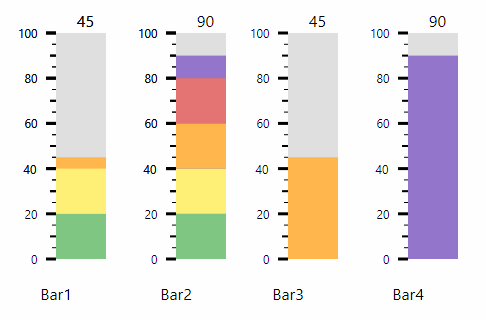
ShowRanges activated (Bar1 and Bar2) and ShowRanges deactivated (Bar3 and Bar4)
Affects these controls:
Bar, DateTimeVarIn, DonutGauge, NumericVarIn, RadialInstrument, Slider, TextVarIn