DonutGauge
Ring diagram for displaying a process variable value.
|
Symbol |
|
|
Menu ribbon |
Start > Controls > Input/output > Variable output > DonutGauge |

The "DonutGauge" control element displays a ring that represents the entire displayable value range of the connected process variables. The current value of the variable is represented by a different coloured indicator as part of the ring. The current value can also be displayed as a number.
Example: The DonutGauge is used to display progress, for example.
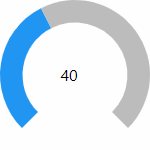
The indicator (blue) of the DonutGauge shows the current value of the connected process variables.
Functionalities
The control element supports the following functionality:
-
Connection to an analogue process variable(integer value/floating point value) for the data source
-
Limitation of the displayable value range and coloured display of sub-ranges
-
Representation of the ring diagram
-
Display of the current value and the unit in a display for value and unit
-
Connection to the user administration for blocking operability
-
Display of the background, the frame, the shadow, etc.
-
Color display of the background, frame, text, etc., also depending on the status of the control element
You can configure these functionalities via the properties in the Properties window when you select the control in the Designer or in the document outline.
Style
There are no system styles available for the control. You can create your own styles for the control. These styles are available for selection in the "Style" property after creation.
Structure
The control element consists of a number of other elements. Both the control itself and its elements can be configured via the properties of the control. Properties for a sub-element of the control can usually be found in the category that bears the name of this element.
Example: The properties for configuring the "Unit" element can be found in the Properties window in the "Unit" category when you select the control element in the Designer or in the document outline.
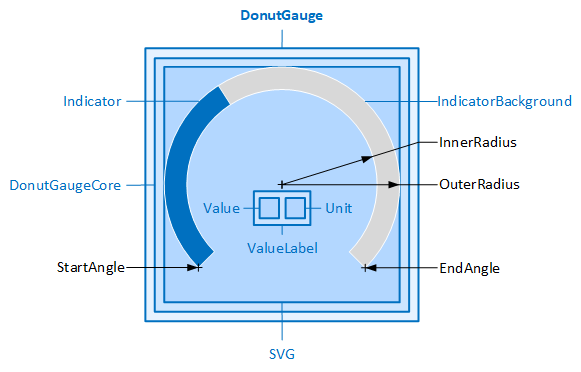
The DonutGauge and its elements and specific properties
The DonutGauge contains a graphic (SVG) that represents a ring. One part of the ring (Indicator) represents the current value, while the other part of the ring (IndicatorBackground) represents the rest of the value range to be displayed. Properties for configuring the ring diagram are contained in the "DonutGauge" category. The colours can be defined via properties in the "Colors" category.
Defines the end point for the ring.
-
To display the ring correctly, the end point must not exceed the start point (StartAngle).
Example: While the specification of "StartAngle" = 0 and "EndAngle" = 360 results in the display of a closed ring, the control element can no longer be displayed correctly if "StartAngle" = 0 and "EndAngle" = 361.
Defines the starting point for the ring. The 0 point (0 degree angle) is located at the top of the control element. From here, a negative or positive angle can be specified for the starting point of the ring. The ring is always drawn in a clockwise direction.
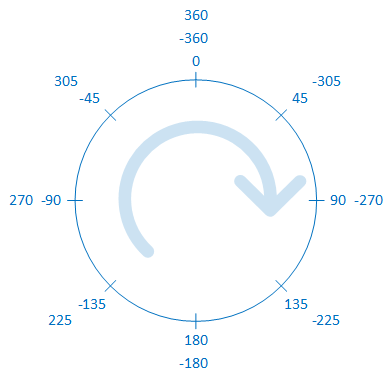
Example: If you place a DonutGauge on a page in the Designer, the start and end points for the ring are already preset (StartAngle = -135, EndAngle = 135). The indicator for the current value is drawn from the start point and extends clockwise to the end point as the value increases. The preset value range from 0 to 100 is mapped to the length of the ring. The lower limit value (0) is at the starting point, the upper limit value (100) at the end point of the ring.
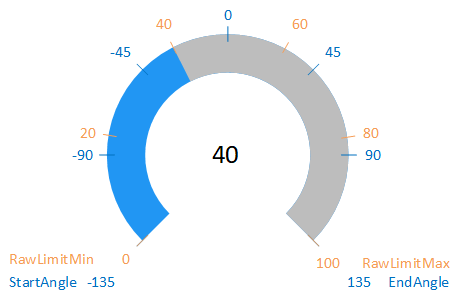
Defines the radius for the inside of the ring. Specifications in pixels or per cent are possible. The specification of 70 % means that the radius corresponds to 70 % of the distance from the centre point to the edge of the control element. If the height and width of the control element are different, the shorter distance is used to calculate the radius.
Specifies the radius for the outside of the ring. This can be specified in pixels or as a percentage. Specifying 100 % means that the radius corresponds to 100 % of the distance from the centre point to the edge of the control element. If the height and width of the control element are different, the shorter distance is used to calculate the radius.
Related topics: