Unit
Representation of a unit of measurement in addition to the variable value.
For some controls that display a variable value, the corresponding unit (cm, kg, °C etc.) can also be displayed. The unit can be defined as a constant in the control element, obtained from a text definition of the language switch from »EASY UI Designer« or from the variable definition of the linked variable. In the latter case, the variable definition must contain a reference to a unit class that contains the unit definition from which the unit text is obtained.
The unit is represented in a "Unit" element.
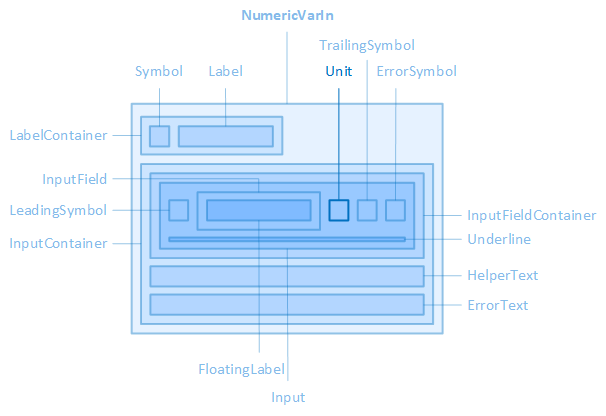
The "Unit" element, for example, is contained in the "NumericVarIn" control element.
The source, layout, display, paragraph and font of the unit can be configured via the properties of the "Unit" category of the control element, the colours of the unit via the properties of the "Colors" category.
For graphical input and output controls(Bar, DonutGauge and Slider), the value display can also be configured, which acts as a container for the value and the unit.
Source
The following properties define the unit text itself or the source of the unit text:
UnitText
Use this property if the unit is language-independent, i.e. valid for all project languages.
LocalizableUnitText
If the unit is to be language-dependent, the text selection dialogue can be opened here via the  button. This establishes the connection to an EASY UI Designer text definition. The property then saves the full name of the text definition.
-
The "LocalizableUnitText" property has priority over the "UnitText" property.
UseVariableUnitText
Specifies that the unit from the unit class specified in the variable definition in the Unit class (display) parameter is used.
-
The "UseVariableUnitText" property has priority over the "LocalisableUnitText" and "UnitText" properties. So if the "UseVariableUnitText" property is activated, make sure that the variable definition contains a reference to a unit class.
Only use one of the properties for the text source so that it is clearly recognisable for you.
Layout
The layout of the unit display can be configured using the following properties:
UnitHeight
Defines the height of the unit display.
UnitMargin
Defines the outer distances of the unit display, i.e. between the edge of the unit display and its parent or neighbouring element.
UnitPadding
Defines the internal spacing of the unit display, i.e. between the edge of the unit display and its content, i.e. the unit text.
UnitWidth
Defines the widthof the unit display.
Appearance
The following properties are available for displaying the unit:
ShowUnit
Determines whether the unit should be displayed.
Paragraph
The line height and the text alignment of the unit display are configured using the following properties:
UnitLineHeight
Defines the height of the text line for the unit. See also CSS reference: line-height
UnitTextAlignment
Defines the horizontal alignment of the unit text in the unit display. See also CSS reference: text-align
Font
The font of the unit is configured using the following properties:
UnitFontClass
Defines the font class of the unit.
-
The property contains a list of font classes from which one can be selected. The settings are obtained from a CSS file (fontclasses.css), which can be found in the resourcesWtypography folder in the client project directory.
UnitFontSize
Defines the font size of the unit. See also CSS reference: font-size
UnitFontWeight
Determines how thick or thin the characters of the unit should be displayed. See also CSS reference: font-weight
UnitTextContrast
Determines how light the font of the unit should be displayed, from 1 (opaque, default setting) to 0.5 (semi-transparent) to 0 (completely transparent). See also CSS reference: opacity
Related topics:
Affects these controls:
Bar, DonutGauge, NumericVarIn, NumericVarOut, PieSegment, Slider, StackedDonutGaugeSegment