TextVarIn
Input/output field for an alphanumeric process variable value.
|
Symbol |
|
|
Menu ribbon |
Start > Controls > Input/output > Variable input > TextVarIn |

The "TextVarIn" control element is used to transfer an alphanumeric process variable value between the application interface and the variable server.
Example: The TextVarIn can be used to enter text or passwords. In the latter case, the characters entered are masked by dots.
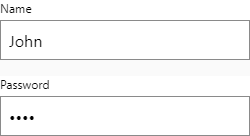
TextVarIn with text input and TextVarIn with password input
Functionalities
The control element supports the following functionality:
-
Connection to a specific process variable for the data source
-
Buffering of user input for delayed writing of a process variable
-
Display of an error symbol and an error text if input limits are exceeded
-
Display of a language-switchable text for labelling
-
Display of a language-switchable help text
-
Display of graphics in the control element
-
Display of the input field
-
Using an on-screen keyboard
The UseTouchKeyboard property defines whether the on-screen keyboard is opened for character input when the control element is clicked.
-
Representation of a watermark
-
Connection to the user administration for blocking operability
-
Display of the background, the frame, the shadow, etc.
-
Color display of the background, frame, text, etc., also depending on the status of the control element
You can configure these functionalities via the properties in the Properties window when you select the control in the Designer or in the document outline. Whether a property is visible in the properties window depends on the style of the control.
Style
By default, the control uses the "Plain.Default" style. Other system styles are available for the control in the "Style" property from the "General properties" category.
Certain properties may be missing in the Properties window for styled controls. For example, the "Colors" category is not available for controls in the system styles. These properties cannot be edited in the system styles.
You can also create your own styles for the control element. These styles are available for selection in the "Style" property after creation.
The control element consists of a number of other elements. Both the control itself and its elements can be configured via the properties of the control. Properties for a sub-element of the control can usually be found in the category that bears the name of this element.
Example: The properties for configuring the "Label" element can be found in the "Properties" window in the "Label" category if you select the control element in the Designer or in the document outline.
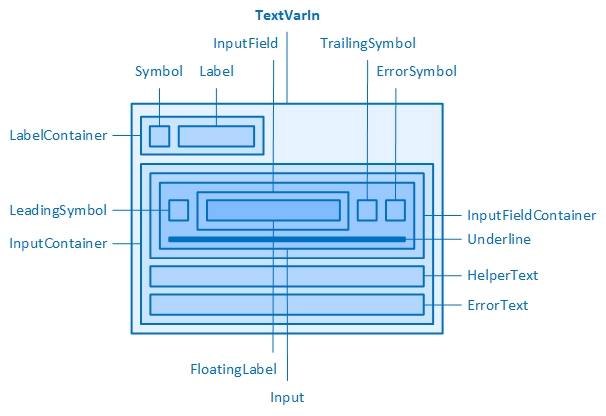
The TextVarIn and its elements
Input field (Input, InputContainer, ...)
The TextVarIn contains an input field into which a text can be entered at runtime.
If the style of the TextVarIn is reset, the following can be configured via the properties of the "Input" category:
-
Type of input: The "InputType" property defines whether the control should be used to enter a text (Text) or a password (Password).
-
Width and height of the "InputContainer" element (InputContainerWidth, InputContainerHeight)
-
Width and height of the "Input" element (InputWidth, InputHeight). The height is also automatically adopted for the higher-level "InputFieldContainer".
-
Outer distances of the "InputField" element (InputFieldMargin). The values for left and right automatically set the inner distances for the "Input" element.
You can use the value for Left of the "InputFieldMargin" property to move the input further to the right.
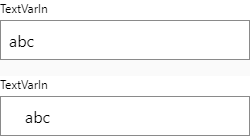
"InputFieldMargin" for left of 8 px (default setting) and 24 px
-
Border around the "Input" element (InputBorderRadius, InputBorderStyle, InputBorderWidth)
-
Text font and line height in the "Input" element (InputFontClass, InputTextContrast, InputFontSize, InputFontWeight, InputLineHeight)
The following illustration shows how the elements are structurally connected and which properties affect which element:
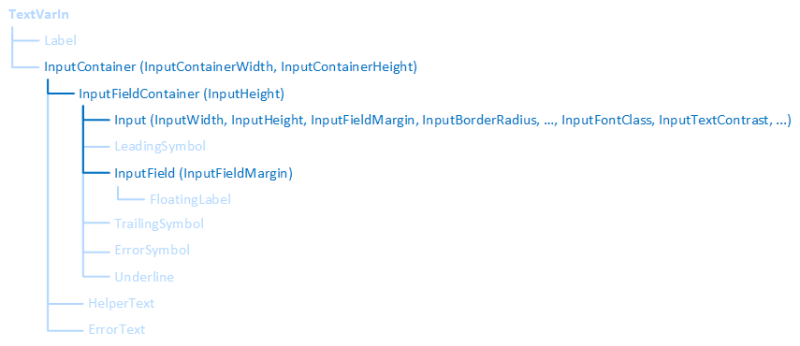
InputContainer and its elements
Related topics: