Text
Display of a text in the control element, partially controlled by a variable value.
The text is displayed within the graphical representation of the control element, e.g. in the area of a button. The text can be defined as a constant in the control or obtained from the EASY UI Designer language switch. If the control also supports the connection to a process variable, the text can alternatively be obtained from the variable definition. This can then also be language-switched.
The text is displayed in a text display ("Text" element).
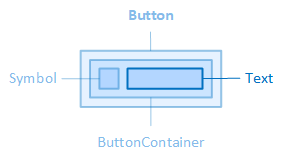
The "Text" element, for example, is contained in the "Button" control element.
The source, layout, display, paragraph and font of the text can be configured via the properties of the "Text" category of the control, the colours of the text via the properties of the "Colors" category.
Text properties for sub-elements
If the control element contains a sub-element that can display a text, the properties for the configuration of the text can be found in the category that has the name of the sub-element as its name. The properties for the text of the sub-element also contain the name of the sub-element in their name.
Example: The DropDownBox control element has an input field (sub-element "Input"). A text can be displayed in the input field. The DropDownBox therefore contains properties for configuring the text in the "Input" category. The name "Input" is contained in the name of these properties, e.g. "InputText". "InputText" defines the language-independent text for the input field, i.e. it has the same meaning as the "Text" property.
Source
The following properties define the text itself or the text source:
Text (TextOff/TextOn)
Use this property if the labelling is language-independent, e.g. a name or a short description.
-
Some controls with a variable connection can display different texts depending on the variable value. If the value of the variable is false, the text of the "TextOff" property is displayed; if the value is true, the text of the "TextOn" property is displayed.
LocalizableText (LocalizableTextOff/LocalizableTextOn)
If the labelling is to be language-dependent, the text selection dialogue can be opened here via the  button. This establishes the connection to an EASY UI Designer text definition. The property then saves the full name of the text definition.
-
The note for "TextOff/TextOn" applies accordingly to "LocalizableTextOff/LocalizableTextOn".
-
The "LocalisableText" property has priority over the "Text" property.
UseVariableText
If the control element supports the connection to a process variable, this property is available. If the option is activated, the text is obtained from the Text parameter of the variable definition.
-
The "UseVariableText" property has priority over the "LocalisableText" and "Text" properties. So if the "UseVariableText" property is activated, make sure that the variable definition contains a text or a reference to a localizable text in the "Text" parameter.
Only use one of the properties for the text source so that it is clearly recognisable for you.
Layout
The layout of the text display can be configured using the following properties:
TextHeight
Defines the height of the text display.
TextMargin
Defines the outer spacing of the text display, i.e. between the edge of the text display and its parent or neighbouring element.
TextPadding
Defines the internal spacing of the text display, i.e. between the edge of the text display and its content, i.e. the actual text.
TextPosition
Defines the position of the text display and, if applicable, the symbol in the control element.
-
For the Switch control element, the values Left, Top, Right and Bottom define the position of the text relative to the label.
-
Left
The text display and the symbol are positioned on the left of the control element.
-
Top
The text display and the symbol are positioned at the top of the control element.
-
Right
The text display and the symbol are positioned on the right-hand side of the control element.
-
Bottom
The text display and the symbol are positioned at the bottom of the control element.
-
Centre
The text display and the symbol are positioned in the centre of the control element.
TextWidth
Defines the widthof the text display.
Appearance
The following properties are available for displaying the text:
ShowText
Determines whether the text should be displayed.
Paragraph
Line breaks, line height and text alignment of the text display are configured using the following properties:
LineClamp
Specifies the number of lines for the text if the text is longer than the width of the control element. The property only has an effect if the "TextWrapping" property is set to "WrapWithLineClamp". Line breaks are inserted instead of spaces in the text, i.e. there is no wrapping within a word.
LineHeight
Defines the height of the text line(s). See also CSS reference: line-height
TextAlignment
Defines the horizontal alignment of the text within the text display. See also CSS reference: text-align
TextTrimming
Defines how the text is shortened if it is longer than the text display width.
-
Clip
The excess text is cut off.
-
Ellipsis
The excess text is abbreviated by an ellipsis (...) (default setting).
-
Overflow
The text is displayed and may extend beyond the edge of the control element.
TextWrapping
Determines whether and how the text is wrapped.
-
NoWrap
No line break, the text is displayed in one line. If the text is longer than the width of the control, the excess text is either truncated, abbreviated by an ellipsis or protrudes beyond the edge of the control, depending on the setting in the "TextTrimming" property.
-
Wrap
If the text is longer than the width of the control element, the text is displayed in multiple lines. Line breaks are automatically inserted at the end of each line after a space or a hyphen.
-
If the width of the control element ("Width" property) is set to auto, the width of the control element adapts to the text length until its width is limited by the width of the parent container.
-
If the height of the control is smaller than the total height of the lines, lines may be cut off. The cutting off of lines is prevented in the TextBlock control by the properties window automatically setting the "Height" property to auto as soon as the "Wrap" setting is selected. This does not happen automatically in the label. Set the "Height" property in the label to auto manually if required.
-
-
WrapWithLineClamp
If the text is longer than the width of the control element, the text is displayed in multiple lines. The text will contain a maximum of as many lines as specified in "LineClamp". Line breaks are automatically inserted at the end of each line after a space or a hyphen. If there is excess text, an ellipsis is automatically inserted at the end of the last line. The ellipsis is inserted regardless of the setting in "TextTrimming".
-
The notes for "Wrap" apply accordingly to "WrapWithLineClamp".
-
-
WrapWithWordBreak
If the text is longer than the width of the control element, the text is displayed in multiple lines. With this setting, text wrapping is also permitted within the words.
-
The notes for "Wrap" apply accordingly to "WrapWithWordBreak".
-
Font
The font of the text is configured using the following properties:
FontClass
Defines the font class of the text.
-
The property contains a list of font classes from which one can be selected. The settings are obtained from a CSS file (fontclasses.css), which can be found in the resourcesWtypography folder in the client project directory.
FontFamily
Defines the font of the text. See also CSS reference: font-family
FontSize
Defines the font size of the text. See also CSS reference: font-size
FontStyle
Defines the font style of the text. See also CSS reference: font-style
FontWeight
Determines how thick or thin the letters of the text should be displayed. See also CSS reference: font-weight
LetterSpacing
Increases or decreases the space between individual letters. See also CSS reference: letter-spacing
TextContrast
Defines how light the text font should be displayed, from 1 (opaque, default setting) to 0.5 (semi-transparent) to 0 (completely transparent). See also CSS reference: opacity
Uppercase
Determines whether the text is displayed in capital letters. See also CSS reference: text-transform
Related topics:
Affects these controls:
Button, DropDownBoxItem, Key, Label, StateIndicator, StateIndicatorItem, Switch, TabButton, TextBlock, ToggleButton