StateIndicator
Control element that changes its colour, text and icon depending on the value of the linked variable.
|
Symbol |
|
|
Menu ribbon |
Start > Controls > Input/output > Graphic > StateIndicator |

The "StateIndicator" control element can change any combination of colour, text and symbol depending on the variable value. It is often used to display a status.
|
Variable value |
Representation |
|---|---|
|
0 |
|
|
1 |
|
|
2 |
|


Functionalities
The control element supports the following functionality:
-
Connection to a binary process variable(one bit) for the data source
-
Connection to an analogue process variable(integer value/floating point value) for the data source
-
Display of a changing or static text depending on the variable value
-
Display of a changing or static graphic depending on the variable value
-
Display of changing or static colours depending on the variable value
-
Connection to the user administration for blocking operability
You can configure these functionalities via the properties in the Properties window when you select the control in the Designer or in the document outline.
Style
There are no system styles available for the control. You can create your own styles for the control. These styles are available for selection in the "Style" property after creation.
Structure
The control element contains the elements "Symbol" for displaying the graphic and "Text" for displaying the text.
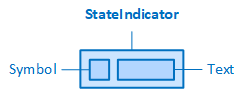
The StateIndicator and its elements
The control can switch between different texts, depending on the value of the linked variable. To define changing texts depending on the variable value, use the "Items" property to create a list with elements of the type "StateIndicatorItem".
Properties of the "Text" category can be used to configure a static graphic that is only displayed if:
-
the control element does not contain a status list, the text is then permanently displayed,
-
the current value at runtime does not correspond to any of the values defined in the list elements.
In order for the control to display texts, activate the ShowText property in the control. By default, this property is deactivated for the StateIndicator. It may be necessary to adjust the "Width" property of the StateIndicator so that the text is displayed in full.
The control can switch between different graphics depending on the value of the linked variable. To define changing graphics depending on the variable value, a list with elements of type "StateIndicatorItem" is created via the "Items" property.
A static graphic can be configured via the properties of the "Symbol" category, which is only displayed if:
-
the control element does not contain a status list, the graphic is then permanently displayed,
-
the current value at runtime does not correspond to any of the values defined in the list elements.
In order for the control to display graphics, activate the ShowSymbol property in the control. By default, this property is deactivated for the "StateIndicator".
The control element can switch between different colours for the background (BackgroundColor), the border (BorderColor), the text and the graphic (ForegroundColor), depending on the value of the linked variable. To specify changing colours depending on the variable value, create a list with elements of type "StateIndicatorItem" using the "Items" property.
Static colours can be configured via properties of the "Colors" category, which are only displayed if:
-
the control does not contain a status list, the colours are then permanently displayed,
-
the current value at runtime does not correspond to any of the values defined in the list elements.
In order for the control element to display a border, select a border style for the StateIndicator in the BorderStyle property and a border colour in the "BorderColor" property.
Related topics: