TabBar
Bar with buttons for navigation.
|
Symbol |
|
|
Menu ribbon |
Start > Controls > Container > Navigation > TabBar |

The "TabBar" control element is a bar with buttons for navigation. If you click on one of these buttons, the page or view linked to this button is displayed. A button can be provided with a text and a graphic. To indicate which button is currently active, it is displayed as underlined.
In addition to the simple navigation buttons, the "TabBar" can also contain menu buttons with a selection list of menu items.
Example: A sub-navigation can be realised using the " TabBar. To do this, the "TabBar" is placed at the top of a page, for example. A region is placed under the "TabBar", which is linked to the "TabBar". Various views are displayed in the region, each of which is linked to a navigation button. If a navigation button is clicked, the view linked to it is displayed in the region.
Functionalities
The control element supports the following functionality:
-
Display of simple navigation buttons
-
Display of menu buttons that open a selection list with menu itemswhen clicked or tapped
-
Automatic positioning of the included navigation buttons and menu buttons
-
Display of content (views or pages) in a region
The region is linked to the "TabBar" via the "RegionId" property in the "Navigation" category. The views and pages linked to the individual buttons of the "TabBar" are loaded into this region at runtime. In addition, a page or view can be defined in the "StartPageName"/"StartViewName" property, which is displayed if no button is activated yet.
-
Display of an underline under the activated button
-
Connection to the user administration for blocking operability
-
Display of the background, the frame, the shadow, etc.
-
Color display of the background, frame, text, etc., also depending on the status of the control element
You can configure these functionalities via the properties in the Properties window when you select the control in the Designer or in the document outline. Whether a property is visible in the properties window depends on the style of the control.
Style
By default, the control uses the "Plain.Default" style. Other system styles are available for the control in the "Style" property from the "General properties" category.
Certain properties may be missing in the Properties window for styled controls. For example, the "Colors" category is not available for controls in the system styles. These properties cannot be edited in the system styles.
You can also create your own styles for the control element. These styles are available for selection in the "Style" property after creation.
-
If a different style is selected for the control element, the style of the contained sub-elements does not change automatically. To change the style of a sub-element, select the element in the Designer or in the document outline and select the desired style in the "Style" property.
The "TabBar" contains any number of elements of the type "TabButton" or "TabMenuButton" and an "Underline" element.
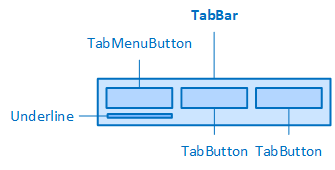
The TabBar and its elements
By default, a "TabBar" contains three navigation buttons (TabButton). A TabButton enables navigation to a view or page.
To add further tab buttons or remove existing ones, call up the Collection Editorvia the  button behind the "Items" property of the tab bar (category "Group").
The TabButton supports the following functionality::
-
Navigation to a page or view
-
Display of a language-switchable text in the control element
-
Display of a graphic in the control element
-
Connection to the user administration for blocking operability
-
Display of the background, the frame, the shadow, etc.
-
Color display of the background, frame, text, etc., also depending on the status of the control element
-
Different display depending on the status of the control element
Further system styles are available for the control in the "Style" property from the "General properties" category. By default, the control uses the "Plain.Default" style.
Certain properties may be missing in the Properties window for styled controls. For example, the "Colors" category is not available for controls in the system styles. These properties cannot be edited in the system styles.
You can also create your own styles for the control element. These styles are available for selection in the "Style" property after creation.
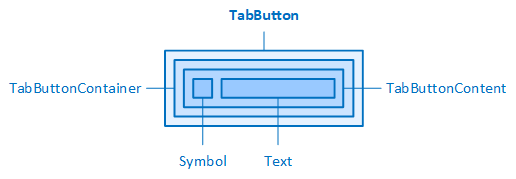
The TabButton and its elements
A TabBar can contain menu buttons (TabMenuButtons) that contain a selection list with menu items.
To add or remove existing TabMenuButtons, call up the Collection Editorvia the button behind the "Items" property of the TabBar (category "Group").
The TabMenuButton supports the following functionality::
-
Display of a selection list with menu items
-
Display of a language-switchable text in the control element
-
Display of graphics in the control element (symbol, collapsed symbol, expanded symbol)
-
Connection to the user administration for blocking operability
-
Display of the background, the frame, the shadow, etc.
-
Color display of the background, frame, text, etc., also depending on the status of the control element
-
Different display depending on the status of the control element
Further system styles are available for the control in the "Style" property from the "General properties" category. By default, the control uses the "Plain.Default" style.
Certain properties may be missing in the Properties window for styled controls. For example, the "Colors" category is not available for controls in the system styles. These properties cannot be edited in the system styles.
You can also create your own styles for the control element. These styles are available for selection in the "Style" property after creation.
-
If a different style is selected for the control element, the style of the contained sub-elements does not change automatically. To change the style of a sub-element, select the element in the Designer or in the document outline and select the desired style in the "Style" property.
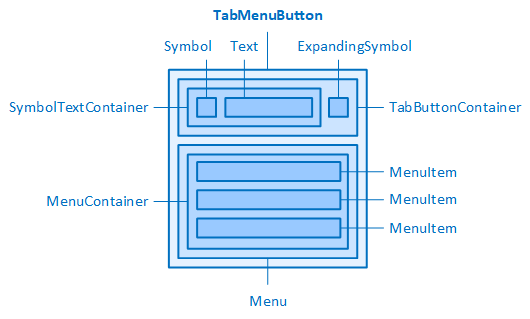
The TabMenuButton and its elements
A "TabMenuButton" can contain sub-elements of type "MenuItem". Each menu item enables navigation to a page or view.
To add further MenuItems or remove existing ones, call up the Collection Editorvia the button behind the "MenuItems" property of the "TabMenuButton" (category "Menu").
The MenuItem supports the following functionality::
-
Navigation to a page or view
-
Display of a graphic in the control element
-
Connection to the user administration for blocking operability
-
Display of the background, the frame, the shadow, etc.
-
Color display of the background, frame, text, etc., also depending on the status of the control element
Further system styles are available for the control in the "Style" property from the "General properties" category. By default, the control uses the "Plain.TabNav" style.
Certain properties may be missing in the Properties window for styled controls. For example, the "Colors" category is not available for controls in the system styles. These properties cannot be edited in the system styles.
You can also create your own styles for the control element. These styles are available for selection in the "Style" property after creation.
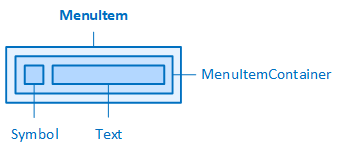
The MenuItem and its elements
Automatic positioning of the sub-elements
The "Orientation" property is available in the "Group" category. This property can be used to position the TabButtons and TabMenuButtons of the TabBar either below each other (Orientation = Vertical) or next to each other (Orientation = Horizontal).
If the style of the TabBar control element is reset, further properties are available for the automatic positioning of the TabButtons and TabMenuButtons it contains.
Related topics: