Key
Push-button with variable connection.
|
Symbol |
|
|
Menu ribbon |
Start > Controls > Buttons > Switches and buttons > Key |

The "Key" control element changes the value of a binary process variable. The value is influenced by pressing the button. The actuation (press/release) is graphically animated, e.g. through shadow effects and colour changes.

Control element Key
Functionalities
The control element supports the following functionality:
-
Connection to a binary process variable(one bit) for the data source
The "KeyMode" property defines how this process variable is influenced when the button is pressed:Key
When the button is pressed, the bit is set (=true) and reset again when it is released (=false).
On
The bit is set when the button is pressed (=true). If it is already set, nothing happens.
Off
When the button is pressed, the bit is reset (=false). If it has already been reset, nothing happens.
Toggle
When the button is pressed, the bit is inverted (true→false/false→true).
-
Navigation to a page or view
-
Display of a language-switchable text in the control element
-
Display of a graphic in the control element
-
Connection to the user administration for blocking operability
-
Display of the background, the frame, the shadow, etc.
-
Colour display of the background, frame, text, etc., also depending on the status of the control element
You can configure these functionalities via the properties in the Properties window when you select the control in the Designer or in the document outline. Whether a property is visible in the properties window depends on the style of the control.
Style
By default, the control uses the "Plain.Default" style. Other system styles are available for the control in the "Style" property from the "General properties" category.
Certain properties may be missing in the Properties window for styled controls. For example, the "Colours" category is not available for controls in the system styles. These properties cannot be edited in the system styles.
You can also create your own styles for the control element. These styles are available for selection in the "Style" property after creation.
Structure
The control element consists of a number of other elements. Both the control itself and its elements can be configured via the properties of the control. Properties for a sub-element of the control can usually be found in the category that bears the name of this element.
Example: The properties for configuring the "Text" element can be found in the Properties window in the "Text" category when you select the control element in the Designer or in the document outline.
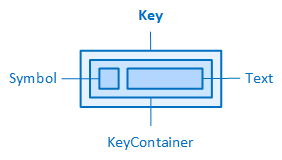
The key and its elements
Related topics: