Add navigation button
In the FixClassical layout as well as in the FixTop layout, the buttons for navigation are defined in the ButtonView.html view.
-
How to add a button:
-
Expand the [Project]_ClientWDesignWviews folder in the Project Explorer.
-
Double-click on the "ButtonView.html" entry to open the file in the Designer workspace.
-
Select the "Tab Bar" element in the document structure.
-
In the properties window under Common PropertiesWItems (Collection), click on the button
 .
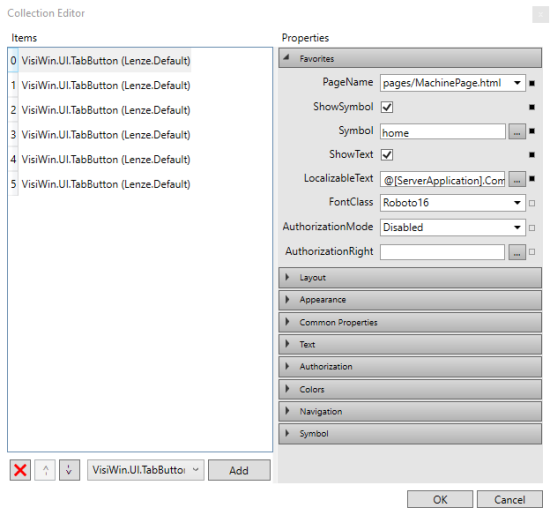
.The Collection Editor dialogue box is displayed:
-
In the selection field, you can select a TabButton or a TabMenuButton (button with submenu) and add it using the Add button.
You can use the two buttons
 and
and  to move a selected entry to the desired position.
 -
Customise the properties of the button.
-
Under FavouritesWPageName you can select the target page that is to be displayed when the button is pressed.
-
Under FavouritesWLocalizableText, you can assign a text that can be switched in the language to the button.
-
-
Click the OK button to apply the changes.