Toolbar
The toolbar of the cross-reference editor contains functions for starting the scan process, for displaying and hiding the details of each result and for navigating to the respective source. These functions are also available in the context menu when you right-click on the table. The toolbar also contains buttons for filtering the results.
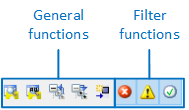
Toolbar of the cross reference editor
The toolbar contains the following general functions. These functions are also available in the context menu of the editor.
|
|
Starts the comparison between the definitions of the project file and the application. With this function, only the files that have changed since the last scan are scanned. |
|
|
Starts the comparison between the definitions of the project file and the application. This function scans all files, i.e. even those that have not changed since the last scan. |
|
|
Close all nodes Hides the details of all results in the table. |
|
|
Open all nodes Shows the details of all results in the table. |
|
|
Show definition Opens the source in which the binding or definition is used ("Used in" column) in the corresponding editor. |


The toolbar contains the following filter functions:
|
|
Show error If the switch is activated, the table only shows results with the status "Error". |
|
|
Show warnings If the switch is activated, the table only shows results with the status "Warning". The filter for warnings is hidden by default for variables and texts in the toolbar. Warnings for variables and texts are also not counted in the status bar. If you want to use the filter for warnings for variables and texts and have the number of warnings displayed in the status bar, you can set this in the Optionsdialogue. To do this, expand the Development environment node in the dialogue, select the "Cross reference" view and activate the options "Variable defined but not used" and "Localised text defined but not used". |
|
|
Display correct usages If the switch is activated, the table only shows results with the status Correct. |
|
|
Info This status only affects bindings. When scanning, the system searches for curly brackets in the XAML files and displays the hits in the table. With the Info status, it is not possible to automatically determine whether the binding is correct. |
|
|
Display system texts This status only affects texts. If the switch is activated, system texts are displayed in the table. |


