You can configure an application with alarm management for remote alarms for an HMI device. The local alarm configuration of the HMI is extended by the Remote Alarms object. The the alarm management can edit the alarm information of remote PLCs as well as local alarms. At the same time, the remote PLCs are connected to the HMI device via data source management. Then a visualization of the HMI application can centrally display all alarms in the network and the user can acknowledge them from a central location.
Initial situation: Applications are running on remote PLCs in the network. Each of these applications has alarm management configured. This is the case when the Alarm Configuration object exists in the Devices view below the application.
-
On you local system, start an HMI runtime.
-
Open and click .
-
Select the HMI Project template and specify a name for the new project (example:
Central_HMI.Specify the communication settings of the HMI runtime.
In the Create HMI Project – Add Objects dialog, select the Alarm configuration and Program objects.
As the perspective, select the Perspective .
The project
Central_HMIhas been created. -
Select the data source manager and insert a data source there for each remote PLC. Select a connection (example: Symbolic).

Note Remember that the applications of the remote PLCs have to be active. Therefore, download and start the remote applications in time and check their status.
Connections to the remote devices are available via the data sources
ds_Device_Aandds_Device_B. Now the alarm configuration can be extended.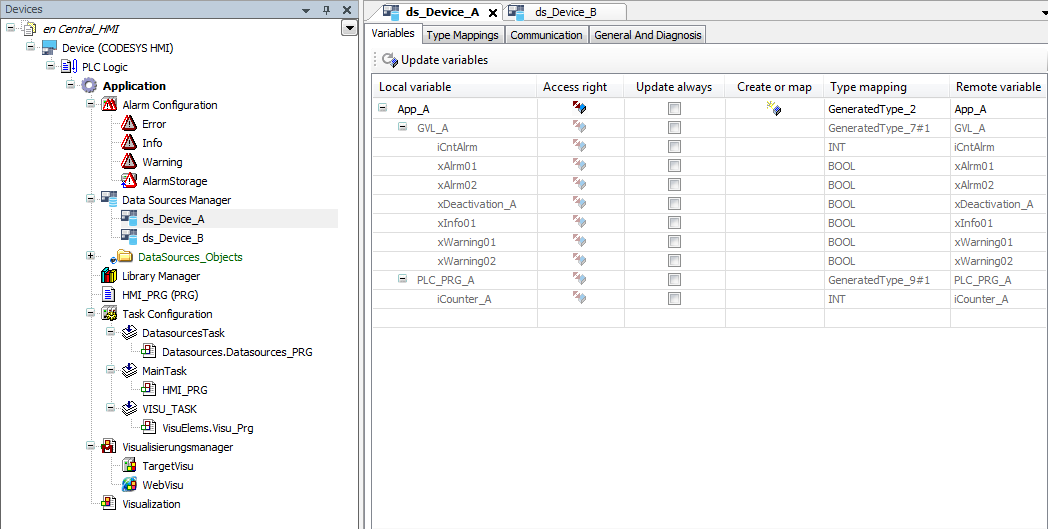
-
Select the alarm configuration and click .
-
Click Add to confirm the dialog.
The local alarm configuration is extended by the information from the alarm configurations of the applications
App_AandApp_B. The alarm management is distributed and communicates via the data source connections. Now the local HMI application can be downloaded to the runtime.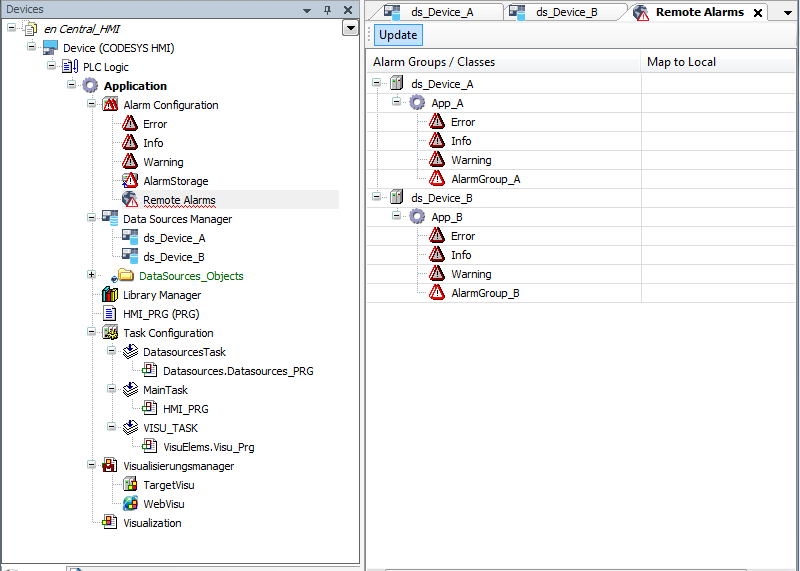
Now you can create a visualization with the Alarm Table or Alarm Banner elements.