UIDesigner.OPCUAClient.Authentication
The runtime of the »EASY UI Designer« is executed on the Controller. The controller has an internal connection to the OPC UA Server to retrieve the data for display. This internal connection can also be switched from one controller to another,via an external endpoint.
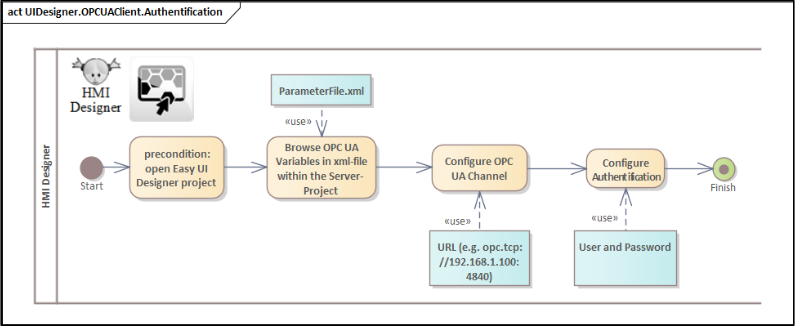
Activity Diagram
Browse OPC UA Variables
The variable connection between the server project and the controller takes place via OPC-UA. This is set in the »EASY UI Designer« in the server project as follows:
-
Open the Server Project
-
Open Variables / Channels / Controller: OPCUA
-
Right mouse click and "Browse Variables ..."
-
Add
-
Communication type: CoDeSysV3 export file (*.xlm)
-
Namespace index: 4
-
Device type: e.g. c500
-
Device name: choose a typical name
-
Choose parameter file in the PLC Project Directory
-
Then browse through the variable tree and select the wanted variables
Configure communication channel (OPC UA)
After the variables have been imported, communication via OPC UA must be configured.
-
Select "Variables / Channels / Controller: OPCUA" in the Server Project.
-
Open the device, e.g. c550
-
Click on the application
In the Property Page in the Common tab, the basic settings can be configured.
-
Name
Choose a name for the device, e.g. controller
-
OPC Server name
Choose an OPC Server name, e.g. OPCUA
-
URL
Integrate the URL for the OPC UA Server, e.g. opc.tcp://localhost:4855, or opc.tcp://192.168.10.100:4840
-
Browser
Please select "VisiWin.LenzeOPCUA.Brw.dll"
-
Default access path
url:Lenze:PLCOpen
Configure authentication
After setting the variables and the communication, the authentication for the OPC UA Client can be parameterized. If there is no active user management running on the controller (Controller.UserManagement)
-
Deactivate the checkbox "User authentication" in the tab
"Variables / Channels / Controller: OPCUA / <Device> / <Application>"
If there is an active user management running on the controller
-
Activate the checkbox "User authentication" in the tab
"Variables / Channels / Controller: OPCUA / <Device> / <Application>"
-
Insert "Login name" and Password
-
Click Apply button
-
When entering the password in plain text, it should be noted that it can be read on the screen. Organizational measures must therefore be taken to ensure that the password cannot be read by third parties. After accepting the login name and password with the Apply button, the password is correctly displayed with ****.