v4x0.FirmwareUpdate
The Component v4x0 has the possibility for a firmware update.
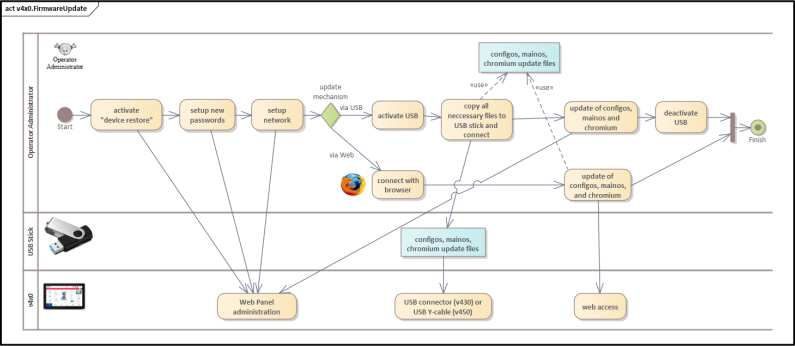
Activity Diagram
Reset authentification management:
If the authentification features have been lost, the components can be reset. With this procedure, all settings (not only the authentication features) are lost.
Working in the System Settings > Management are a critical operation and, if not performed correctly, may cause product damages requiring serice of the product. Only firmware updates are recommended, a firmware downgrade may be technically possible, but is not specified as a product feature. A firmware downgrade should therefore only be carried out in exceptional situations.
-
Prepare the device reset or firmware update
-
Ask the Lenze Support for the necessary files:
-
…configos….tar.gz
-
…configos….tar.gz.md5
-
…mainos.…tar.gz
-
…mainos.…tar.gz.md5
-
chromium….zip
-
chromium...zip.md5
-
-
If you want to update via USB stick, please prepare the USB stick with one of the following file systems:
-
FAT16/32
-
Linux Ext2, Ext3 or Ext4
-
-
If you want to update via USB stick, please copy all files in root of the USB stick.
-
To reset the component, follow these instructions:
-
Restart the component and do a tap-tap on the left upper corner of the panel.
-
A message will appear:
-
TAP-TAP DETECTED
-
RESTART: CONFIG OS
-
>> SYSTEM SETTINGS
Choose "SYSTEM SETTINGS"
-
-
Another message will appear:
-
ENTERING SYSTEM SETTINGS
-
>> DEFAULT MODE
-
DEVICE RESTORE
Choose "DEVICE RESTORE"
-
-
An information will appear:
-
Restoring device to defaults
This operation could take few minutes, please wait ...
-
Device restore successful
Rebooting ...
-
-
After some time, the component will reboot automatically.
-
A message will appear:
-
Empty boot sequence
-
-
Two buttons are located on the display.
-
System Settings
-
Startup sequence
-
-
Start the System Settings.
-
A request appears to assign a password (and its confirmation) to the admin user.
-
Change the IP address in the System Settings menu under the Network tab:
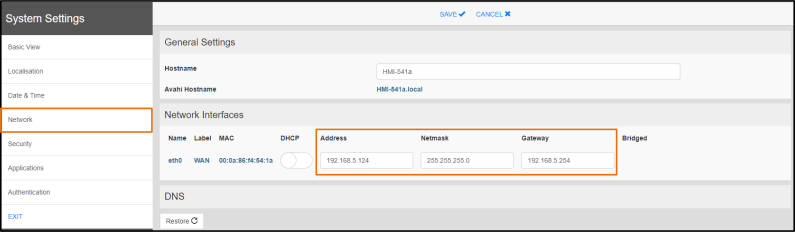
Change IP Address
-
There are two ways to transport these files to the v4x0 component:
a) via USB stick to the v430 web panel
b) via USB stick and an Y-cable to the v450 web panel
c) via online web browserIf using the USB stick, you have to activate the USB Connection first via System Settings / Security / USB Devices.
-
Update the "Config OS" via the
System Settings(in Advanced View) and the Management Tab and choose Config OS and the Update button: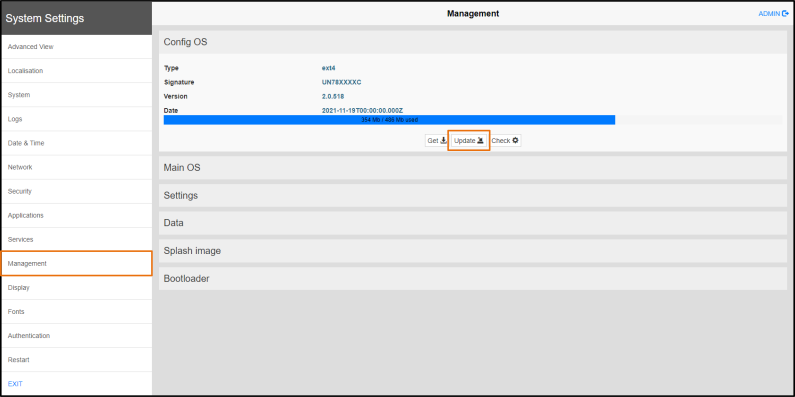
Config OS
After that, please select the
configos.tar.gzfile and theconfigos.tar.gz.md5file, and then proceed, e.g. if using an USB stick update, you will find the file/mnt/usbmemory/...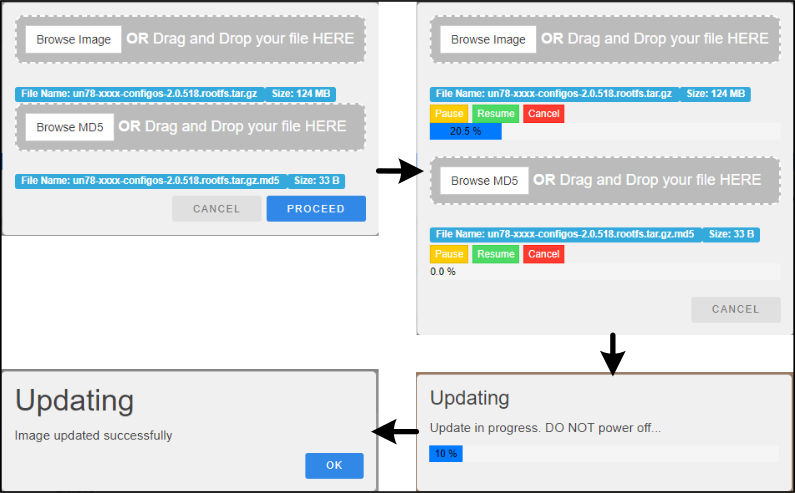
Config OS Status
-
Update the "Main OS" via the
System Settings(in Advanced View) and Management tab. Select "Main OS" and then click the Update button. -
In the final step, the Chromium application must be loaded. For this purpose, the application must be added in the
System Settings(in Advanced View) under Applications.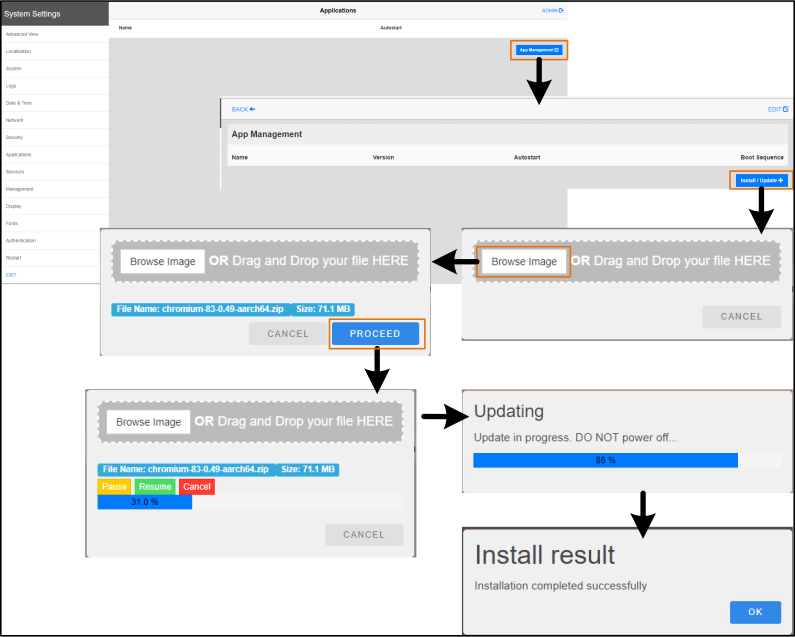
Applications
-
After a reboot, the System Settings contains a Web Browser entry. At this point, the homepage and the startup behavior can be entered.
-
If the USB connection was activated for the update, it is recommended to deactivate it again.