Collection Editor
Some control elements require sub-elements for full functionality.
The Collection Editor is a dialogue that supports you when adding sub-elements to the control and when configuring these sub-elements. Properties that call up the Collection Editor are labelled with the suffix "(Collection)".
To call up the Collection Editor for a property, select the control element in the Designer and click on the  button behind this property.
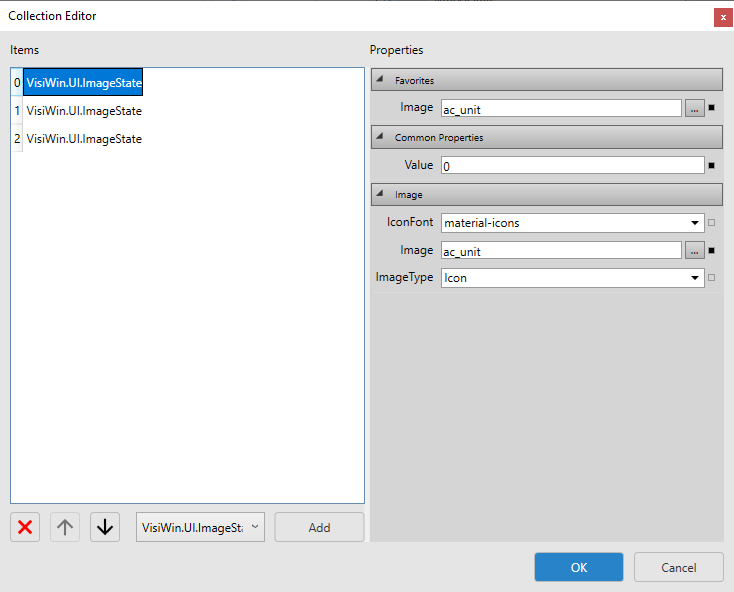
Collection Editor for the ImageList property of the Image control element
The following functions are available in the Collection Editor:
Add element
To add an element to the control, first select an element type in the selection list at the bottom left. For most controls, only one element type can be selected here. Click on the Add button.
Change the order of the elements
To move an element further down or further up in the list, select the element and click on the button  or
 .
Remove element
To remove an element from the list, select the element and click on the button  .
Configure element
To configure an element, select the element in the list and specify values for the available properties on the right-hand side of the Collection Editor.
Confirm or cancel list
To accept the list with the configured elements for the parent control, click OK. To discard the list, click Cancel.