Extended property options
The extended property options contain specific options for the selected property.
To open the menu, click on the small box symbol ( ) behind the property field. If a value has been set for the property, the box icon appears in black. If the property has been converted to a resource or if it uses a resource or contains a binding, it will appear in the corresponding colour.
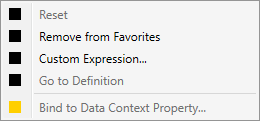
Menu for advanced property options
The menu contains the following functions:
Reset
Resets the property to its default value.
Add to favourites
Adds the property for frequent and quick access to the "Favourites" category, which is always at the top of the properties window. The "Remove from favourites" function is available for properties that are already in this category. The properties in the "Favourites" category can always be found in their original category.
User-defined expression...
Provides a text field to enter a markup extension or the combination of several enumeration values, for example.
Go to Definition
If a definition is specified in a property, you can use this function to quickly go to the source of this definition. The function is available for the properties "Localisable text", "Authorisation right", "Variable name", "Region name" and "View name".
Example: A text definition is specified in the "Localisable text" property in a button. To edit the texts of this definition in other languages, for example, you must open the text definition in the table editor. You can navigate to the text definition via the project explorer. However, it is quicker to use the "Go to definition" function:
Open the advanced options of the "Localisable text" property.
Click on "Go to definition".
This function is blocked in the Collection Editor. You can still use this function by selecting the element after which it was added in the document outline. The Go to definition function is then available in the properties window for the desired property.
Bind to data context property...
This function is available for an element if a data context has been defined in the "Data context" property for the selected element or a higher-level element (usually the view/page). A property of this DataContext can then be selected for binding using this function.