Add and edit a state collection
A new client project contains state collections for colors, images and texts that you can use in a VariableTrigger in order to switch colors, images or texts in a control if the variable value changes. This guide shows you how to add a new state collection and edit the assignments (states).
To add a new state collection and edit the states within the state collection:
-
Expand the Project Explorer nodes [ProjectName]_Client > Design > resources > statecollections.
The statecollections folder contains three JSON files, which in turn contain state collections for colors (colorcollections.json), images (imagecollections.json) or texts (textcollections.json).
-
Double-click on colorcollections.json, for example, in order to open the state collections editor in the designer.
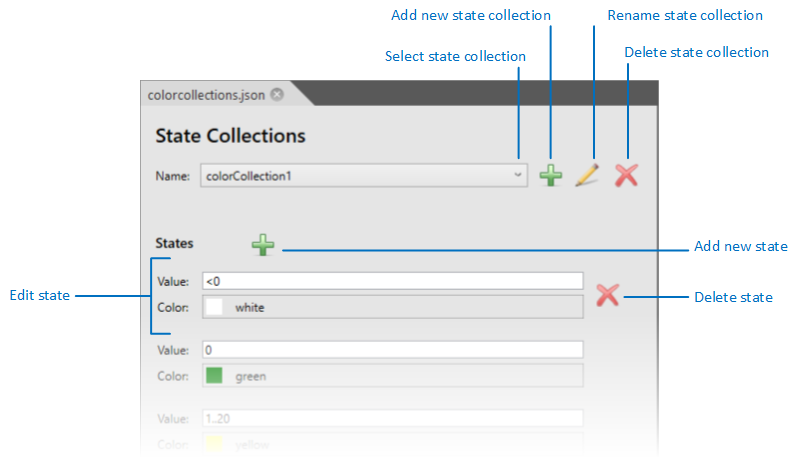
State collections editor
If you want to add state collections for images or texts, double-click on imagecollections.json or textcollections.json, respectively.
-
To add a new state collection, click on the green plus sign
 next to the Name drop-down list.
-
In the dialog that appears, type a name for the new state collection and click Add.
The state collection is created and the name of the state collection appears in the Name field. It already contains a state, which you can find under States.
-
To edit the state, type a numeric value into the Value field and click on the Color field to select a color.
A view with two tabs appears below the Color field. On the first tab, you can select a color using the color picker or type the RGBA values into the respective fields. On the second tab, you can select a theme color or a CSS color.
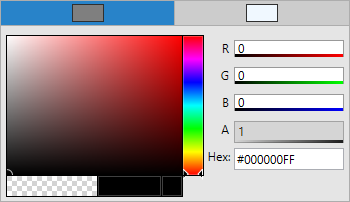
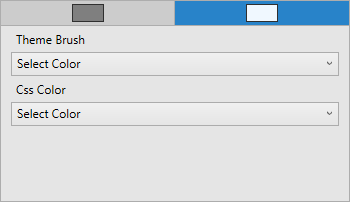
Color selection using the color picker or by color name
-
Select the desired color, e.g. the ErrorColor from the Theme color list.
If you click outside of the color selection view, the view is closed and the RGB value of the selected color appears in the Color field.
-
To add another state, click on thee green plus sign
next to States and set the value and the color. -
Press Ctrl+S to save the changes.
You can skip this step if you enable the Save documents automatically option, which you can find in the Options dialog under Designer > Documents.
You have successfully added a new state collection, which you can now use in a VariableTrigger of a control.
Related topics: